|
Troubleshooting
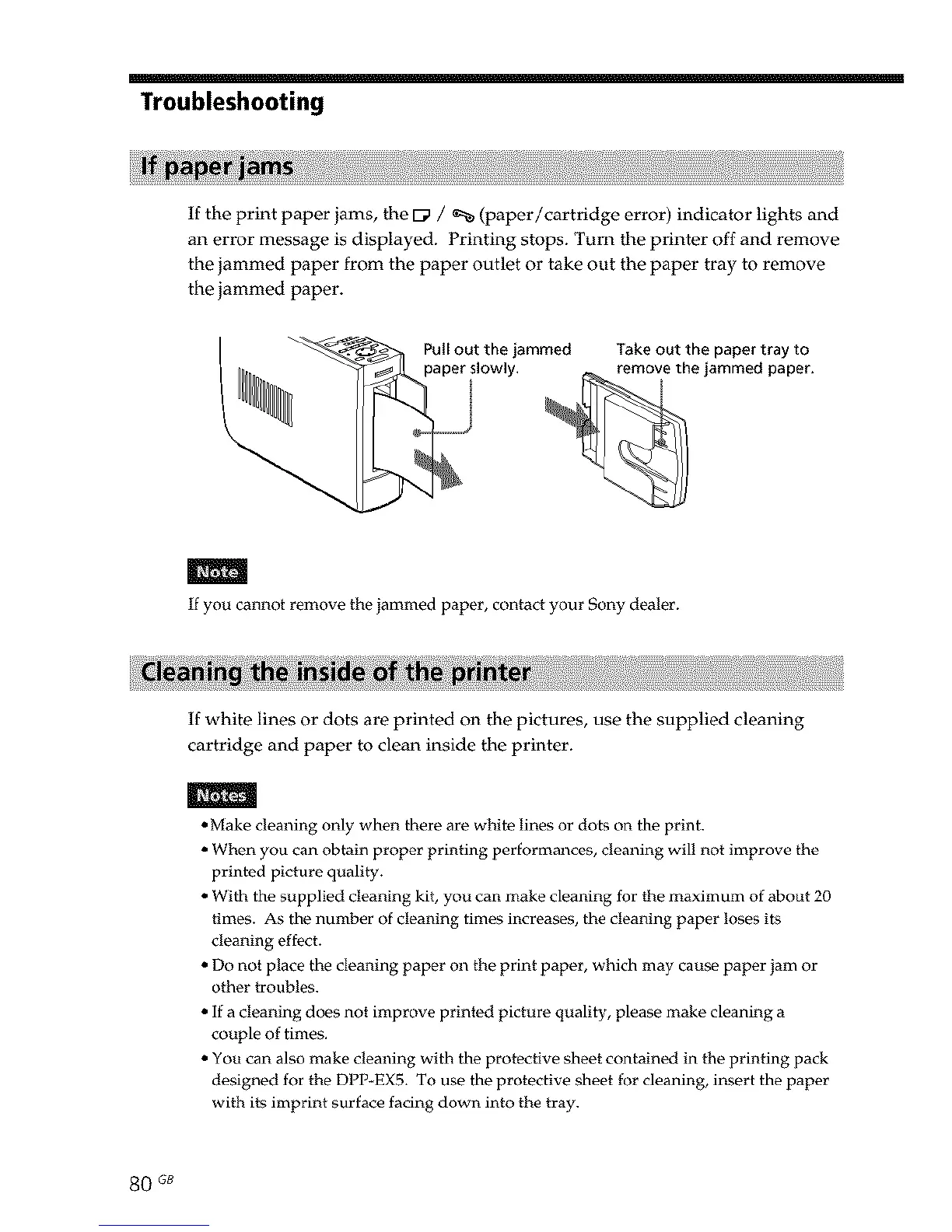
If the print paper jams, the Ga / % (paper/cartridge error) indicator lights and
an error message is displayed. Printing stops. Turn the printer off and remove
the jammed paper from the paper outlet or take out the paper tray to remove
the jammed paper.
Pull out the jammed
paper slowly.
Take out the paper tray to
remove the jammed paper.
m
If you cannot remove the jammed paper, contact your Sony dealer.
If white lines or dots are printed on the pictures, use the supplied cleaning
cartridge and paper to clean inside the printer.
m
• Make cleaning only when there are white lines or dots on the print.
• When you can obtain proper printing performances, cleaning will not improve the
printed picture quality.
• With the supplied cleaning kit, you can make cleaning for the maximum of about 20
times. As the number of cleaning times increases, the cleaning paper loses its
cleaning effect.
• Do not place the cleaning paper on the print paper, which may cause paper jam or
other troubles.
• If a cleaning does not improve printed picture quality, please make cleaning a
couple of times.
• You can also make cleaning with the protective sheet contained in the printing pack
designed for the DPP*EX5. To use the protective sheet for cleaning, insert the paper
with its imprint surface facing down into tho tray.
80 GB



 To Next Page