1. Switch the setting of this product according to the resolution of the connected 4K or
high definition TV.
- [Setup]- [ Connection]- [HDMI Resolution]- desired setting.
HDMI Resolution:
4K TV: [Auto](*), [2160p/1080p] (*), [1080p], [1080i], [720p]
High definition TV: [Auto], [1080p], [1080i], [720p]
*
A black screen appears for several seconds when the Trimming Playback function is turned
on or off.
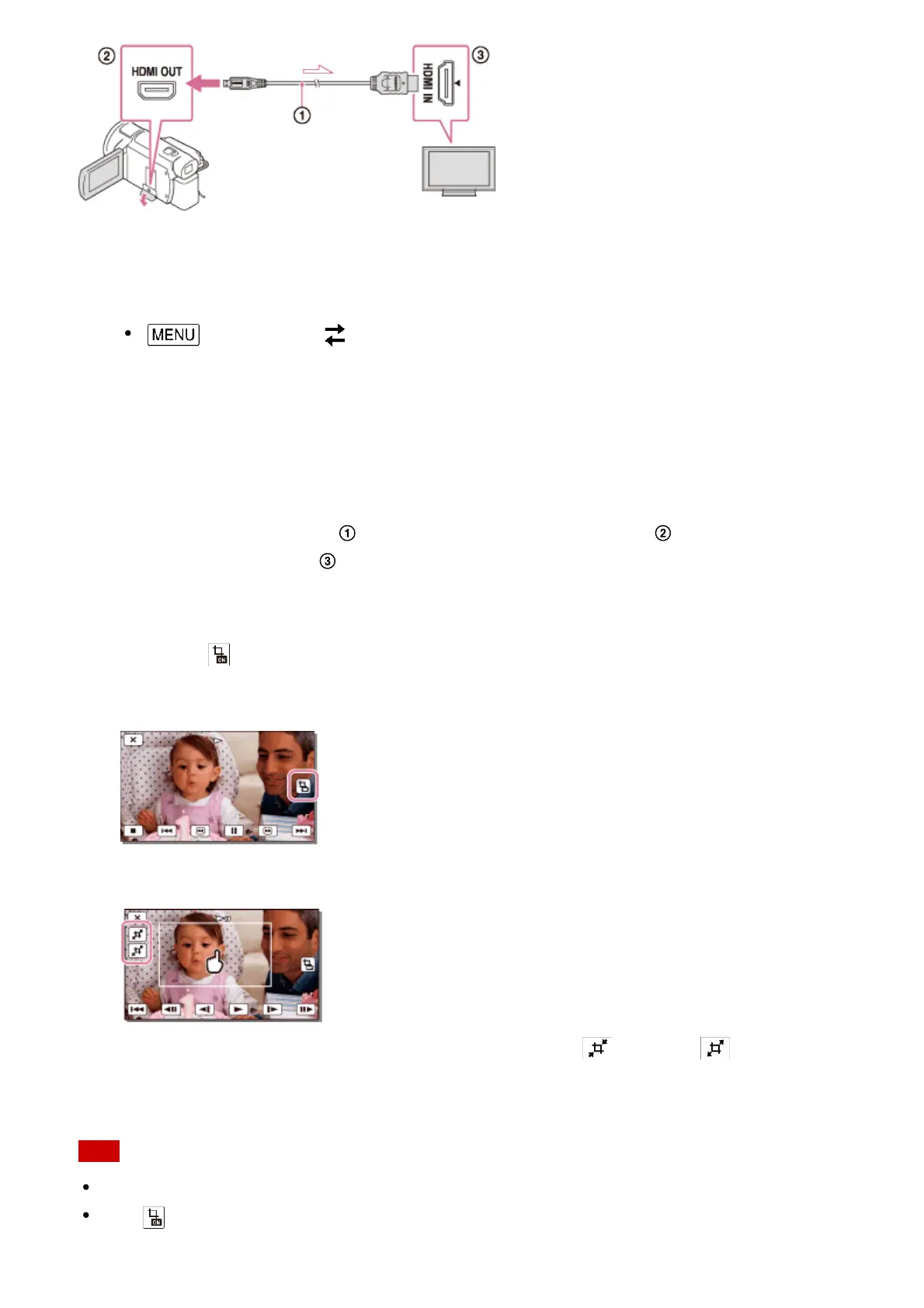
2. Connect the HDMI cable ( ) (supplied) to the HDMI OUT jack ( ) on this product and
to the HDMI input jack ( ) on the TV.
3. Play a desired movie saved on this product.
4. Touch the (Trimming Playback) button on the LCD monitor of this product during
movie playback.
The trimming playback frame appears.
5. Touch the area you want to enlarge on the LCD monitor of this product.
The size of the trimmed image can be adjusted with the (zoom in)/ (zoom out)
buttons. You can also adjust the image size with the power zoom lever.
Note
Enlarged images cannot be played back on the LCD monitor of this product.
The (Trimming Playback) button is not displayed on the LCD monitor of this product in
the following cases:


 To Next Page