EasyManua.ls Logo

Sony FH-B500 - Page 17

Sony FH-B500
23 pages
Print Icon
To Next Page IconTo Next Page
To Previous Page IconTo Previous Page
Loading...
4
Press
&
OPEN/CLOSE
again
to
close
the
tray.
Note:
Make
sure
that
the
total
number
of
selections
and
the
total
playing
time
appear
in
the
display.
5
Press
EDIT
three
times.
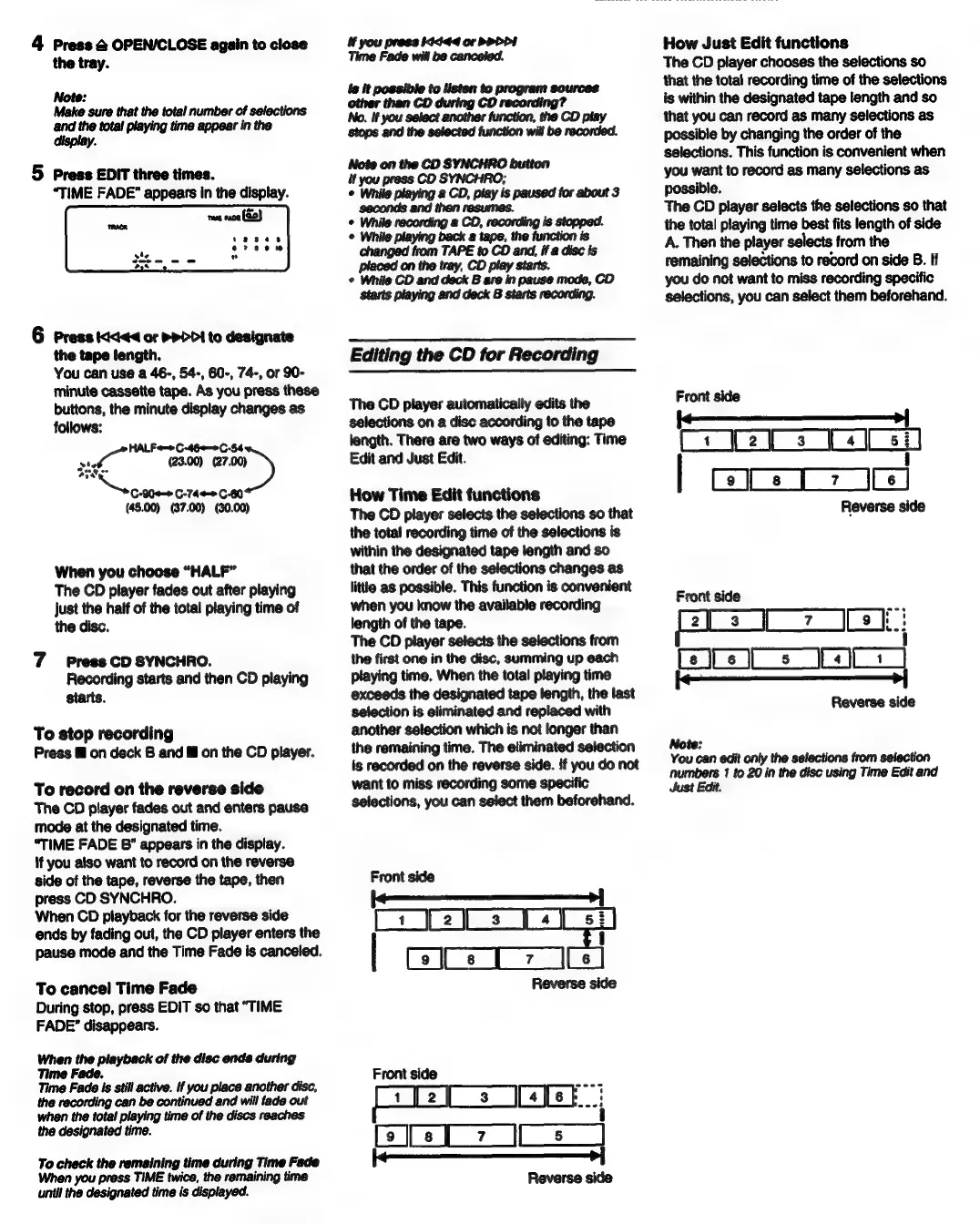
“TIME
FADE”
appears
in
the
display.
6
Press
td4<<
of
p>
>>I
to
designate
the
tape
length.
You
can
use
a
46-,
54-, 60-,
74-,
or
90-
minute
cassette
tape.
As
you
press
these
buttons,
the
minute
display
changes
as
follows:
HALF<-+C-460—0C-54
SCG)
jab
¢
oae
Sage
tuieecoan
(45.00)
(37.00) (30.00)
When
you
choose
“HALF”
The
CD
player
fades
out
after
playing
just
the
half
of
the
total
playing
time
of
the
disc.
7
~~
Press
CD
SYNCHRO.
Recording
starts
and
then
CD
playing
starts.
To
stop
recording
Press
@
on
deck
B
and
&@
on
the
CD
player.
To
record
on
the
reverse
side
The
CD
player
fades
out
and
enters
pause
mode
at
the
designated
time.
“TIME
FADE
8"
appears
in
the
display.
if
you
also
want
to
record
on
the
reverse
side
of
the
tape,
reverse
the
tape,
then
press
CD
SYNCHRO.
When
CD
playback
for
the
reverse
side
ends
by
fading
out,
the
CD
player
enters
the
pause
mode
and
the
Time Fade
is
canceled.
To
cancel
Time
Fade
During
stop,
press
EDIT
so
that
“TIME
FADE”
disappears.
When
the
playback
of
the
disc ends
during
Time
Fade.
Time
Fade
is
still
active.
if
you
place
another
disc,
the
can
be
continued
and
will
fade
out
when
the
total
playing
time
of
the
discs
reaches
the
designated
time.
we
check
the
remaining
time
during
Time
Fade
When
you
press
TIME
twice,
the
remaining
time
until
the
designated
time
is
displayed.
i
you
press
Ii44
or
PPDDI
Time
Fade
will
be
canceled.
ts
it
possible
to
listen
to
program
sources
other
than
CD
during
CD
recording?
i
you
pease
CO
SYNAGP,
2
le
ers
ee!
play
is
paused
for
about
3
seconds
and
placed
on
the
tray,
CD
play
starts.
©
While
CD
and
deck
B
are
in
pause
mode,
CD
Starts
playing
and
deck
B
starts
recording.
Editing
the
CD
for
Recording
The
CD
player
automatically
edits
the
selections
on
a
disc
according
to
the
tape
length.
There
are
two
ways
of
editing:
Time
Edit
and
Just
Edit.
How
Time
Edit
functions
The
CD
player
selects
the
selections
so
that
the
total
recording
time
of
the
selections
is
within
the
designated
tape
length
and
so
that
the
order
of
the
selections
changes
as
little
as
possible.
This
function
is
convenient
when
you
know
the
available
recording
length
of
the
tape.
The
CD
player
selects
the
selections
from
the
first
one
in
the
disc,
summing
up
each
playing
time.
When
the
total
playing
time
exceeds
the
designated
tape
length,
the
last
selection
is
eliminated
and
replaced
with
another
selection
which
is
not
longer
than
the
remaining
time.
The
eliminated
selection
is
recorded
on
the
reverse
side.
if
you
do
not
want
to
miss
recording
some
specific
selections,
you
can
select
them
beforehand.
Front
side
(-——___—____—-
Ps
ey
2
Tet
st
x
Reverse
side
Front
side
Reverse
side
How
Just
Edit
functions
The
CD
player
chooses
the
selections
so
that
the
total
recording
time
of
the
selections
is
within
the
designated
tape
length
and
so
that
you
can
record
as
many
selections
as
possible
by
changing
the
order
of
the
selections.
This
function
is
convenient
when
you
want
to
record
as
many
selections
as
possible.
The
CD
player
selects
the
selections
so
that
the
total
playing
time
best
fits
length
of
side
A.
Then
the
player
selects
from
the
remaining
selections
to
record
on
side
B.
If
you
do
not
want
to
miss
recording
specific
selections,
you
can
select
them
beforehand.
Reverse
side
Note:
You
can
edit
only
the
selections
from
selection
numbers
1
to
20
in
the
disc
using
Time
Edit
and