43
GB
NAS-E35HD.GB.3-292-247-11(1)
Exporting album information
to a USB storage device
is section explains how to export album
information for which you have no title
information to a USB storage device. When
you perform this function for the rst time, the
application (Title Updater) will be automatically
exported to the USB storage device as well.
1
Connect the USB storage device to
the (USB) port on the unit.
2
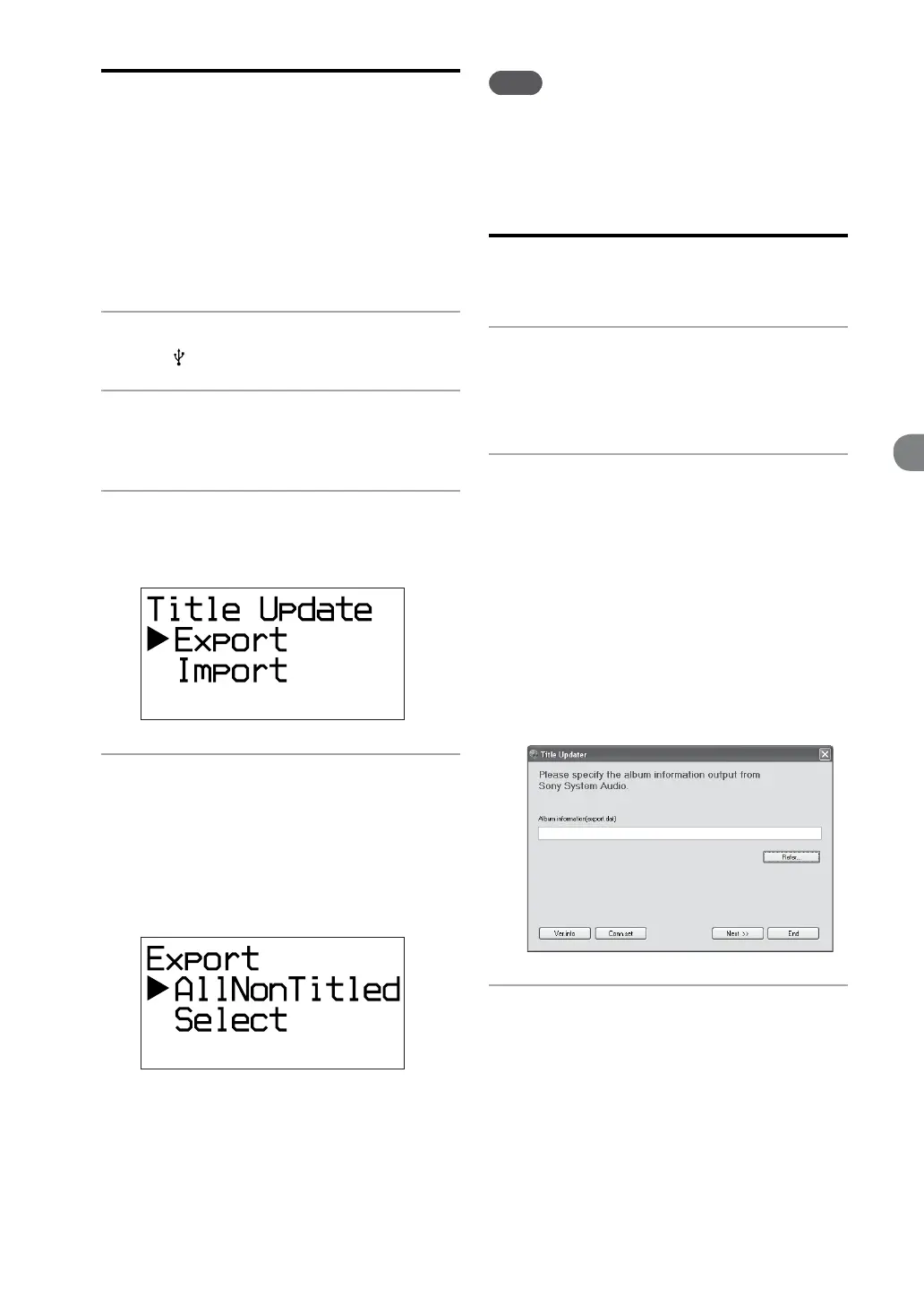
Select the HDD function and press
TITLE UPDATE.
e title update menu appears.
3
Press
/
to select “Export” and
press ENTER.
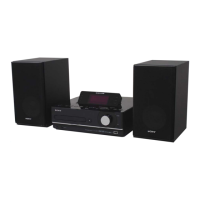
e export menu appears.
4
Press
/
to select “AllNonTitled”
and press ENTER.
All album information that has no title
information (“export.dat”) is exported
to the USB storage device. Title Updater
(“TitleUpdater.exe”) is automatically
exported at this time as well.
Note
To disconnect the USB storage device from the unit,
select the USB function and press and hold while
the unit is stopped, making sure “Device Stop” appears
in the display before disconnecting the USB storage
device.
Searching for album
information on the computer
1
Connect the USB storage device
(that was disconnected from the
unit) to the USB port on your
computer.
2
Double-click [TitleUpdater.exe]
in the root directory of the USB
storage device.
e computer starts up Title Updater.
If the album information le “export.dat”
is stored in the root directory of the USB
storage device, a search window appears. If it
does, go to step 7.
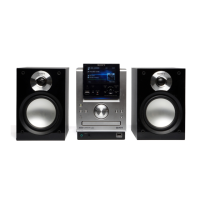
If the album information le “export.dat”
is not stored in the root directory of the
USB storage device, an album information
selection window appears.
3
Click [Refer…].
A le selection window appears.


 To Next Page