22
6 3,4
1
2,5
2,3,4
1 Press z REC on the MD deck to stand
by for recording.
2 Press MENU/NO to display “MD
Setup ?”, then press ENTER/YES.
3 Turn l/L until “MD S.Space
OFF” (or “MD S.Space ON”) appears,
then press ENTER/YES.
4 Turn l/L until “MD S.Space
ON” appears, then press ENTER/YES.
5 Press MENU/NO.
6 Press H on the MD deck.
Recording starts.
If there is an extended silence of less than
30 seconds, “Smart Space” appears, and the
MD deck replaces the silence with a blank of
about 3 seconds and continues recording.
If there is no sound input for 30 seconds or
more, “Auto Cut” appears, and the MD deck
replaces the silence with a blank of about
3 seconds and switches to recording pause.
Press H to restart the recording.
Making a space
between tracks 3
seconds long
— Smart Space
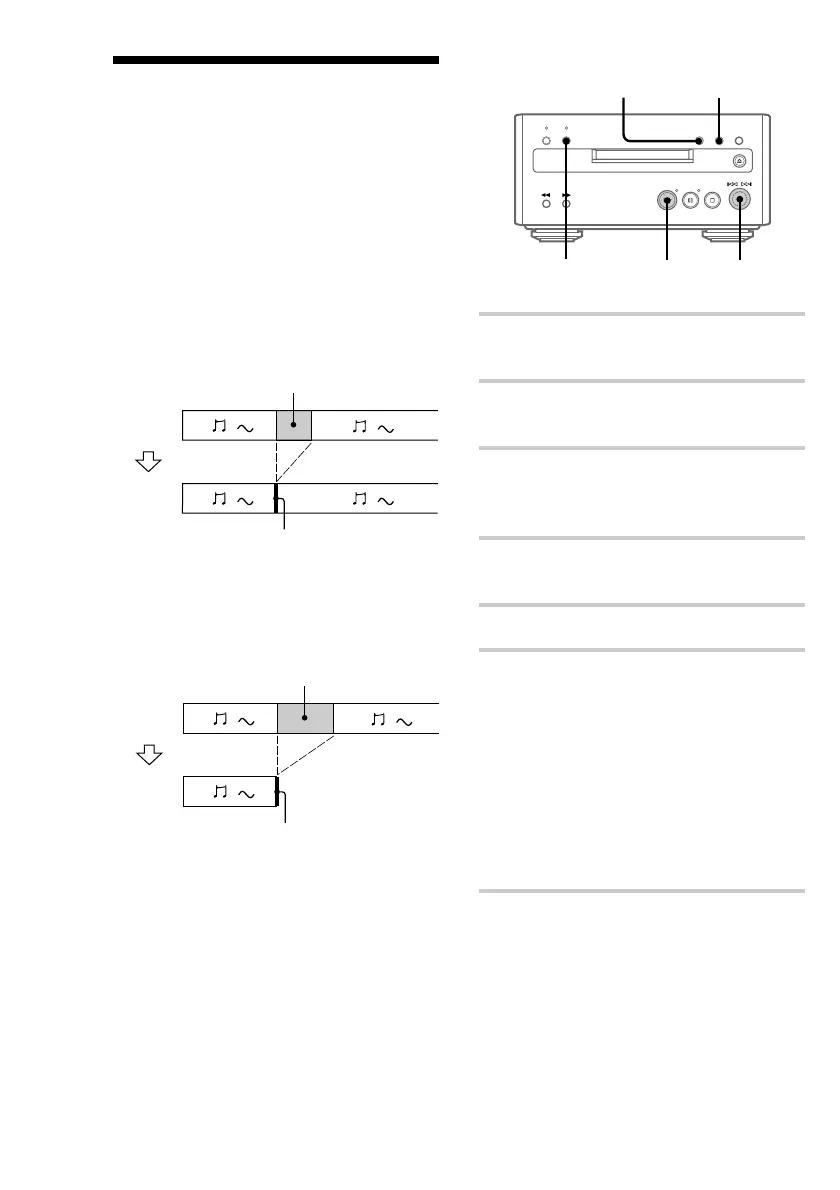
The Smart Space function lets you make the blank
spaces between tracks 3 seconds long
automatically while making a digital recording
from a CD. For other types of recording, if the
Smart Space function is on and there is no sound
input for about 3 seconds or more (but less than 30
seconds) while recording, the MD deck replaces
this silence with a blank of about 3 seconds and
continues recording.
No sound input for less than 30 seconds
Replaced with a blank of 3 seconds and
recording continues
Auto Cut: When the Smart Space function is on,
if there is no sound input for 30 seconds or more,
the MD deck replaces this silence with a blank of
about 3 seconds and enters recording pause.
No sound input for 30 seconds or more
Replaced with a blank of 3 seconds and
recording pauses
Off
On
Off
On


 To Next Page