1-10
41
Sound Adjustments
About audio signals
Audio signals recorded in a disc contain the
sound elements (channels) shown below.
Each channel is output from a separate
speaker.
• Front (L)
• Front (R)
• Center
• Rear (L)
• Rear (R)
• Rear (Monaural): This signal can be either
the Dolby Surround Sound processed
signals or the Dolby Digital sound’s
monaural rear audio signals.
• LFE (Low Frequency Effect) signal
Notes
• If “DTS” is set to “OFF” in “AUDIO SETUP,”
the DTS track selection option will not appear on
the screen even if the disc contains DTS tracks
(page 58).
• While playing a Super VCD on which the audio
track 2 is not recorded, no sound will come out
when you select “2:STEREO,” “2:1/L,” or
“2:2/R.”
TV Virtual Surround
Settings
(TVS)
When you connect a stereo TV or 2 front
speakers, TVS (TV Virtual Surround) lets
you enjoy surround sound effects by using
sound imaging to create virtual rear speakers
from the sound of the front speakers (L: left,
R: right) without using actual rear speakers.
TVS was developed by Sony to produce
surround sound for home use using just a
stereo TV.
If the player is set up to output the signal from
the DIGITAL OUT (COAXIAL) jack, the
surround effect will only be heard when
“DOLBY DIGITAL” is set to “D-PCM”
(page 58).
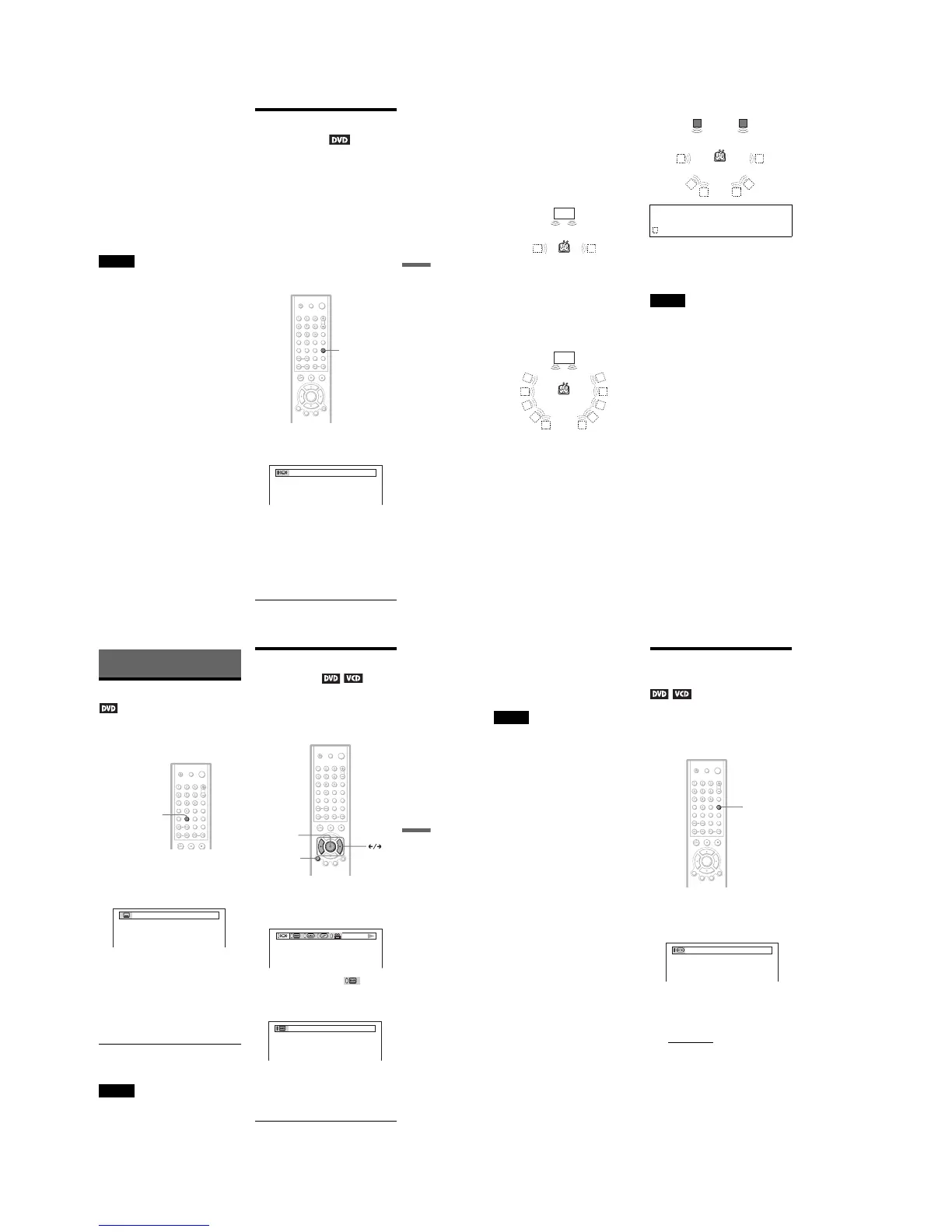
1
Press SUR during playback.
The following display appears.
2
Press SUR repeatedly to select
one of the TVS sounds.
Refer to the following explanations given
for each item.
• TVS DYNAMIC
• TVS WIDE
• TVS NIGHT
• TVS STANDARD
SU
,continued
42
To cancel the setting
Select “OFF” in Step 2.
◆TVS DYNAMIC
Creates virtual rear speakers from the sound
of the front speakers (L, R) without using
actual rear speakers (shown below).
This mode is effective when the distance
between the front L and R speakers is short,
such as with built-in speakers on a stereo TV.
◆TVS WIDE
Creates virtual rear speakers from the sound
of the front speakers (L, R) without using
actual rear speakers. The virtual speakers are
reproduced as shown in the illustration
below.
This mode is effective when the distance
between the front L and R speakers is short,
such as with built-in speakers on a stereo TV.
◆TVS NIGHT
Large sounds, such as explosions, are
suppressed, but the quieter sounds are
unaffected. This feature is useful when you
want to hear the dialog and enjoy the
surround sound effects of “TVS WIDE” at
low volume.
◆TVS STANDARD
Creates virtual rear speakers from the sound
of the front speakers (L, R) without using
actual rear speakers. The virtual speakers are
reproduced as shown in the illustration
below. Use this setting when you want to use
TVS with 2 separate speakers.
z Hints
• You can select “TVS” by pressing the
SURROUND button on the player.
• You can also select “TVS” from the Control Bar
(page 12).
Notes
• When the playing signal does not contain a signal
for the rear speakers, the surround effects will be
difficult to hear.
• When you select one of the TVS modes, turn off
the surround setting of the connected TV or
amplifier (receiver).
• Make sure that your listening position is between
and at an equal distance from your speakers, and
that the speakers are located in similar
surroundings.
• Not all discs will respond to the “TVS NIGHT”
function in the same way.
TV
TV
L: Front speaker (left)
R: Front speaker (right)
: Virtual speaker
L R
43
Enjoying Movies
Enjoying Movies
Displaying the Subtitles
If subtitles are recorded on the discs, you can
change the subtitles or turn them on and off
whenever you want while playing a DVD.
1
Press SUBTITLE during playback.
The following display appears.
The number in parentheses indicates the
total number of available subtitles.
2
Press SUBTITLE repeatedly to
select the language.
Depending on the DVD, the choice of
language varies.
When 4 digits are displayed, they
indicate a language code. Refer to
“Language Code List” on page 64 to see
which language the code represents.
To turn off the subtitles
Select “OFF” in Step 2.
Note
Depending on the DVD, you may not be able to
change the subtitles even if multilingual subtitles
are recorded on it. You also may not be able to turn
them off.
Adjusting the Picture
Quality
(BNR)
The Block Noise Reduction (BNR) function
adjusts the picture quality by reducing the
“block noise” or mosaic like patterns that
appear on your TV screen.
1
Press DISPLAY twice during
playback.
The following Control Bar appears.
2
Press C/c to select (BNR),
then press ENTER repeatedly to
select a level.
• 1: reduces the “block noise.”
• 2: reduces the “block noise” more than
1.
• 3: reduces the “block noise” more than
2.
SUBTITLE
,continued
44
To cancel the “BNR” setting
Select “OFF” in Step 2.
To turn off the Control Bar
Press DISPLAY repeatedly until the Control
Bar is turned off.
Notes
• If the outlines of the images on your screen should
become blurred, set “BNR” to “OFF.”
• Depending on the disc or the scene being played,
there may be no “BNR” effect, or it may be hard
to discern.
Adjusting the Playback
Picture (CUSTOM PICTURE MODE)
You can adjust the video signal of the DVD or
VIDEO CD from the player to obtain the
picture quality you want. Choose the setting
that best suits the program you are watching.
1
Press PICTURE MODE during
playback.
The following display appears.
2
Press PICTURE MODE repeatedly
to select the setting you want.
The default setting is underlined.
• STANDARD: displays a standard
picture.
• DYNAMIC 1: produces a bold
dynamic picture by increasing the
picture contrast and the color intensity.
• DYNAMIC 2: produces a more
dynamic picture than DYNAMIC 1 by
further increasing the picture contrast
and the color intensity.
• CINEMA 1: enhances details in dark
areas by increasing the black level.
PICTURE
MODE



 To Next Page