1-30
61
Settings and Adjustments
◆ BLACK LEVEL (COMPONENT OUT)
Selects the black level (setup level) for the
video signals output from the COMPONENT
VIDEO OUT jacks. You cannot select this
when the player outputs progressive signal
and the PROGRESSIVE indicator lights up in
blue on the front panel.
Custom Settings
(CUSTOM
SETUP)
Use this to set up playback related and other
settings.
Select “CUSTOM SETUP” in the Setup
Display. To use the display, see “Using the
Setup Display” (page 58).
The default settings are underlined.
◆ AUTO POWER OFF
Switches the Auto Power Off setting on or
off.
◆ AUTO PLAY
Switches the Auto Play setting on or off. This
function is useful when the player is
connected to a timer (not supplied).
◆ DIMMER
Adjusts the lighting of the front panel display.
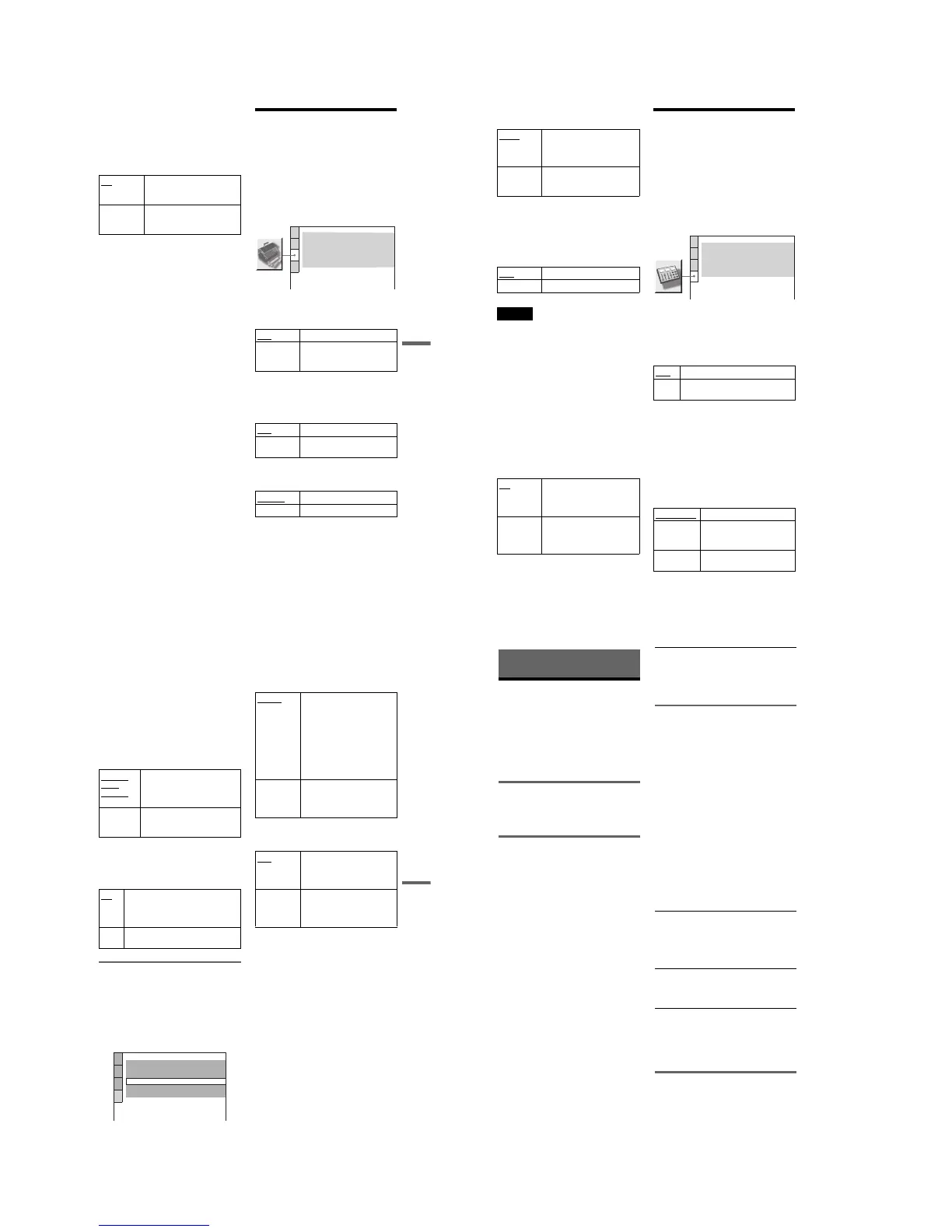
ON Sets the black level of the
output signal to the standard
level.
OFF Lowers the standard black
level. Use this when the picture
becomes too white.
OFF Switches this function off.
ON The player enters standby mode
when left in stop mode for more
than 30 minutes.
OFF
Switches this function off.
ON Automatically starts playback
when the player is turned on.
BRIGHT
Makes the lighting bright.
DARK Makes the lighting dark.
CUSTOM SETUP
AUTO POWER OFF:
AUTO PLAY:
DIMMER:
OFF
OFF
BRIGHT
AUTO
PAUSE MODE:
OFF
TRACK SELECTION:
ON
MULTI-DISC RESUME:
,continued
62
◆ PAUSE MODE (DVD only)
Selects the picture in pause mode.
◆ TRACK SELECTION (DVD only)
Gives the sound track which contains the
highest number of channels priority when you
play a DVD on which multiple audio formats
(PCM, DTS, or Dolby Digital format) are
recorded.
Notes
• When you set the item to “AUTO,” the language
may change. The “TRACK SELECTION” setting
has higher priority than the “AUDIO” settings in
“LANGUAGE SETUP” (page 59).
• If you set “DTS” to “OFF” (page 63), the DTS
sound track is not played even if you set “TRACK
SELECTION” to “AUTO.”
• If PCM, DTS, and Dolby Digital sound tracks
have the same number of channels, the player
selects PCM, DTS, and Dolby Digital sound
tracks in this order.
◆ MULTI-DISC RESUME (DVD/VIDEO CD
only)
Switches the Multi-disc Resume setting on or
off. Resume playback point can be stored in
memory for up to 6 different DVD/VIDEO
CD discs (page 28).
Settings for the Sound
(AUDIO SETUP)
“AUDIO SETUP” allows you to set the sound
according to the playback and connection
conditions.
Select “AUDIO SETUP” in the Setup
Display. To use the display, see “Using the
Setup Display” (page 58).
The default settings are underlined.
◆ AUDIO ATT (attenuation)
If the playback sound is distorted, set this
item to “ON.” The player reduces the audio
output level.
This function affects the output of the LINE
OUT L/R (AUDIO) jacks.
◆ AUDIO DRC (Dynamic Range Control)
(DVD only)
Makes the sound clear when the volume is
turned down when playing a DVD that
conforms to “AUDIO DRC.” This affects the
output from the following jacks:
– LINE OUT L/R (AUDIO) jacks
– DIGITAL OUT (OPTICAL or COAXIAL)
jack only when “DOLBY DIGITAL” is set
to “D-PCM” (page 63).
AUTO The picture, including subjects
that move dynamically, is
output with no jitter. Normally
select this position.
FRAME The picture, including subjects
that do not move dynamically,
is output in high resolution.
OFF
No priority given.
AUTO Priority given.
ON
Stores the resume settings in
memory for up to six discs (The
settings remain in memory even
if you select OFF.)
OFF Does not store the resume
settings in memory. Playback
restarts at the resume point only
for the current disc in the player.
OFF Normally, select this position.
ON Select this when the playback sound
from the speakers is distorted.
STANDARD
Normally select this position.
TV MODE Makes the low sounds clear
even if you turn the volume
down.
WIDE
RANGE
Gives you the feeling of being
at a live performance.
AUDIO SETUP
AUDIO ATT:
AUDIO DRC:
DIGITAL OUT:
OFF
STANDARD
ON
DOWNMIX:
DOLBY SURROUND
DOLBY DIGITAL:
DTS:
D-PCM
OFF
63
Settings and Adjustments
◆ DOWNMIX (DVD only)
Switches the method for mixing down to 2
channels when you play a DVD which has
rear sound elements (channels) or is recorded
in Dolby Digital format. For details on the
rear signal components, see “Displaying the
audio information of the disc” (page 45). This
function affects the output of the following
jacks:
– LINE OUT L/R (AUDIO) jacks
– DIGITAL OUT (OPTICAL or COAXIAL)
jack when “DOLBY DIGITAL” is set to
“D-PCM” (page 63).
◆ DIGITAL OUT
Selects if audio signals are output via the
DIGITAL OUT (OPTICAL or COAXIAL)
jack.
Setting the digital output signal
Switches the method of outputting audio
signals when you connect a component such
as an amplifier (receiver) or MD deck with a
digital input jack.
For connection details, see page 19.
Select “DOLBY DIGITAL” and “DTS” after
setting “DIGITAL OUT” to “ON.”
If you connect a component that does not
conform to the selected audio signal, a loud
noise (or no sound) will come out from the
speakers, damaging your ears or speakers.
◆ DOLBY DIGITAL (DVD only)
Selects the type of Dolby Digital signal.
◆ DTS (DVD only)
Selects whether or not to output DTS signals.
DOLBY
SUR-
ROUND
Normally, select this position.
Multi-channel audio signals are
output to two channels for
enjoying surround sounds
NORMAL Multi-channel audio signals are
downmixed to two channels for
use with your stereo.
ON
Normally select this position. When
you select “ON,” see “Setting the
digital output signal” for further
settings.
OFF The influence of the digital circuit
upon the analog circuit is minimal.
AUDIO SETUP
AUDIO ATT:
AUDIO DRC:
DOLBY DIGITAL:
DTS:
OFF
STANDARD
DOWNMIX:
DOLBY SURROUND
D-PCM
OFF
DIGITAL OUT:
ON
D-PCM Select this when the player is
connected to an audio
component without a built-in
Dolby Digital decoder. You can
select whether the signals
conform to Dolby Surround
(Pro Logic) or not by making
adjustments to the
“DOWNMIX” item in
“AUDIO SETUP” (page 63).
DOLBY
DIGITAL
Select this when the player is
connected to an audio
component with a built-in
Dolby Digital decoder.
OFF
Select this when the player is
connected to an audio
component without a built-in
DTS decoder.
ON Select this when the player is
connected to an audio
component with a built-in DTS
decoder.
64
Additional Information
Troubleshooting
If you experience any of the following
difficulties while using the player, use this
troubleshooting guide to help remedy the
problem before requesting repairs.
Should any problem persist, consult your
nearest Sony dealer (for customers in the
USA only).
Power
The power is not turned on.
, Check that the AC power cord is connected
securely.
Picture
There is no picture/picture noise appears.
, Re-connect the connecting cord securely.
, The connecting cords are damaged.
, Check the connection to your TV (page 16)
and switch the input selector on your TV so
that the signal from the player appears on
the TV screen.
, The disc is dirty or flawed.
, If the picture output from your player goes
through your VCR to get to your TV or if
you are connected to a combination TV/
VIDEO player, the copy-protection signal
applied to some DVD programs could affect
picture quality. If you still experience
problems even when you connect your
player directly to your TV, please try
connecting your player to your TV’s S
VIDEO input (page 16).
, You have set the player to progressive
format (the PROGRESSIVE indicator
lights up in blue) eventhough your TV
cannot accept the progressive signal. In this
case, press the PROGRESSIVE button on
the front panel until the progressive
indicator turns off.
, Even if your TV is compatible with
progressive format (480p) signals, the
image may be affected when you set the
player to progressive format. In this case,
press the PROGRESSIVE button so that the
PROGRESSIVE indicator turns off and the
player is set to normal (interlace) format.
Even though you set the aspect ratio in “ TV
TYPE” of “ SCREEN SETUP,” the picture
does not fill the screen.
, The aspect ratio of the disc is fixed on your
DVD.
Sound
There is no sound.
, Re-connect the connecting cord securely.
, The connecting cord is damaged.
, The player is connected to the wrong input
jack on the amplifier (receiver) (page 21,
22, 23).
, The amplifier (receiver) input is not
correctly set.
, The player is in pause mode or in Slow-
motion Play mode.
, The player is in fast forward or fast reverse
mode.
, If the audio signal does not come through
the DIGITAL OUT (OPTICAL or
COAXIAL) jack, check the audio settings
(page 63).
, While playing a Super VCD on which the
audio track 2 is not recorded, no sound will
come out when you select “2:STEREO,”
“2:1/L,” or “2:2/R.”
Sound is noisy.
, When playing a CD with DTS sound tracks,
noise will come from the LINE OUT L/R
(AUDIO) jacks or DIGITAL OUT
(OPTICAL or COAXIAL) jack (page 26).
Sound distortion occurs.
, Set “AUDIO ATT” in “AUDIO SETUP” to
“ON” (page 62).
The sound volume is low.
, The sound volume is low on some DVDs.
The sound volume may improve if you set
“AUDIO DRC” to “TV MODE” (page 62).
, Set “AUDIO ATT” in “AUDIO SETUP” to
“OFF” (page 62).
Operation
The remote does not function.
, There are obstacles between the remote and
the player.
, The distance between the remote and the
player is too far.



 To Next Page