1-27
49
Enjoying Movies
Adjusting the Picture
Quality
(BNR)
The Block Noise Reduction (BNR) function
adjusts the picture quality by reducing the
“block noise” or mosaic like patterns that
appear on your TV screen.
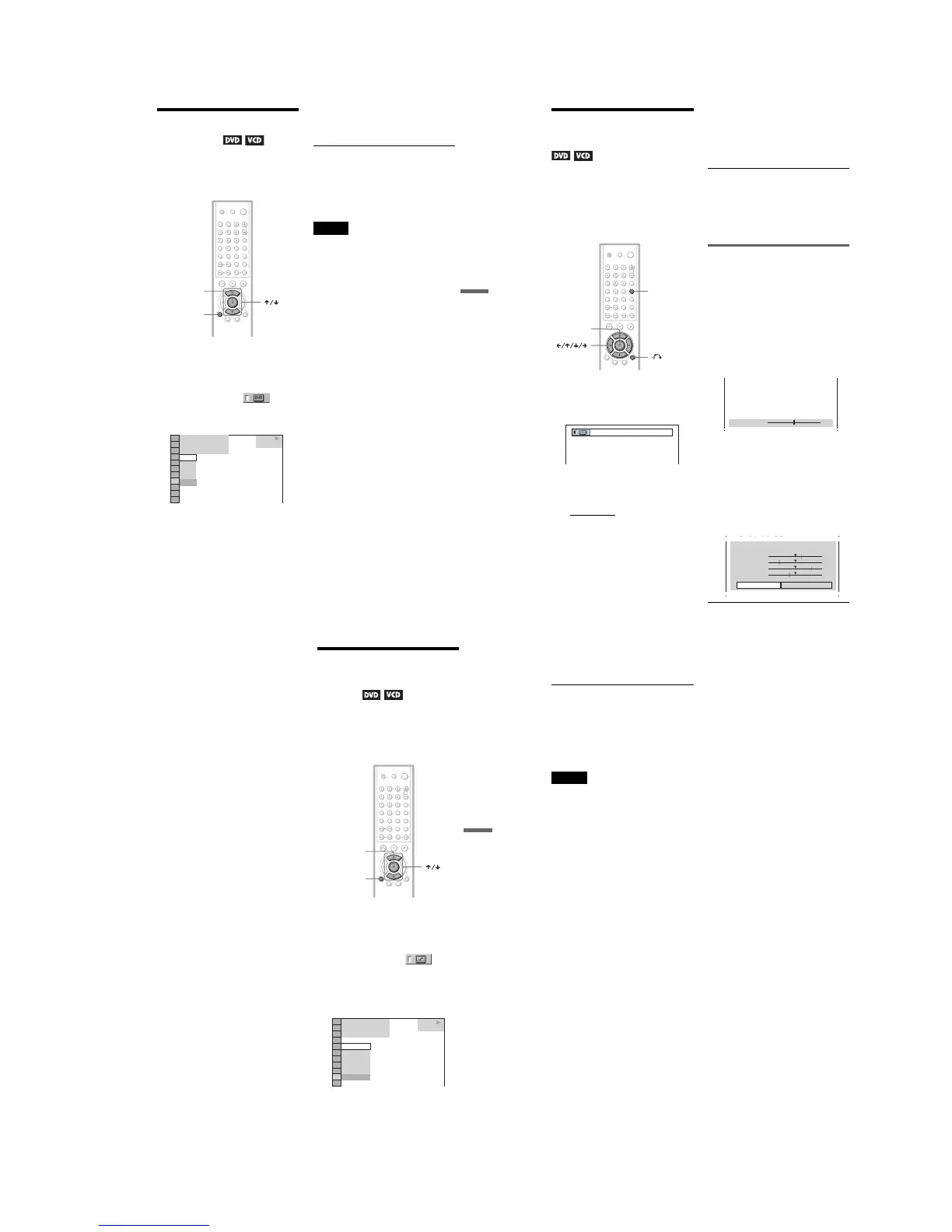
1 Press DISPLAY twice during
playback.
The Control Menu appears.
2 PressX/x to select (BNR),
then press ENTER.
The options for “BNR” appear.
3 Press X/x to select a level.
• 1: reduces the “block noise.”
• 2: reduces the “block noise” more than
1.
• 3: reduces the “block noise” more than
2.
4 Press ENTER.
The disc plays with the setting you
selected.
To cancel the “ BNR” setting
Select “OFF” in Step 3.
To turn off the Control Menu
Press DISPLAY repeatedly until the Control
Menu is turned off.
Notes
• If the outlines of the images on your screen should
become blurred, set “BNR” to “OFF.”
• Depending on the disc or the scene being played,
there may be no “BNR” effect, or it may be hard
to discern.
DISPLAY
ENTER
OFF
1
2
3
OFF
1 8
(
3 4
)
1 2
(
2 7
)
T
1 : 3 2 : 5 5
PLAY
DVD VIDEO
50
Adjusting the Playback
Picture
(CUSTOM PICTURE MODE)
You can adjust the video signal of the DVD or
VIDEO CD from the player to obtain the
picture quality you want. Choose the setting
that best suits the program you are watching.
When you select “MEMORY,” you can make
further adjustments to each element of the
picture (color, brightness, etc.).
1 Press PICTURE MODE during
playback.
The following display appears.
2 Press PICTURE MODE repeatedly
to select the setting you want.
The default setting is underlined.
• STANDARD:
displays a standard
picture.
• DYNAMIC 1: produces a bold
dynamic picture by increasing the
picture contrast and the color intensity.
• DYNAMIC 2: produces a more
dynamic picture than DYNAMIC 1 by
further increasing the picture contrast
and the color intensity.
• CINEMA 1: enhances details in dark
areas by increasing the black level.
• CINEMA 2: White colors become
brighter and black colors become
richer, and the color contrast is
increased.
• MEMORY: adjusts the picture in
greater detail.
z Hints
• When you watch a movie, “CINEMA 1” or
“CINEMA 2” is recommended.
• The picture can be adjusted by pressing the
PICTURE MODE button on the player as well.
• You can also select “CUSTOM PICTURE
MODE” from the Control Menu (page 12).
Adjusting the picture items in
“MEMORY”
You can adjust each element of the picture
individually.
• PICTURE: changes the contrast
• BRIGHTNESS: changes the overall
brightness
• COLOR: makes the colors deeper or lighter
• HUE: changes the color balance
1
Press PICTURE MODE repeatedly to
select “ MEMORY” then press ENTER.
The “PICTURE” adjustment bar appears.
2
Press C/c to adjust the picture
contrast, then press ENTER.
The adjustment is saved, and
“BRIGHTNESS” adjustment bar
appears.
3
Repeat Step 2 to adjust
“ BRIGHTNESS,” “ COLOR,” and
“ HUE.”
The Custom Picture Mode display
appears. You can check each adjustment.
RETURN
PICTURE
MODE
ENTER
PICTURE
0
C
0 1 : 3 2 : 5 5
PICTURE
BRIGHTNESS
COLOR
HUE
RESET
+1
–3
+3
–1
RETURN
51
Enjoying Movies
To turn off the display
Press O RETURN , or select “RETURN” in
Step 3 and press ENTER.
z Hints
• To reset the picture items to the default values,
press c after Step 3 to select “RESET” and press
ENTER.
• If you do not want to save the adjustment in Step
2, you can go to the next picture adjustment item
by pressing X/x without saving.
Enhancing the Playback
Picture
(DIGITAL VIDEO
ENHANCER)
The Digital Video Enhancer (DVE) function
makes the picture appear clear and crisp by
enhancing the outlines of images on your TV
screen. Also, this function can soften the
images on the screen.
1 Press DISPLAY twice during
playback.
The Control Menu appears.
2 Press X/x to select
(DIGITAL VIDEO ENHANCER), then
press ENTER.
The options for “DIGITAL VIDEO
ENHANCER” appear.
3 Press X/x to select a level.
• 1: enhances the outline.
• 2: enhances the outline more than 1.
• 3: enhances the outline more than 2.
• SOFT: softens the image (DVD only).
ENTER
DISPLAY
DVD VIDEO
1 8
(
3 4
)
1 2
(
2 7
)
T
1 : 3 2 : 5 5
OFF
3
2
1
OFF
SOFT
PLAY
,continued
52
4 Press ENTER.
The disc plays with the setting you
selected.
To cancel the “ DIGITAL VIDEO
ENHANCER” setting
Select “OFF” in Step 3.
To turn off the Control Menu
Press DISPLAY repeatedly until the Control
Menu is turned off.
Note
Depending on the disc or the scene being played,
noise found in the disc may become more apparent.
If this happens, it is recommended that you use the
BNR function (page 49) with the DVE function. If
the condition still does not improve, reduce the
Digital Video Enhancer level, or select “SOFT”
(DVD only) in Step 3 above.



 To Next Page