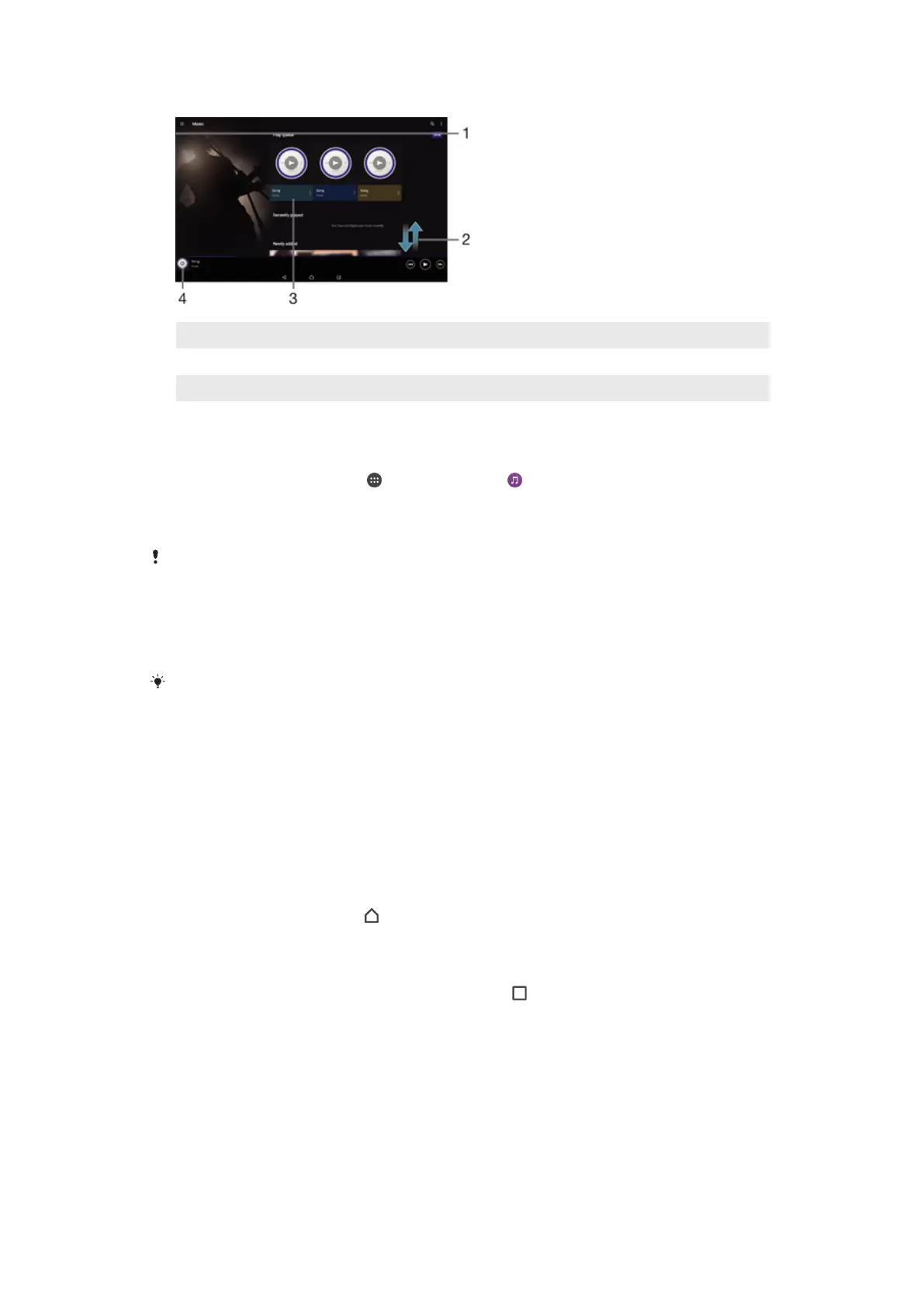
Music homescreen
1 Drag the left edge of the screen to the right to open the Music homescreen menu
2 Scroll up or down to view content
3 Play a song using the Music application
4 Return to the music player screen
To Play a Song Using the Music Application
1
From your Homescreen, tap , then find and tap .
2
Drag the left edge of the screen to the right.
3
Select a music category.
4
Tap a song to play it.
You might not be able to play copyright-protected items. Verify that you have the necessary
rights for the material you intend to share.
To Find Song-Related Information Online
•
While a song is playing in the Music application, tap the Album art, then tap More
about this
.
Online resources related to the song can include videos on YouTube™, song lyrics, and artist
information on Wikipedia.
To Edit Music Information
1
From the Music application, tap the Album art, then tap
Edit music info
.
2
Edit the information as desired.
3
When you are done, tap
Save
.
To adjust the audio volume
•
Press the volume key.
To minimize the Music application
•
When a song is playing, tap to go to the Homescreen. The Music application
stays playing in the background.
To open the Music application when it is playing in the background
1
While a song is playing in the background, tap the to open the recently used
applications window.
2
Tap the Music application.
Music Homescreen Menu
The Music homescreen menu gives you an overview of all the songs on your device.
From here you can manage your albums and playlists, and you can organize your music
by mood and tempo using SensMe™ channels.
57
This is an internet version of this publication. © Print only for private use.













 To Next Page