Camera
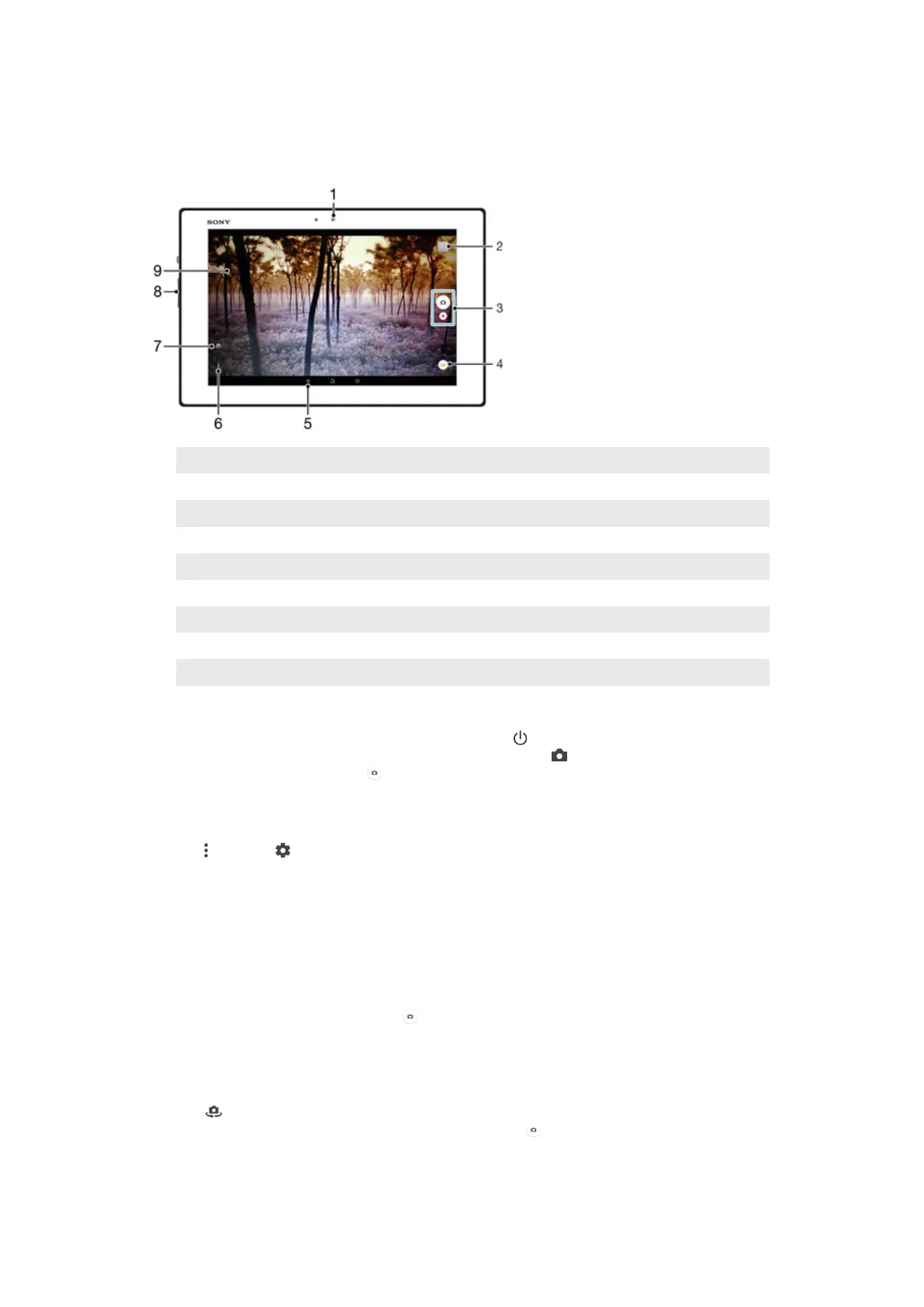
Camera Controls Overview
1 Front camera
2 View photos and videos
3 Take photos or record video clips
4 Adjust capture mode settings
5 Go back a step or exit the camera
6 Display all settings
7 Switch between the front and main cameras
8 Zoom in or out
9 Main camera screen
To Take a Photo from the Lockscreen
1
To activate the screen, briefly press the power key .
2
To activate the camera, touch and hold the camera icon , then drag it to the left.
3
After the camera opens, tap
.
To Take a Photo by Touching the Screen
1
Activate the camera.
2
Tap
, then tap .
3
Drag the slider beside Touch capture to the right.
4
Point the camera toward the subject.
5
To activate auto-focus, touch and hold an area on the screen. When the focus
frame turns blue, lift your finger to take the photo.
To take a photo by tapping the on-screen camera button
1
Activate the camera.
2
Point the camera toward the subject.
3
Tap the on-screen camera button
. The photo is taken as soon as you release
your finger.
To take a self-portrait using the front camera
1
Activate the camera.
2
Tap .
3
To take the photo, tap the on-screen camera button
. The photo is taken as
soon as you release your finger.
64
This is an internet version of this publication. © Print only for private use.













 To Next Page