29
Getting Started
Getting Started
continued
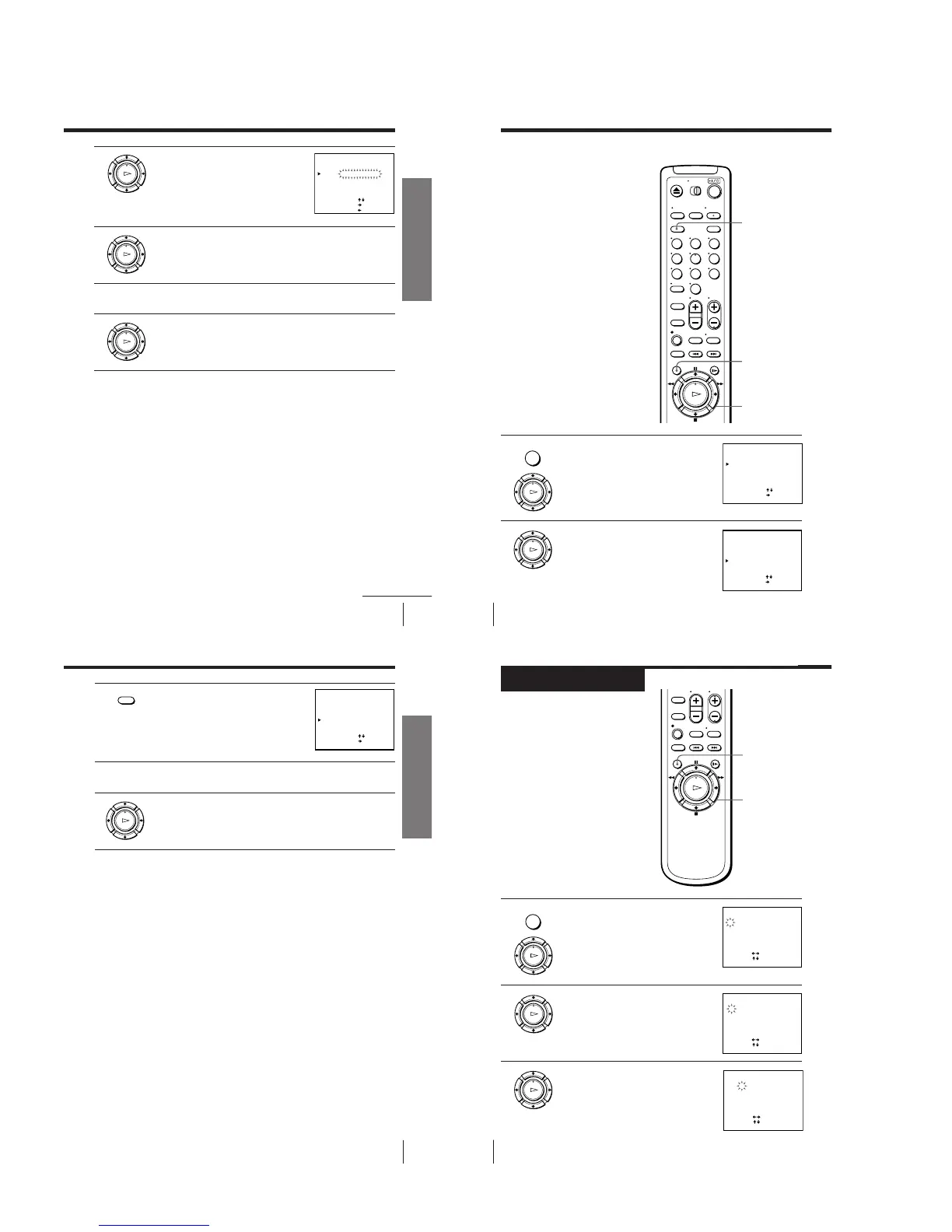
3 Press M/m until the selected channel and
guide channel row moves to the desired
programme position.
The selected channel and guide channel
are inserted at the new programme
position and the intermediate channels are
displaced to fill the gap.
4 Press < to confirm the setting.
5 To change the programme position of another station, repeat steps 2
to 4.
6 Press OK.
SET UP CH AND G-CODE
GUIDE CH
1
2
3
4
5
9
12
56
27
3
SELECT
SET GUIDE CH
CONFIRM
:
[
]
[
]
:
:
[]
–
–
–
–
–
–––
12
16
2
6
[
]
PROG CH
OK
PLAY
OK
PLAY
OK
PLAY
30
Getting Started
1 Press MENU, then press M/m to move the
cursor (B) to SET UP CH AND G-CODE
and press OK.
2 Press M/m to move the cursor (B) to the
row on which you want to disable a
channel.
To display other pages for programme
positions 6 to 50, press M/m repeatedly.
Disabling unwanted
programme positions
Note
• Be sure to select the programme
position you want to disable correctly.
If you disable a programme position
by mistake, you need to reset that
channel manually.
Before you start…
• Turn on the VCR and the TV.
• Set the TV to the video channel.
CLEAR
OK
M/m
MENU
Step 7: Changing/disabling programme positions (continued)
123
456
789
0
SET UP CH AND G-CODE
GUIDE CH
1
2
3
4
5
9
12
56
27
3
SELECT
MOVE PROG
:
[
]
:
[]
–
–
–
–
–
–––
12
16
2
6
ERASE PROG
:
[ CLEAR ]
PROG CH
SET UP CH AND G-CODE
GUIDE CH
1
2
3
4
5
9
12
56
27
3
SELECT
MOVE PROG
:
[
]
:
[]
–
–
–
–
–
–––
12
16
2
6
ERASE PROG
:
[ CLEAR ]
PROG CH
OK
PLAY
MENU
31
Getting Started
Getting Started
3 Press CLEAR.
The selected row will be cleared as shown
on the right.
4 Repeat steps 2 and 3 for any other programme positions you want
to disable.
5 Press OK.
SET UP CH AND G-CODE
GUIDE CH
1
2
3
4
5
9
0
56
27
3
SELECT
MOVE PROG
:
[
]
:
[]
–
–
–
–
–
–––
–––
12
16
2
ERASE PROG
:
[ CLEAR ]
PROG CH
CLEAR
OK
PLAY
32
Getting Started
Setting the clock
You must set the time and date on the
VCR to be able to use the timer
recording features properly.
Before you start…
• Turn on the VCR and the TV.
• Set the TV to the video channel.
Step 8
1 Press MENU, then press M/m to move the
cursor (B) to CLOCK SET and press OK.
2 Press M/m to set the date.
The day of the week is set automatically.
3 Press , to select the month and set the
month using M/m.
CLOCK SET
1.1.2001 MON 0:00
SELECT
SET
END
:
[ OK ]
:
[]
:
[
]
CLOCK SET
2 .1 .2001 THU 0 : 005
SELECT
SET
END
:
[ OK ]
:
[]
:
[
]
CLOCK SET
2.1.200 0:0052
1
TUE
SELECT
SET
END
:
[ OK ]
:
[]
:
[
]
OK
M/m/</,
MENU
OK
PLAY
MENU



 To Next Page