EasyManua.ls Logo

Sony STR-AV1000 - Page 34

Sony STR-AV1000
42 pages
Print Icon
To Next Page IconTo Next Page
To Previous Page IconTo Previous Page
Loading...
During
video
tape
editing,
you
can
add
the
desired
sound
on
the
recording-side
video
tape
from
various
audio
program
sources.
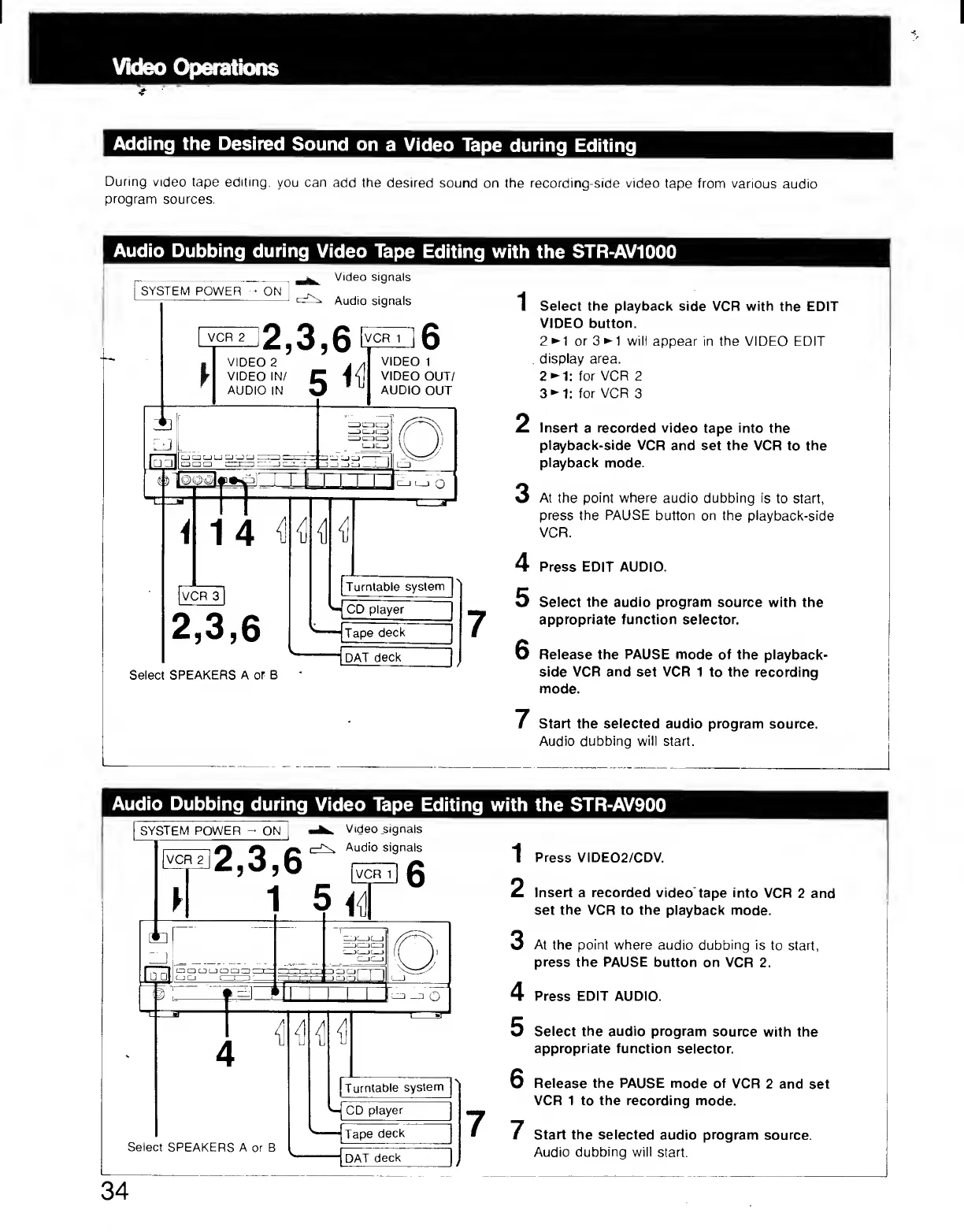
Audio
Dubbing
during
Video
Tape
Editing
with
the
STR-AV1000
SYSTEM
POWER
-
ON
Video
signals
Audio
signals
VIDEO
2
VIDEO
IN/
AUDIO
IN
2,3,6^
]mi
c
D
IN
3
^
VIDEO
t
VIDEO
OUT/
AUDIO
OUT
i
14
^
2,3,6
Select
SPEAKERS
A
of
B
I
Turn
table
system
^
CD
player
Tape
deck
I
DAT
deck
I
Select
the
playback
side
VCR
with
the
EDIT
VIDEO
button.
2
•
~^
or
3^1
will
appear
in
the
VIDEO
EDIT
,
display
area.
2^1:
for
VCR
2
3^1:
for
VCR
3
2
Insert
a
recorded
video
tape
into
the
playback-side
VCR
and
set
the
VCR
to
the
playback
mode.
3
At
the
point
where
audio
dubbing
is
to
start,
press
the
PAUSE
button
on
the
playback-side
^
Press
EDIT
AUDIO.
5
Select
the
audio
program
source
with
the
appropriate
function
selector.
6
Release
the
PAUSE
mode
of
the
playback-
side
VCR
and
set
VCR
1
to
the
recording
mode.
7
Start
the
selected
audio
program
source.
Audio
dubbing
will
start.
Audio
Dubbing
during
Video
Tape
Editing
with
the
STR-AV900
SYSTEM
POWER
-
ON
Video
signals
Audio
signals
2
^
^
I—^
Audio
signals
>
3
,
6
1^0
^
1
5
Select
SPEAKERS
A
or
B
[Turntable
system
I
CD
player
Tape
deck
I
DAT
deck
1
Press
VIDE02/CDV.
2
Insert
a
recorded
video
tape
into
VCR
2
and
set
the
VCR
to
the
playback
mode.
3
At
the
point
where
audio
dubbing
is
to
start,
press
the
PAUSE
button
on
VCR
2.
4
Press
EDIT
AUDIO.
5
Select
the
audio
program
source
with
the
appropriate
function
selector.
S
Release
the
PAUSE
mode
of
VCR
2
and
set
VCR
1
to
the
recording
mode.
7
Start
the
selected
audio
program
source.
Audio
dubbing
will
start.
34