56
GB
3 Press V/v repeatedly to select
the menu you want, then press
or b to enter the menu
mode.
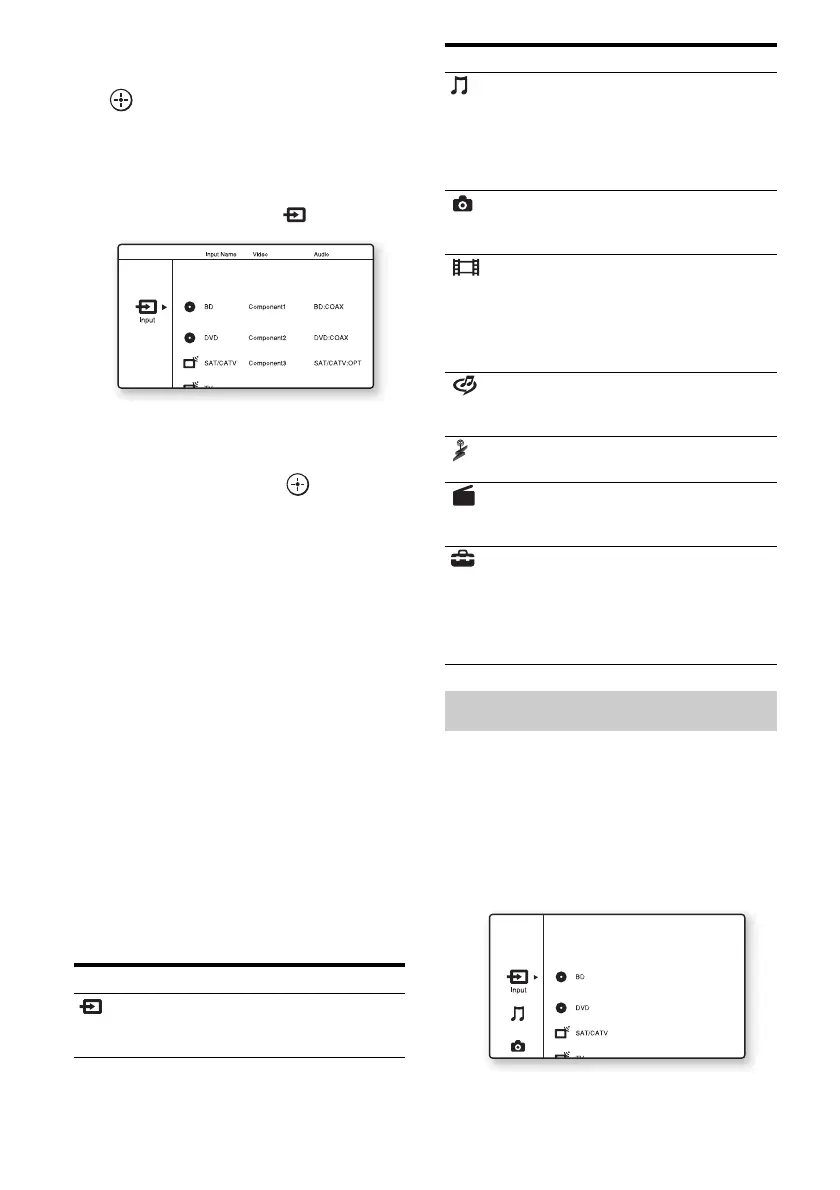
The menu item list appears on the TV
screen.
Example: When you select “ Input”
4 Press V/v repeatedly to select
the menu item you want to
adjust, then press to enter
the menu item.
5 Repeat steps 3 and 4 to select
the parameter you want.
To return to the previous screen
Press RETURN/EXIT O.
To exit the menu
Press MENU.
To turn “GUI MODE” on and off
Press GUI MODE. “GUI MODE ON” or
“GUI MODE OFF” is displayed in the
display window of the receiver, depending
on the mode selected.
Overview of the main menus
When you press OPTIONS, the option menus
for the selected main menu are displayed. You
can select a related function without
reselecting the menu.
1 Press MENU.
The menu is displayed on the TV screen.
Menu icon Description
Input Selects the input source
component connected to the
receiver (page 58).
Music Selects the music from the
server on the home network,
“My Library,” or the audio
component connected to the
DIGITAL MEDIA PORT
adapter (page 60).
Photo Selects the photos from the
server on the home network
or “My Library.”
Video Selects the images from the
server on the home network,
“My Library,” or the audio
component connected to the
DIGITAL MEDIA PORT
adapter (page 60).
Rhapsody Selects the Rhapsody radio
service (page 88). Rhapsody
is only available in the US.
SHOUTcast Selects the SHOUTcast radio
service (page 91).
FM/AM/
SIRIUS
Selects the built-in FM/AM
radio or satellite tuner
connected (page 64, 67).
Settings You can adjust the settings of
the speakers, the surround
effect, equalizer, audio,
video and other inputs
connected to the HDMI jacks
(page 114).
Using the option menus
Menu icon Description




 To Next Page