EasyManua.ls Logo

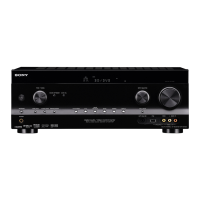
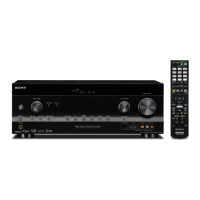
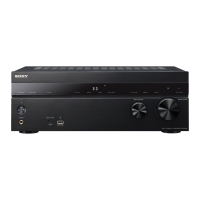
Sony STR-DH810 - User Manual

Sony STR-DH810
104 pages
Print Icon
To Next Page IconTo Next Page
Loading...
©2010 Sony Corporation
4-168-075-11(1)
Multi Channel AV
Receiver
Operating Instructions
STR-DH810

Table of Contents

Other manuals for Sony STR-DH810

Questions and Answers

  • D
    Dr. Madison Davis DDSAug 23, 2025
    How to tune radio stations on Sony Receiver?
    • A
      April WilsonAug 23, 2025
      If you're having trouble tuning into radio stations on your Sony Receiver: - Check that the antennas are securely connected; adjust them or connect an external antenna if needed. - If the signal strength is weak during automatic tuning, try using direct tuning. - Ensure you've set the correct tuning interval, especially when tuning AM stations with direct tuning. - If tuning by scanning preset stations, make sure stations are preset. - Press AMP, then press DISPLAY repeatedly on the remote so that the frequency appears on the display.
  • B
    brookeramosAug 25, 2025
    What to do if there is no sound from Sony STR-DH810 Receiver subwoofer?
    • B
      beckcassandraAug 26, 2025
      If there's no sound from the subwoofer of your Sony Receiver: - Ensure the subwoofer is correctly and securely connected. - Verify that your subwoofer is powered on. - Check “SP PATTERN” setting.
  • K
    kathryn07Aug 26, 2025
    How to fix unbalanced sound on Sony Receiver?
    • E
      Erin SwansonAug 27, 2025
      If the left and right sounds are unbalanced or reversed on your Sony Receiver: - Check that the speakers and components are connected correctly and securely. - Adjust the level parameters using the LEVEL menu.
  • C
    cynthia70Aug 27, 2025
    Why is my Sony STR-DH810 Receiver remote not working?
    • J
      jaime19Aug 27, 2025
      If your Sony Receiver remote isn't working, try these steps: - Point the remote directly at the receiver's remote sensor. - Ensure there are no obstructions between the remote and the receiver. - Replace all batteries in the remote with fresh ones. - Verify you've selected the correct input on the remote. - Note that if you're operating a programmed non-Sony component, the remote's functionality may vary depending on the component's model and manufacturer.
  • C
    chungjasonSep 16, 2025
    How to establish S-AIR connection on Sony STR-DH810?
    • M
      Michael WilkinsonSep 16, 2025
      To establish an S-AIR connection on your Sony Receiver (if the S-AIR sub unit indicator turns off, flashes, or turns red): - If using another S-AIR main unit, place it more than 8 meters (26 feet) away. - Confirm the S-AIR IDs of the S-AIR main unit and S-AIR sub unit. - If another S-AIR sub unit is paired, pair the desired S-AIR sub unit. - Place the S-AIR main unit and S-AIR sub unit separately from other wireless devices. - Avoid using other wireless devices. - Ensure the S-AIR sub unit is turned on and the AC power cord is connected.
  • C
    charles13Sep 14, 2025
    Why no image or sound from TV when Sony STR-DH810 is in standby mode?
    • S
      Sarah DominguezSep 14, 2025
      When the receiver is in standby mode, image and sound are output from the HDMI component selected the last time you turned off the receiver. If you are enjoying other component, play the component and perform the One-Touch Play operation, or turn on the receiver to select the HDMI component you want to enjoy. Make sure “PASS THRU” is set to “ON” in the HDMI menu if you connect components not compatible with the “BRAVIA” Sync to the receiver.
  • C
    Carlos GarrisonSep 15, 2025
    How to fix recording issues on Sony Receiver?
    • H
      Heather MillerSep 15, 2025
      To resolve recording issues on your Sony Receiver: - Check that the components are connected correctly. - Select the source component using the input buttons.
  • K
    Kevin GrimesSep 6, 2025
    Why no sound from the S-AIR receiver on Sony Receiver?
    • R
      Richard SmithSep 6, 2025
      If no sound is heard from the S-AIR receiver, check that the components are connected to the receiver.
  • H
    howardlauraSep 4, 2025
    Why is there no sound from digital sources on Sony Receiver?
    • S
      Scott WardSep 4, 2025
      If there's no sound from digital sources (COAXIAL or OPTICAL input jack) on your Sony Receiver: - Check that the INPUT MODE is not set to “ANALOG”. - Check that the Analog Direct is not selected. - Check that the “A. ASSIGN” function is not used to reassign the audio input of another source to the selected input. - Set “ARC” to “ARC OFF” when no sound is output from TV OPTICAL IN jack during TV input.
  • R
    Robin JonesSep 5, 2025
    Why no sound from DIGITAL MEDIA PORT adapter on Sony STR-DH810?
    • J
      Jesse FranklinSep 5, 2025
      If there's no sound from a component connected to the DIGITAL MEDIA PORT adapter on your Sony Receiver: - Adjust the volume of the receiver. - Turn off the receiver, then reconnect the DIGITAL MEDIA PORT adapter and/or component if they are not connected correctly. - Ensure the DIGITAL MEDIA PORT adapter and/or component device are supported by the receiver.

Summary

Safety and Warnings

Important Safety Instructions

Essential guidelines to ensure safe operation and prevent hazards.

Supplied Accessories

Included Items Checklist

List of all items provided with the receiver for setup and operation.

Component Identification

Front Panel Layout

Detailed description and location of controls and indicators on the front panel.

Display Indicators Explained

Understanding Display Icons

Explanation of various indicators that light up on the receiver's display.

Rear Panel Connections

Connectivity Ports Overview

Guide to all input/output jacks and sections on the rear panel.

Receiver Control Functions

Key Remote Button Functions

Explanation of specific buttons on the remote for controlling the receiver.

Speaker Setup and Connections

Installing the Speakers

Guidance on positioning and connecting speakers for optimal surround sound.

Speaker Setup and Connections

Connecting the Speakers

Step-by-step instructions for connecting speaker wires to the receiver.

AV Component Connections

Connecting the TV

Instructions for connecting the television to the receiver for audio and video.

AV Component Connections

Connecting Audio Components

Guide for connecting audio sources like CD players and DIGITAL MEDIA PORT.

AV Component Connections

Connecting Video Components

Instructions for connecting video sources like DVD players and Blu-ray players.

Initial Setup and Configuration

Initializing and Selecting Speaker System

Resetting receiver defaults and choosing the speaker configuration.

Automated Speaker Calibration

Performing Auto Calibration

Steps to automatically optimize speaker settings using DCAC technology.

Audio Level Adjustments

Adjusting Speaker Levels with Test Tone

Using test tones to manually adjust individual speaker volume levels.

Basic Operations

Playback Procedures

Steps for playing audio and video sources through the receiver.

Tuner Operations

Listening to FM;AM Radio

Instructions for tuning into FM and AM radio stations.

Tuner Operations

Station Tuning Methods

Methods for tuning radio stations automatically or directly by frequency.

Surround Sound Enjoyment

Selecting Sound Fields

Choosing from various pre-programmed sound field settings for immersive audio.

“BRAVIA” Sync Features

Understanding and Preparing for BRAVIA Sync

Introduction to BRAVIA Sync and initial setup for compatible devices.

“BRAVIA” Sync Features

One-Touch Playback

Enabling one-touch playback for connected components via HDMI.

“BRAVIA” Sync Features

System Audio Control for TV Sound

Using System Audio Control to output TV sound through receiver speakers.

Advanced Connectivity and Wireless

Audio Return Channel (ARC) and S-AIR Products

Using ARC for TV audio and understanding S-AIR wireless audio system.

S-AIR Wireless System Setup

Setting up an S-AIR Product

Steps to set up S-AIR products for wireless sound transmission.

S-AIR Wireless System Setup

Pairing S-AIR Units

Procedure for pairing S-AIR main and sub units to prevent interference.

Advanced Operations and Settings

Managing Audio Input Modes

Selecting between digital and analog audio inputs for connected components.

Advanced Operations and Settings

Navigating the Setting Menu

Guide to accessing and adjusting various receiver settings via the menu system.

Menu Options Overview

AUTO CAL and LEVEL Menu Settings

Summary of parameters and settings available in AUTO CAL and LEVEL menus.

Menu Options Overview

SPEAKER Menu Configuration

Detailed settings for speaker patterns, sizes, and distances.

Audio Adjustments and Settings

LEVEL Menu: Speaker Levels and D. RANGE

Adjusting speaker levels and dynamic range compression using the LEVEL menu.

Audio Adjustments and Settings

Speaker Assignments and Distance Settings

Setting speaker assignments (SB ASSIGN) and distances for accurate sound.

System Settings and Remote Control

Programming the Remote Control

Instructions for programming the remote to control other audio/video components.

Additional Information and Glossary

Clearing Remote Memory and Glossary Terms

How to clear remote memory and definitions of key audio terms.

Precautions and Safety

Safety and Power Precautions

Important safety guidelines regarding electrical connections, heat, and usage.

Precautions and Safety

Placement, Operation, Cleaning, and S-AIR Tips

Guidelines for proper placement, operation, cleaning, and S-AIR function.

Troubleshooting Common Issues

Audio Sound Problems

Solutions for no sound or unbalanced audio from various sources and speakers.

Troubleshooting Common Issues

Video and Tuner Reception Issues

Resolving problems with video display and FM/AM radio reception.

Troubleshooting Common Issues

HDMI and BRAVIA Sync Problems

Solutions for HDMI connection, sound output, and BRAVIA Sync malfunctions.

Troubleshooting Common Issues

S-AIR Wireless System Issues

Resolving problems with S-AIR connection, sound, and reception.

Technical Specifications

Audio Power and Amplifier Specs

Detailed specifications for audio power output and amplifier performance.

Sony STR-DH810 Specifications

General IconGeneral
Impedance8 Ω
Audio output channels7.1 channels
HDMIYes
Output power200 W
Dimensions (WxDxH)430 x 157.5 x 322 mm
Supported video modes1080p
Product colorBlack
Connectivity technologyWired
Headphone outputs1
Component video (YPbPr/YCbCr) in3
Weight and Dimensions IconWeight and Dimensions
Weight8200 g

Related product manuals