10
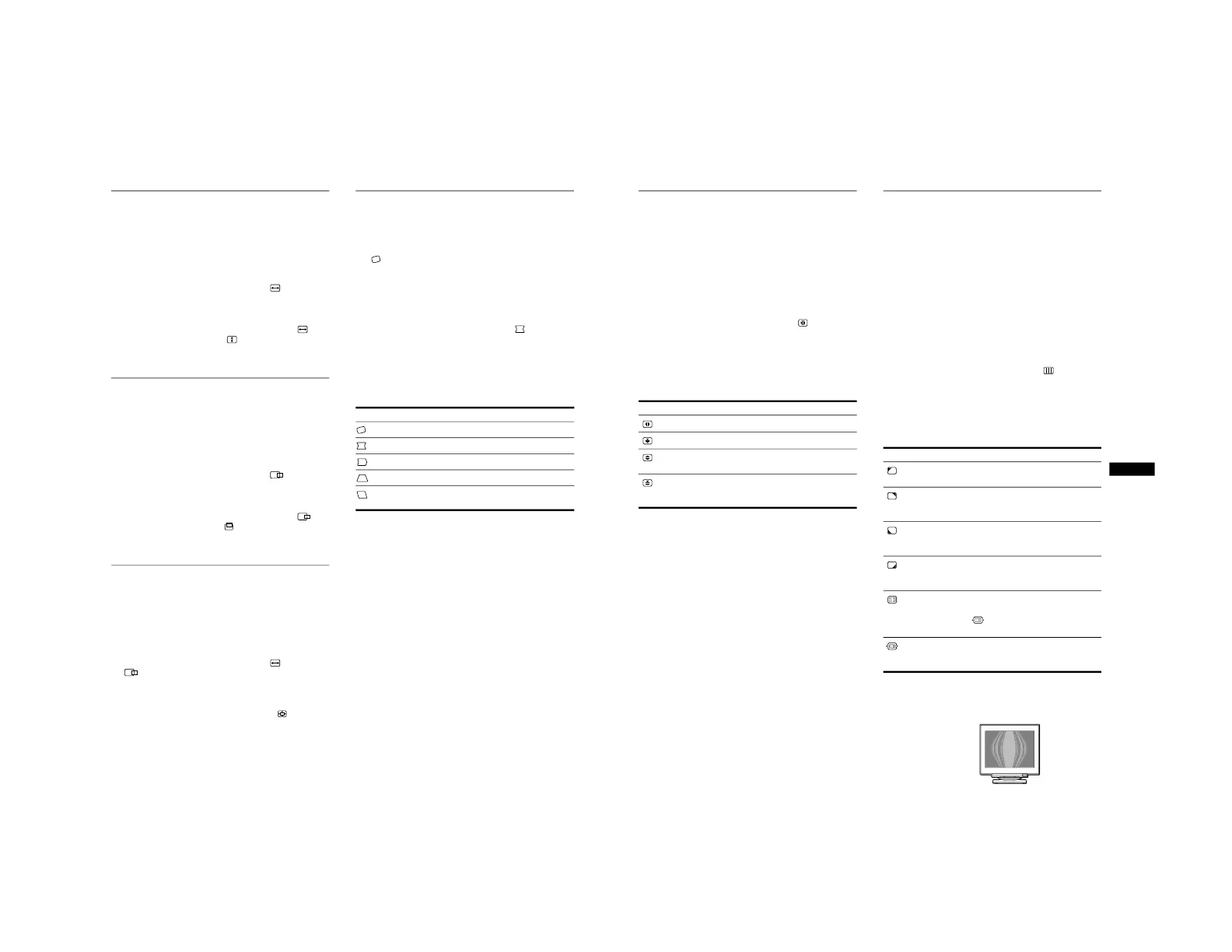
Adjusting the size of the picture
(SIZE)
This setting is stored in memory for the current input signal.
1
Press the center of the control button.
The main MENU appears on the screen.
2
Move the control button to highlight SIZE and
press the center of the control button again.
The SIZE/CENTER menu appears on the screen.
3
First move the control button
m
/
M
to select for
horizontal adjustment, or for vertical
adjustment. Then move the control button
<
/
,
to
adjust the size.
Adjusting the centering of the
picture (CENTER)
This setting is stored in memory for the current input signal.
1
Press the center of the control button.
The main MENU appears on the screen.
2
Move the control button to highlight CENTER
and press the center of the control button again.
The SIZE/CENTER menu appears on the screen.
3
First move the control button
m
/
M
to select for
horizontal adjustment, or for vertical adjustment.
Then move the control button
<
/
,
to adjust the
centering.
Enlarging or reducing the picture
(ZOOM)
This setting is stored in memory for the current input signal.
1
Press the center of the control button.
The main MENU appears on the screen.
2
Move the control button to highlight SIZE or
CENTER and press the center of the control
button again.
The SIZE/CENTER menu appears on the screen.
3
Move the control button
m
/
M
to select (zoom),
and move
<
/
,
to enlarge or reduce the picture.
Note
Adjustment stops when either the horizontal or vertical size reaches its
maximum or minimum value.
Adjusting the shape of the picture
(GEOM)
The GEOM settings allow you to adjust the rotation and shape of
the picture.
The (rotation) setting is stored in memory for all input signals.
All other settings are stored in memory for the current input
signal.
1
Press the center of the control button.
The main MENU appears on the screen.
2
Move the control button to highlight GEOM and
press the center of the control button again.
The GEOMETRY menu appears on the screen.
3
First move the control button
m
/
M
to select the
desired adjustment item. Then move the control
button
<
/
,
to make the adjustment.
Select To
rotate the picture
expand or contract the picture sides
shift the picture sides to the left or right
adjust the picture width at the top of the screen
shift the picture to the left or right at the top of the
screen
Adjusting the convergence (CONV)
The CONV settings allow you to adjust the quality of the picture
by controlling the convergence. The convergence refers to the
alignment of the red, green, and blue color signals.
If you see red or blue shadows around letters or lines, adjust the
convergence.
These settings are stored in memory for all input signals.
1
Press the center of the control button.
The main MENU appears on the screen.
2
Move the control button to highlight CONV and
press the center of the control button again.
The CONVERGENCE menu appears on the screen.
3
First move the control button
m
/
M
to select the
desired adjustment item. Then move the control
button
<
/
,
to make the adjustment.
Adjusting the quality of the picture
(SCREEN)
The SCREEN settings allow you to adjust the quality of the
picture by controlling the moire and landing.
• If the color is irregular at the corners of the screen, adjust the
landing.
• If elliptical or wavy patterns appear on the screen, cancel the
moire.
The CANCEL MOIRE and MOIRE ADJUST settings are stored
in memory for the current input signal. All other settings are
stored in memory for all input signals.
1
Press the center of the control button.
The main MENU appears on the screen.
2
Move the control button to highlight SCREEN
and press the center of the control button again.
The SCREEN menu appears on the screen.
3
First move the control button
m
/
M
to select the
desired adjustment item. Then move the control
button
<
/
,
to make the adjustment.
• Moire is a type of natural interference which produces soft, wavy lines
on your screen. It may appear due to interference between the pattern
of the picture on the screen and the phosphor pitch pattern of the
monitor.
Note
The picture may become fuzzy when CANCEL MOIRE is set to ON.
Select To
horizontally shift red or blue shadows
vertically shift red or blue shadows
TOP
V CONVER TOP
vertically shift red or blue shadows at
the top of the screen
BOT
V CONVER
BOTTOM
vertically shift red or blue shadows at
the bottom of the screen
Select To
LANDING
reduce any color irregularities in the
screen’s top left corner to a minimum.
LANDING
reduce any color irregularities in the
screen’s top right corner to a
minimum.
LANDING
reduce any color irregularities in the
screen’s bottom left corner to a
minimum.
LANDING
reduce any color irregularities in the
screen’s bottom right corner to a
minimum.
CANCEL MOIRE*
turn the moire cancellation function
ON or OFF.
(MOIRE ADJUST) appears in
the menu when you select ON.
MOIRE ADJUST
adjust the degree of moire
cancellation until the moire is at a
minimum.



 To Next Page