22
Operation
Calibrating your System—cont.
After the Artisan
TM
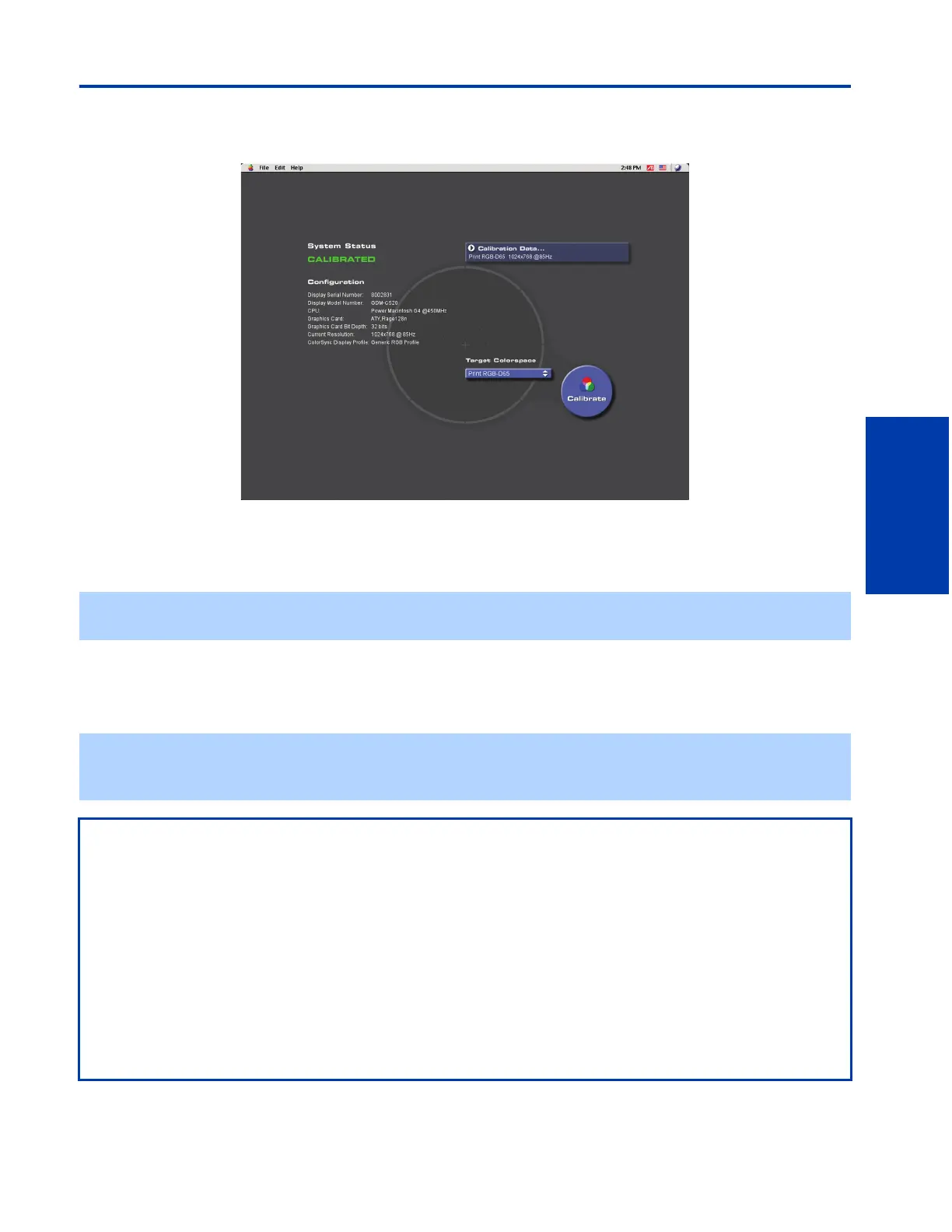
Color Reference System is finished calibrating your display, you will see this screen:
1 Please carefully remove the Artisan
TM
Sensor from the screen’s surface by tilting it slightly to one side to dislodge the
suction cups, and then pulling it away from the display screen.
2 Place the sensor into its protective case.
3 Press “Continue”.
4 After removing the sensor from the screen, the screen will display the welcome screen of the Artisan
TM
Color Reference
System program. The welcome screen will display the word “Calibrated” in the place of “Not Calibrated.”
✍ You may want to disconnect the sensor from the computer’s USB port, roll the cable up, and place it in its holder for safe
storage. However, the Artisan
TM
Sensor will need to be connected in order to restart the Artisan
TM
Software.
✍ Once your system is calibrated to a specific colorspace, an ICC profile is automatically created for that calibration data
and is placed in a folder created by your operating system for ICC profiles. You can use ICC profiles within programs such
as Adobe Photoshop to standardize the colors of specific images
Notes on Maintaining a Calibrated System
❑ Any adjustments to the GDM-C520 display that are made manually (i.e. through the GDM-C520’s on-screen display) will
invalidate calibration. Therefore, once you have calibrated the display, do not make any manual adjustments to the
screen.
❑ Each Calibration Data File lasts for 30 days before the system will require a full calibration. After 30 days, the display will
read as “Not Calibrated.” To recalibrate your display, simply click on the “Calibration Data...” drop-down menu, highlight
the desired Calibration Data File, and click on the “Calibrate” button. The system will undergo a complete recalibration of
that Calibration Data File.
❑ You can store up to 17 separate Calibration Data Files. To delete Calibration Data Files, exit the Artisan
TM
Software, click
on the Artisan
folder, and open the folder named “Colorspaces.” Then, delete any unwanted colorspace files.
❑ You can easily switch between different Calibration Data Files, provided that the calibration data is still valid. Click on the
“Calibration Data...” dropdown menu and click on the Calibration Data File to which you wish to switch. Your display
screen will change color and luminosity as the Artisan
TM
Color Reference System updates to the new calibration data.




 To Next Page