Charging | 23 22 | Charging
3.1 Charging Your SoundGear Devices
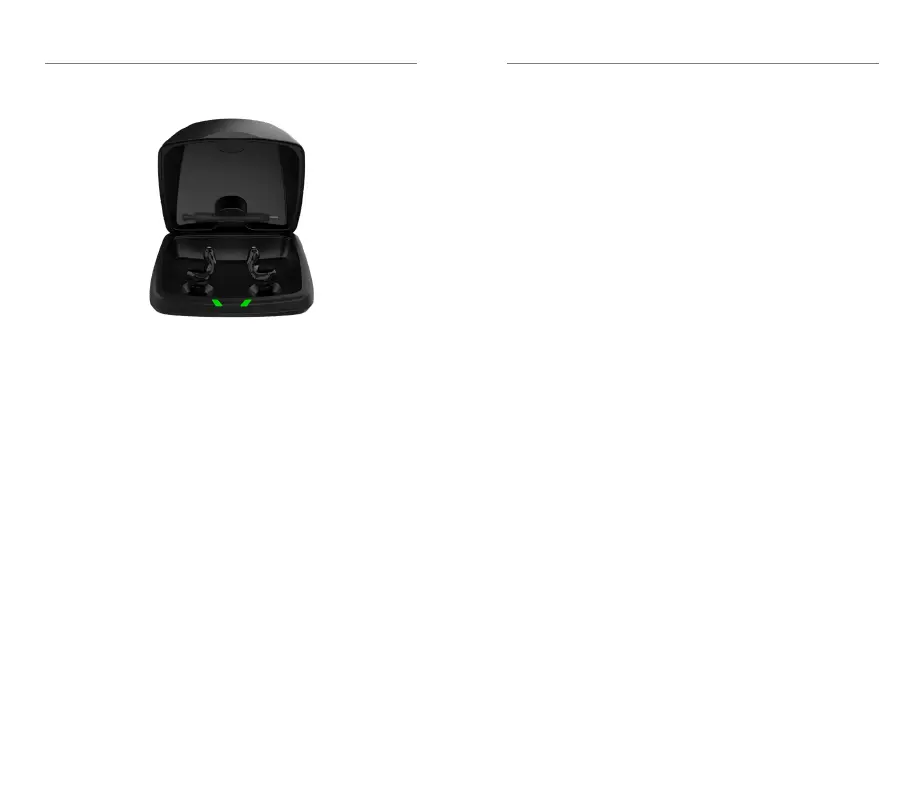
• Place your SoundGear devices in the
charger with the charging contacts
touching the charging posts
• Your SoundGear devices will turn off
automatically and begin to charge
• Note: The LEDs corresponding to each
SoundGear device:
– Glowing Green = Charging
– Solid Green = Fully Charged *
– Blinking Red = Fault State – Remove
from charger, wait until LED turns off
and re-insert devices. If Fault State
continues, call your SoundGear dealer
or SoundGear Customer Support.
• Charging occurs with the lid open
or closed
* If you are charging without the cord, the LEDs will turn off when charged,
to save battery.
• Your SoundGear devices will be
completely charged in approximately
3 ½ hours
• It is safe to keep them in the charger after
they are fully charged and any time that
you are not wearing them
• If you will not be wearing your SoundGear
devices for an extended period of time
(i.e., weeks) remove the plug from the
charger, remove the SoundGear devices
from the charging posts and manually
power the SoundGear devices off by
pressing the push button for 3 seconds.
You may store them in the charger
reservoir or in the SoundGear carry case
• When charging without the charger
cord the LEDs will turn off when the
SoundGear devices are fully charged
• To refresh LEDs when the charger is
not plugged in, remove a SoundGear
device from the charging posts for
3 seconds and then replace it in the
charger (refresh lasts 10 seconds only –
then LEDs will turn off again)



 To Next Page