29
4-3-1. Recording Schedules
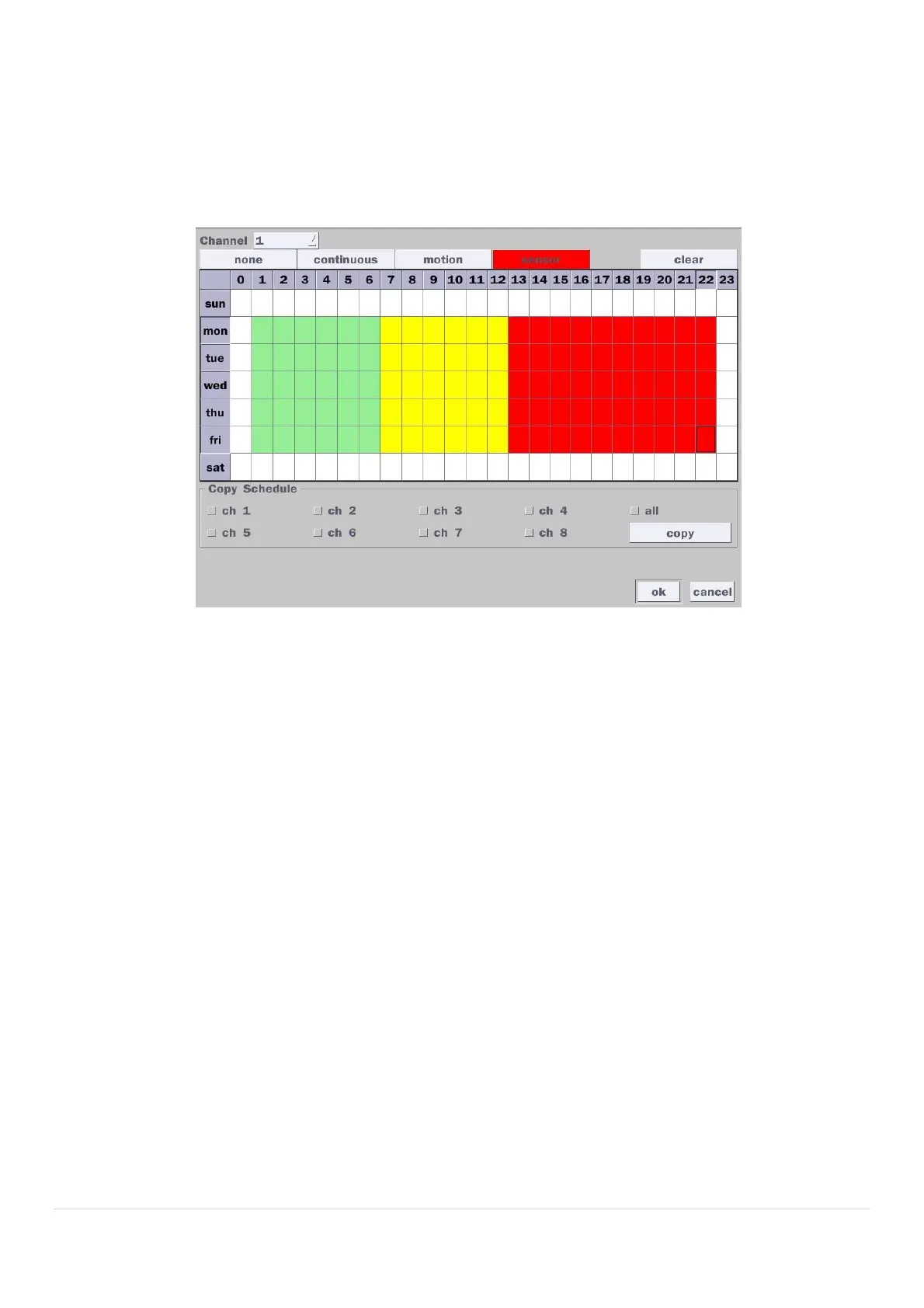
To setup a recording schedule, select Schedule in the Record menu. Navigate through the menu items or
change the settings using the mouse or the remote control. Select the Channel; select one of the recording
settings: None, Continuous or Motion, then highlight the area for the selected setting. To copy a schedule to
a different channel, select the channel from the Copy Schedule menu, then click the Copy button.
.
Figure 4.3.2. Schedule Recording Setup Screen
none: Disable recording
continuous: Continuous recording (Highlighted in Green)
motion: Motion recording (Highlighted in Yellow)
sensor: Sensor recording (Highlighted in Red)
4-4. Setup – Device Mode
In the Setup menu, select the Device tab. Then, the device menu is displayed as pictured below. Navigate
through the menu items or change the settings using the mouse or the remote control.


 To Next Page