Need help?
Do you have a question about the Spectrum RAC2V1S and is the answer not in the manual?
Lists items included with the router.
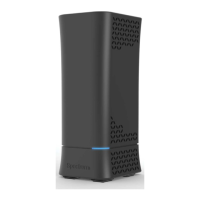
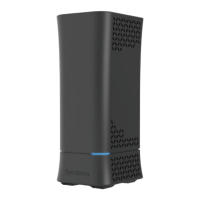
Describes the router's physical features and status lights.
Provides details on router configuration and access information labels.
Guidelines for optimal placement to improve WiFi signal strength.
Outlines installation and configuration procedures.
Lists requirements for browsers and operating systems.
Section for recording network and login details.
Step-by-step guide to physically connect the router.
General steps to set up the router via the web GUI.
Instructions for accessing the router's web interface.
Overview of the main dashboard interface and its sections.
Describes the mobile view of the router's web interface.
How to change the router's login credentials.
How to customize WiFi SSID and password.
Settings for enabling/disabling and broadcasting WiFi.
How to enable WPS for easy device connection.
Adjusting the router's time zone settings.
Renaming and customizing connected devices in the GUI.
Guide to setting up internet access restrictions.
Scheduling internet access for devices via the GUI.
Configuring website blocking rules via the GUI.
Information on connecting and sharing USB storage devices.
Steps to attach a USB drive to the router.
How to enable file sharing for USB connected devices.
How to enable DLNA for media streaming.
Procedure for safely removing USB devices.
Instructions for accessing shared files on Windows and Mac.
Information on sharing printers via USB.
Steps to connect a printer to the router's USB port.
Detailed steps for setting up a printer on Windows XP.
Detailed steps for setting up a printer on Windows 7.
Detailed steps for setting up a printer on Windows 10.
Steps for setting up a printer on a Mac system.
Methods for restarting the router.
Procedure for power cycling the router.
How to restart the router via the web GUI.
Information about the physical reset button.
How to backup and restore router settings.
Information on automatic firmware upgrades.
Methods for resetting the router to factory settings.
Detailed instructions for using the physical reset button.
Guides to diagnose and resolve issues with the router's status light.
Steps to troubleshoot internet connectivity loss.
Solutions for slow internet performance.
Tips for resolving WiFi signal intermittency.
Steps to troubleshoot wireless device connection issues.
Instructions for regaining access to the web GUI.
Detailed technical specifications for the router model.
Physical dimensions, weight, power, and environmental specs.
FCC compliance statements and regulations.
Information regarding FCC radiation exposure limits.
 General
| Brand | Spectrum |
|---|---|
| Model | RAC2V1S |
| Category | Network Router |
| Language | English |

 To Next Page