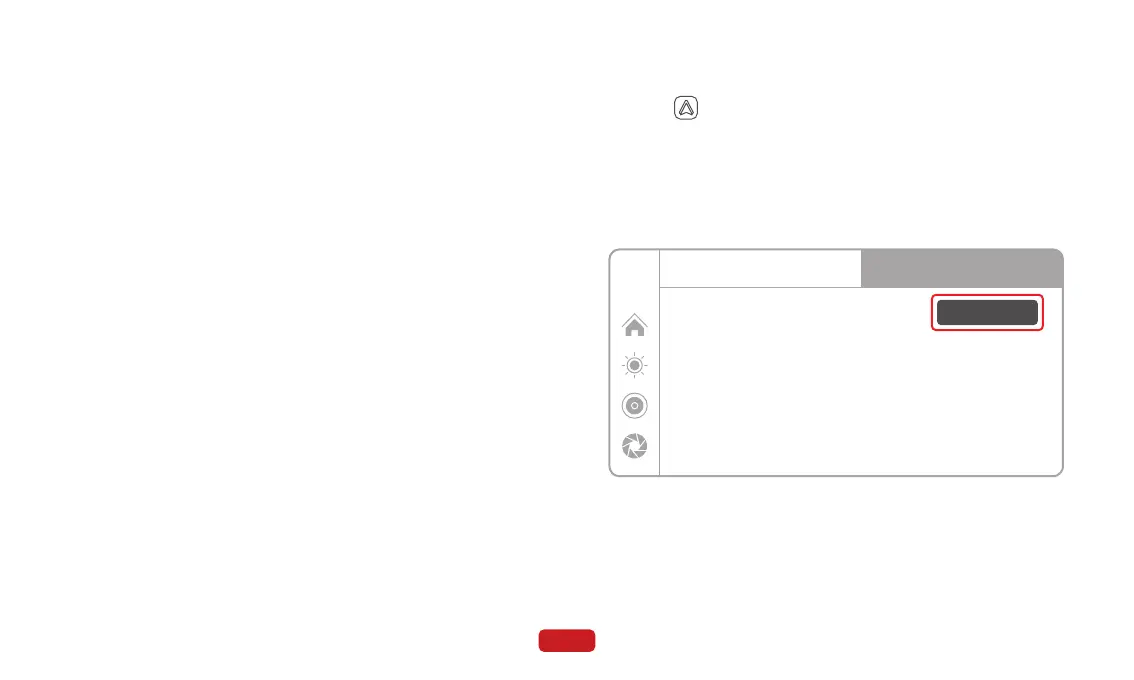
Click on on the main screen to enter the Android Auto mode.
To display Android Auto in half screen mode, please click the "Half
screen mode" button on the right side of the screen before connect-
ing Android Auto. (To switch to Full screen mode, disconnect the
Android Auto connection, re-enter the Android Auto interface, and
click the "Full screen mode" button.)
4.3 Android Auto
15
Half screen mode
Android Auto
12:00
Tips:
1.Requires an Android phone running
Android 11 or higher and 5GHz Wi-Fi
2.Please download the latest Android Auto
application on your phone
How to setup:
1.Click Android Auto widget on
SmartScreen
2.Pair your phone to SmartScreen using
Bluetooth: Spedal-******
Apple CarPlay
※ Note:
● Please make sure your iPhone supports Apple CarPlay. For
more details, please visit: https://www.apple.com/ios/car-
play/
● Both CarPlay and the iPhone voice system need to be
enabled, so please check if Siri is turned on.
● The initial connection for wireless CarPlay may take longer,
so please be patient.
● Different iOS versions may have variations from the example
provided, so please refer to your actual situation.
● If you want to switch to Android Auto, you need to disable
Bluetooth and Wi-Fi on your iPhone and disconnect from
Apple CarPlay mode.
⑤ Wait for a moment, and you will enter CarPlay mode.



 To Next Page