UM0718 How to connect the demonstration board with the GUI
Doc ID 15846 Rev 1 13/31
2 How to connect the demonstration board with the
GUI
The hardware and software must be set up as mentioned in Section 1.2 and Section 1.3.
Any PMBus compatible module that acts as the slave must be connected. Refer to the
relevant datasheets and development kit documents of the slave device.
Once the hardware board is connected to the PC, LED D3 lights up to indicate the MCU is in
USB powered state. If there is any problem in getting the LED to light up, press the reset
switch provided in the demonstration board. This switch restarts the application.
2.1 Connecting the PC GUI with the demonstration board
To connect the PC GUI with the demonstration board, the following steps, as mentioned
below, should be followed:
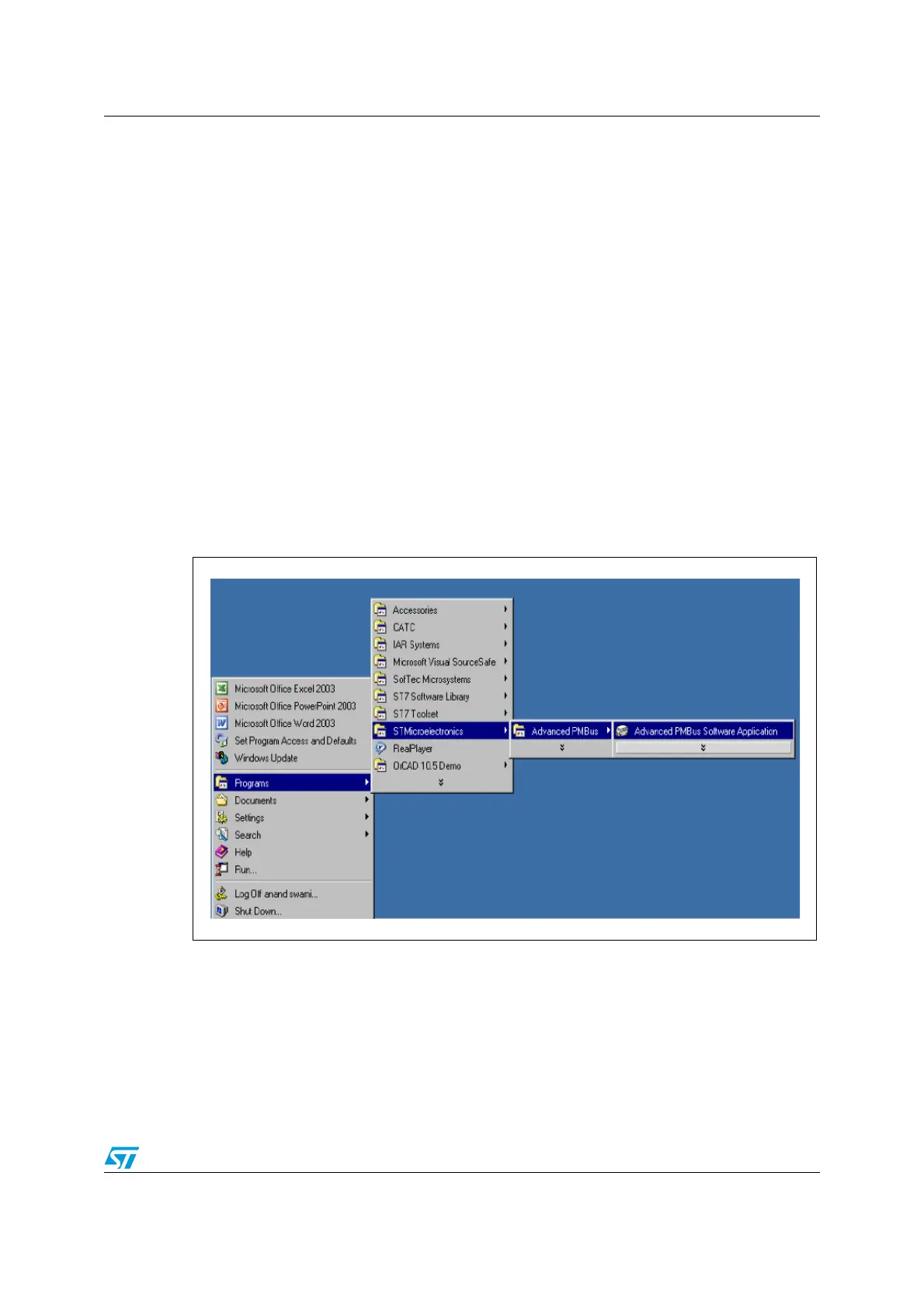
● Step 1: Click on Start -> Programs -> STMicroelectronics -> Advanced PMBus ->
Advanced PMBus Software Application, as shown below, or simply click on the shortcut
of Advanced PMBus Software Application available on the desktop
Figure 10. Launching the GUI



 To Next Page