digiConnect Windows® Software
digifobpro User Instructions Page - 20
Configure Device:
Mass Storage Device: digifobpro has 3GB of storage that can be used for a
customers own files. If you do not want Windows to reference this every time
you attach the digifobpro to the PC you can disable this feature.
File naming conventions: You may change the Driver Card and Vehicle Unit
file conventions to suit your country or analysis software. Simply select the
most appropriate option from the drop down menu.
Show unarchived files only: By default files that have been downloaded from
the digifobpro are not viewable via Windows. To see archived files set this
option to UNTICKED.
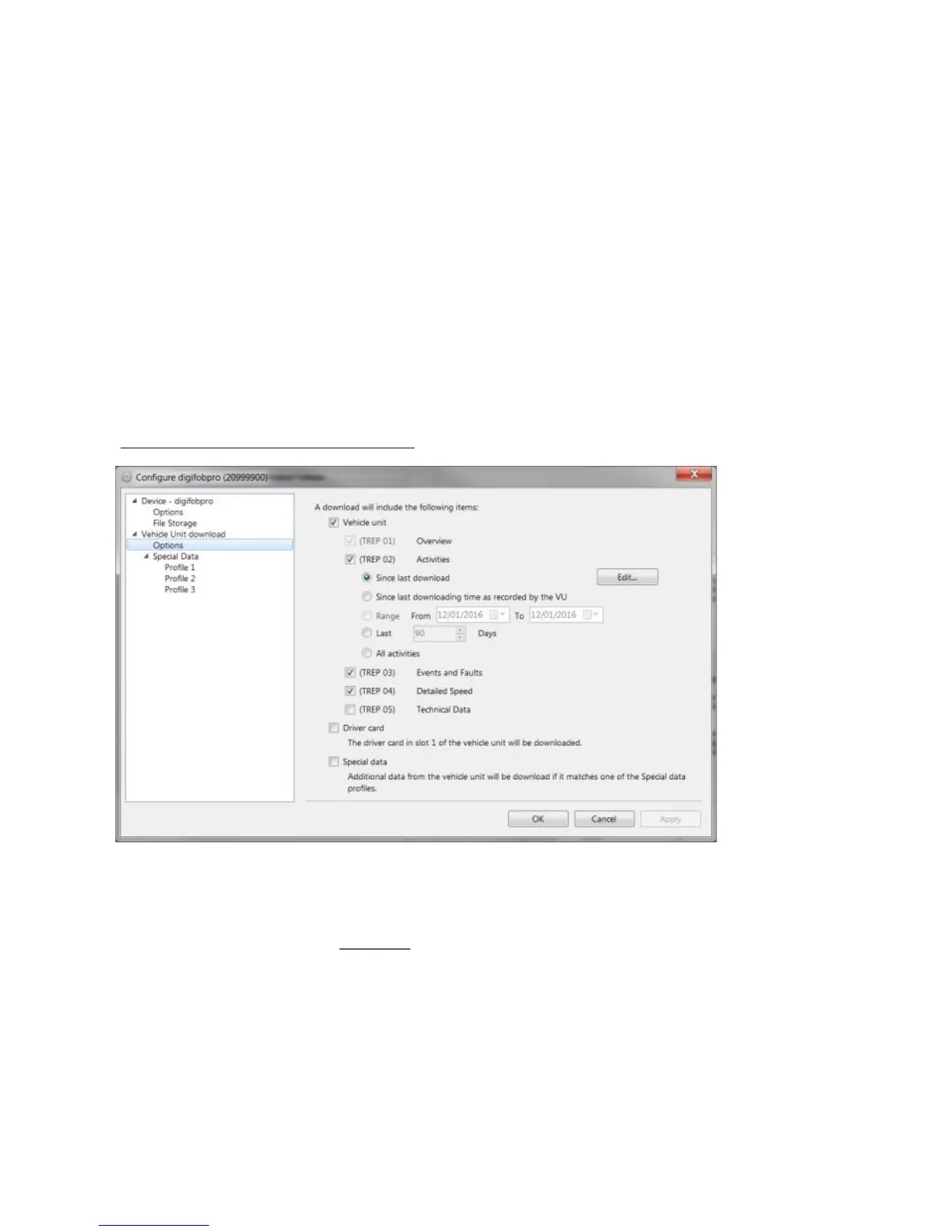
Vehicle Unit Download - Options
Click on the appropriate option that is listed below ’Vehicle Unit
Download’ (see Fig 8. ) to set your Trep download requirements (see
‘Information on TREPS’ page 21) . Click ‘Apply’ and the settings will be
written back to your digifobpro ready for the next Vehicle Unit download.
Fig 8.


 To Next Page