digiConnect Windows® Software
digifobpro User Instructions Page - 18
digiconnect settings for your digifobpro:
To configure settings specific to your digifobpro choose
options from this part of the main options screen shown
in Fig 3.
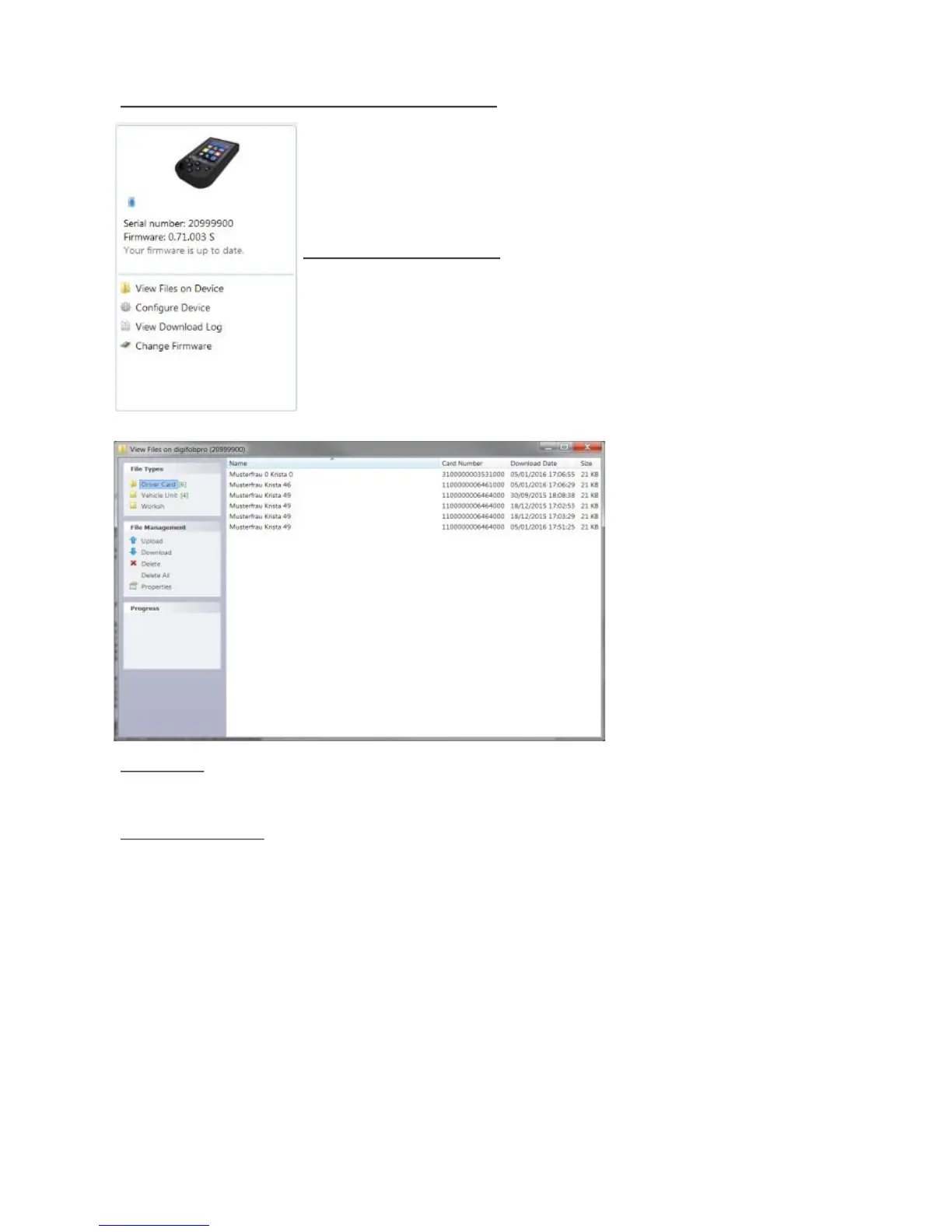
View Files on Device:
digifobpro comes with its own file browser software to
enable you to manage the files that are held on the
digifobpro via your PC. This is particularly useful for
where you have opted for Manual Download within the
Archive Settings. Select the ‘View Files on Device’ option
and you will be presented with the file browser screen as
shown in Fig 6.
File Types: You can click on ‘Driver Card’ or ‘Vehicle Unit’ to restrict the file list to a
particular type.
File Management:
Upload: Allows you to upload files from your PC’s hard drive to the
digifobpro’s internal memory. Please bear in mind that the
digifobpro is not designed to be the only storage medium for Driver
Card and Vehicle Unit files. You should regularly archive files to your
PC.
Download: You can highlight any file in the file window and click ‘Download’.
This will prompt you for a location and file name in which to save the
file.
Delete / All: Highlight any file and use the Delete option to delete it. ‘Delete all’
will remove all files from the device. Ensure that you have
downloaded any important files before using this function.
Fig 6.


 To Next Page