Cyclone MKV 2 Multimedia Enclosure
Page 49.
Version 1.2
Once the page has loaded, click on the “Browse” button. This will bring up a
browse box. Navigate to the location where a torrent file is stored on your
computer and select it.
Note: A torrent file usually has the file extension “.torrent”
Once you have selected a torrent file, click on the “Open” button. This will
close the browse box and return you to the previous screen. The file path of
the torrent file should now be displayed in the available field.
Click on the “Yes” button to add the selected torrent file to the download list.
Confirm and add the selected torrent file to the download list by clicking on the
“Yes” button.
A “Loading…” animation will display before returning to the BitTorrent main
page.
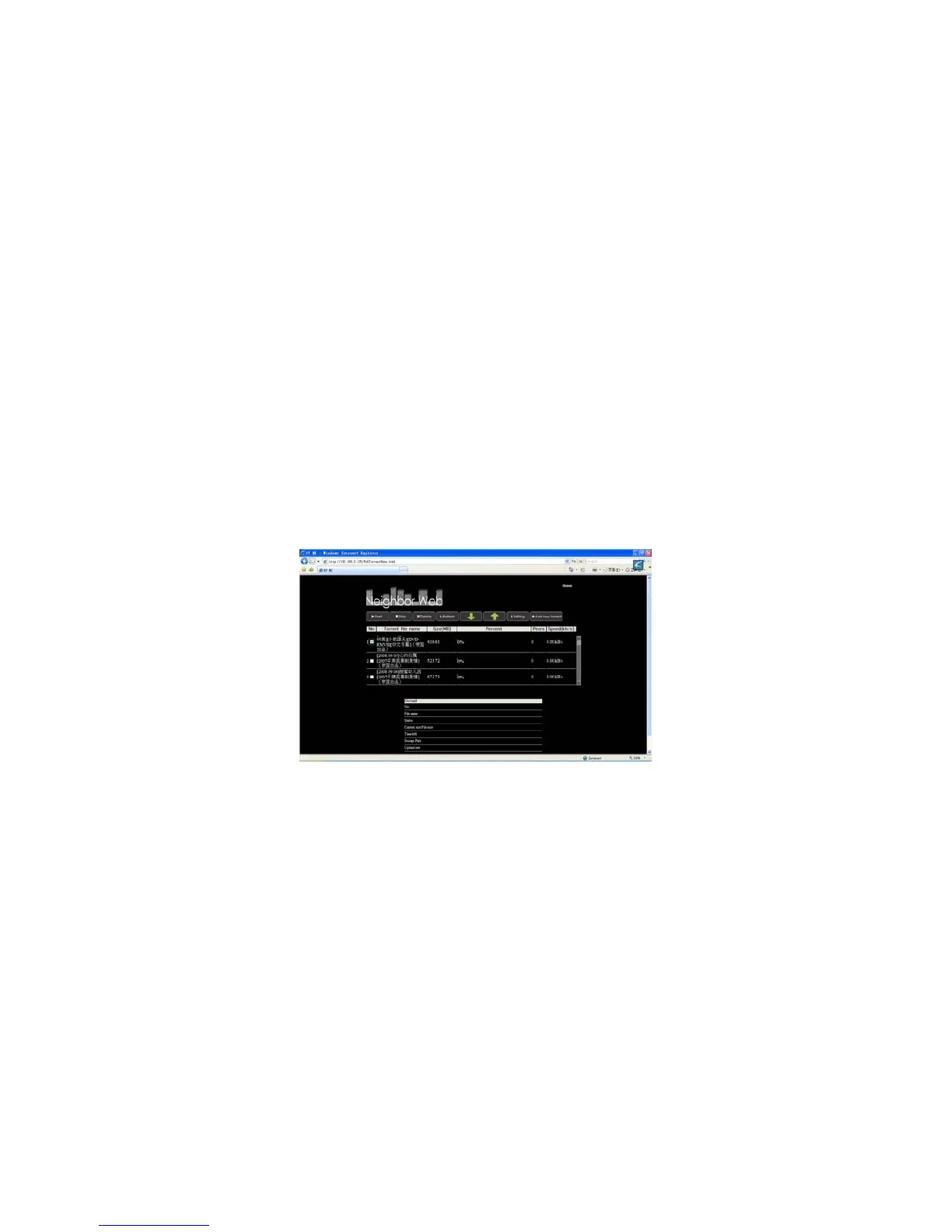
The selected torrent file will now be displayed on the list in this page.
Click the “Start” button to begin the download.
By clicking on the torrent file name, information about that particular download
will be displayed on the lower half of the screen.
To edit torrent download operations, such as start, stop, or adjust priorities etc,
select the download.
In the “No.” column there is a tick box on the left of the torrent number. Click
on this box and a tick will appear inside the box. This indicates that the
download has been selected.
BitTorrent Settings:
This page gives access to BitTorrent settings and allows you to configure
settings such as maximum download and upload rates etc.


 To Next Page