7 iSolarCloud App User Manual
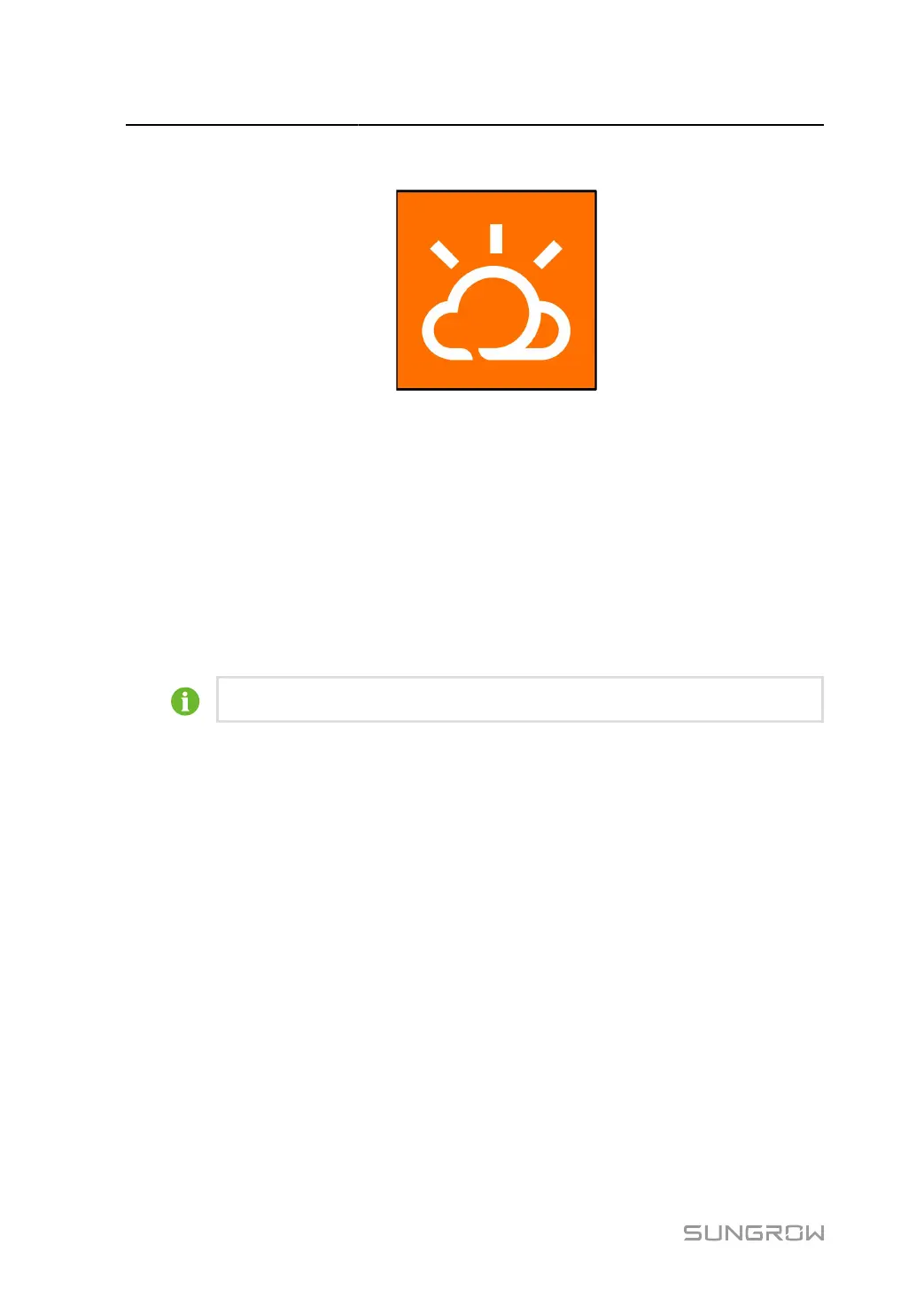
The App icon appears on the home screen after installation.
7.3 Login
7.3.1 Requirements
The following requirements should be met:
• The AC or DC side of the inverter is powered-on.
• The mobile phone is within 5 meters away from the inverter and there are no obstructions
in between.
• The Bluetooth function of the mobile phone is enabled.
The inverter can only pair with one phone at a time through Bluetooth.
7.3.2 Login Procedure
step 1 Open the App to enter the login page, tap Local Access at the bottom of the page to go to the
next page.
step 2
Establish the Bluetooth connection by either of the two following ways. If the LED indicator flashes
blue, the connection is successfully established.
•
Scan the QR code on the side of the inverter for Bluetooth connection.
•
Tap "Manual connection" and select "Others" at the bottom of the page, the Bluetooth search
page will automatically pop up, and select the inverter to be connected according to the SN on
the nameplate on the side of the inverter body.
86


 To Next Page