Operation
58 NT 10000...NT 12000
NOTE
Please note:
Only digits between 0 – 9 and letters between a – z and A – Z are permitted.
The password always has 8 characters. If the password you entered has less than
8 characters, the remaining characters are filled with *.
Example:
Your password is "Solar". This password has 5 characters. The system automati-
cally appends three *, so that the password becomes "Solar***".
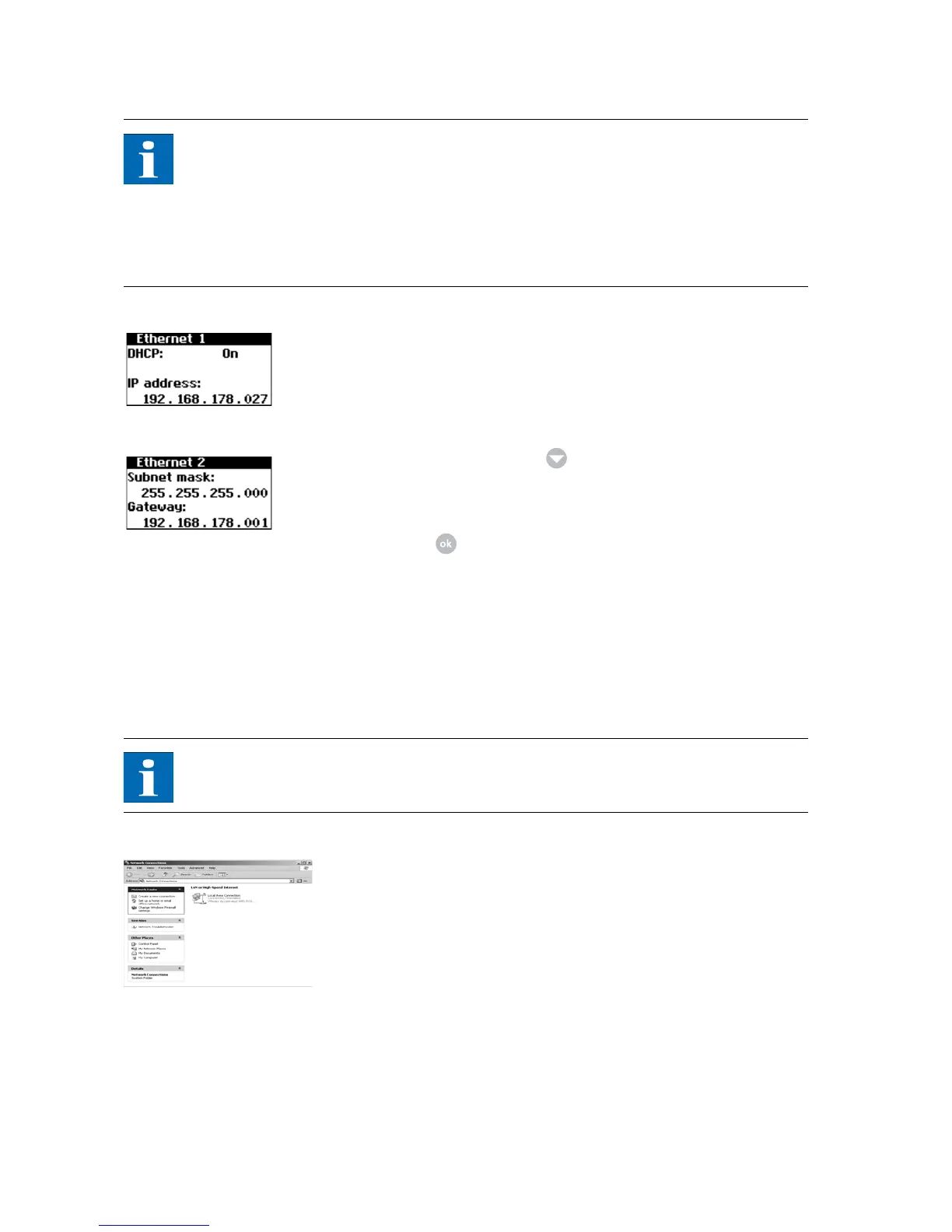
3. Open the menu Settings – Network – Ethernet.
4. Enter an IP address suitable for use with your PC. This means the first three
number blocks must be identical, and the last number block different.
Example:
If your PC has the IP address 192.168.1.1, assign the IP address 192.168.1.2
to the Solar Inverter
5. Call up additional settings with .
6. Enter the subnet mask 255.255.255.0 here.
7. Enter the IP address of your PC in the gateway.
8. Confirm with .
After the network configuration is completed you can start the Sunways Brow-
ser by entering the IP address of the Solar Inverter in the address line of your
web browser.
Network settings on PC To enable your PC to communicate with the Solar Inverter, you must assign net-
work settings. The procedure differs slightly depending on the operating sys-
tem. An configuration example under Windows
®
XP is shown below.
NOTE
IP addresses may not be assigned twice within the network!
1. Select Start - Settings.
2. Select Network Connections.


 To Next Page