12
sWaP Nova user guide
www.s-w-a-p.co.uk
Contents
Media
Your sWaP Nova is a fully formed multimedia device
that can handle video and music just as smoothly as it
deals with your phone calls.
Your sWaP makes great use of its
in-built high resolution camera, which can operate as a
video camera as well as capturing still images.
Media features include:
•Photoalbum
•Videoplayer
•Audioplayer
•Soundrecorder
•FMradio
Photo album
Allows you to view, organise and do things with
your photos, such as send to friends or use them as
wallpaper on your sWaP Nova.
1 From the clock face, tap Menu.
2 Tap (twice, if necessary).
3 Tap Photo Album. Your photos will be shown, either
as a list (showing thumbnail views, filenames, dates
and sizes for each entry) or as a matrix of thumbnail
views.
4 To see options for a photo, tap on a photo entry. The
menu shows a number of options:
•View displays the selected photo. You can then tap
the left and right arrows to move through your photos.
•Browse Style allows you to change between the list
and matrix views of your photos.
•Forward allows you to assign the selected photo
for use in your sWaP Nova (as wallpaper, screensaver
or power on/off image); as the picture for a contact
in your Phone book; or send the photo to someone
either via MMS message or by Bluetooth link. The
latter option will guide you through the process of
searching for and bonding with a Bluetooth device in
your vicinity.
•Rename allows you to change the standard filename.
•Delete and Delete All Files allow you to clear away
unwanted photos.
•Sort By allows you to list your photos in order by
name, type, time or size.
Video player
1 From the clock face, tap Menu.
2 Tap (twice, if necessary).
3 Tap Video Player. A list of your videos will be shown.
4 To see options for a video, tap on an entry. The menu
shows a number of options:
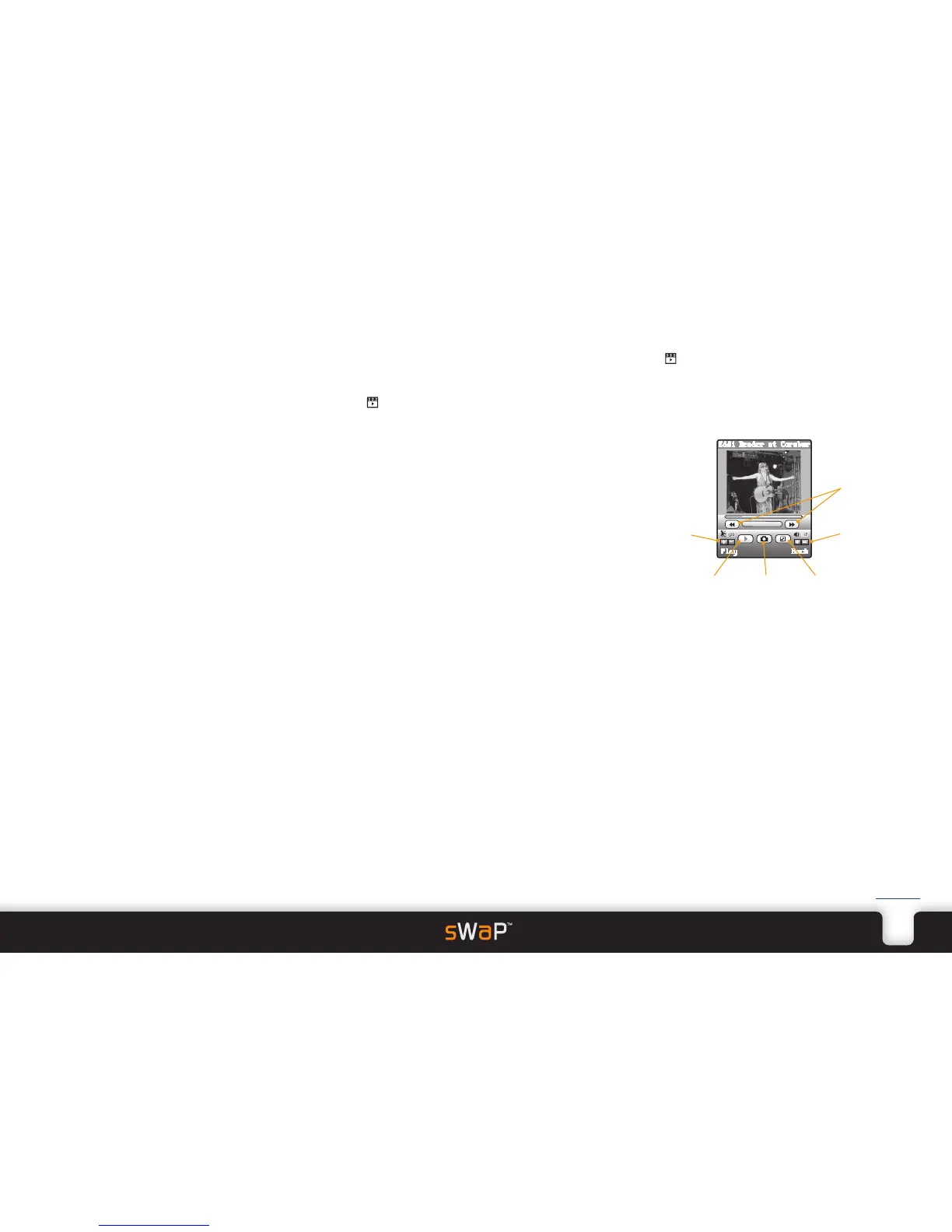
•Play displays the player screen:
•Forward allows you to send the video to someone
either via MMS message or by Bluetooth link. The
latter option will guide you through the process of
searching for and bonding with a Bluetooth device in
your vicinity.
•Rename allows you to change the standard filename.
•Delete and Delete All Files allow you to clear away
unwanted videos.
•Sort By allows you to determine the order in which
the video clips are listed.
•Bluetooth Settings allows you to choose a Bluetooth
headset and redirect the audio signal to that headset.


 To Next Page