8
sWaP Nova user guide
www.s-w-a-p.co.uk
Contents
Messages
Your sWaP Nova enables you to stay in contact using
two different kinds of messages. SMS is the method
supported by all mobile phones which allows text
plus certain small media attachments to be sent and
received. MMS is the newer format that allows you to
send and receive larger photos, video clips and sound
recordings, in addition to text.
When an incoming message is received, your sWaP
Nova will alert you and display the sender’s number*
or their name if they are listed in your Phone book. The
clock face will also show the icon until you have
read the message.
•TapRead to go straight to the message immediately.
or
•Fromtheclockface,tapMenu. Tap (twice, if
necessary). Then tap either SMS or MMS and then
tap Inbox.
* Subject to availability.
Writing an SMS message
1 From the clock face, tap Menu.
2 Tap (twice, if necessary).
3 Tap SMS, then Compose Message.
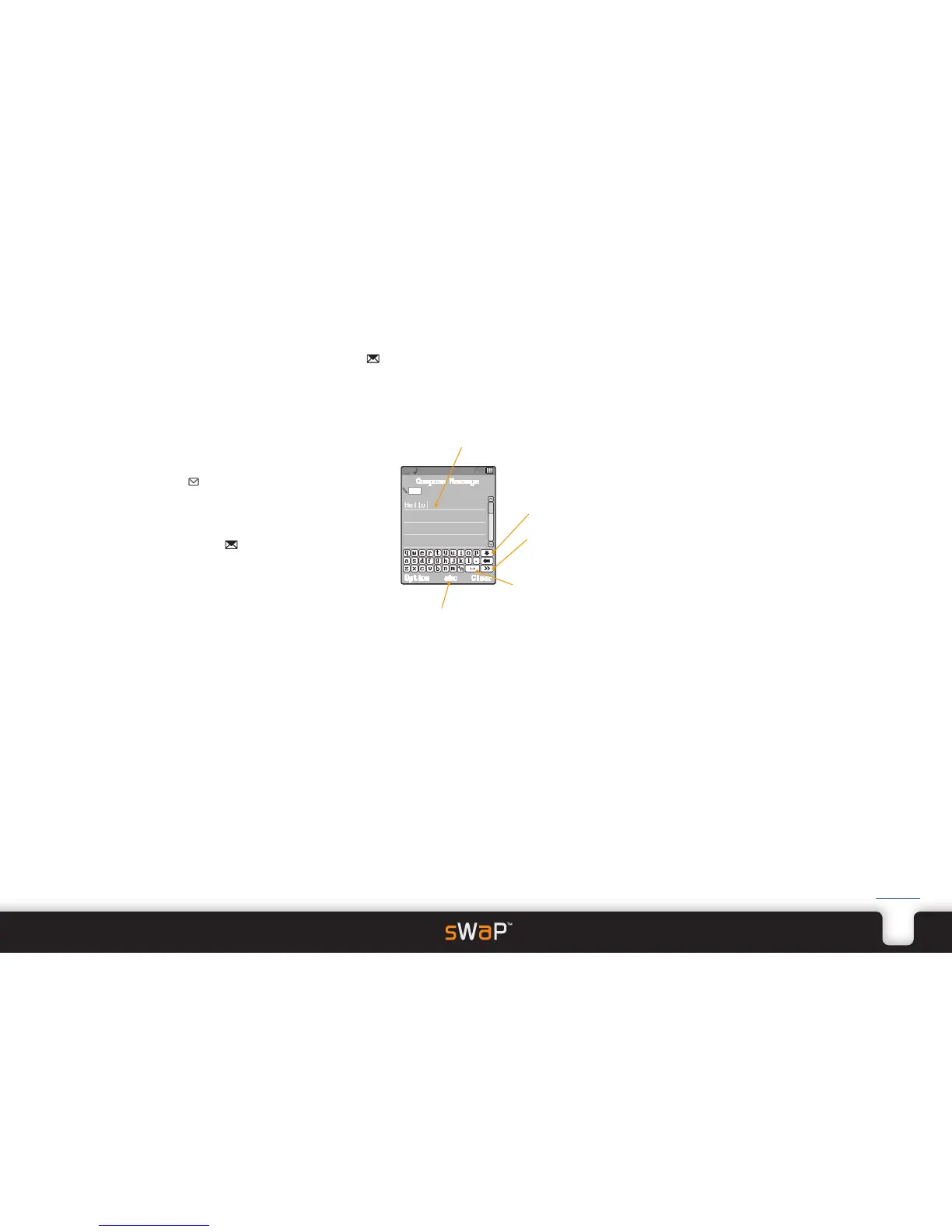
4 Tap out or handwrite your message within the editor
page:
5 You can optionally add other elements to your
message. Tap Option:
•Insert number from your Phone book.
•Insert name from your Phone book.
•Insert object to add small images, animations or
melodies.
•Format text to change the size, style and alignment
of the characters.
•Use templates to quickly add a standard phrase to
your message.
•Insert bookmark to add internet addresses stored in
the WAP browser.
Note: Not all mobile phones are able to display or play
media attachments or show text formatting.
6 When your message is complete, tap Option and then
tap Done.
You can now choose how to send and/or save the
message: Send to one person, send to a list of people,
send to one of the your groups, or just save the
message for later.
7 Tap the required send/save option and then either enter
the phone number (or tap Search to find a Phone book
entry) or choose the group of recipients.
8 Tap OK to send/save your message.
If you chose to save your message, it will be stored in
the Outbox, which you can choose from the main
Messages menu.


 To Next Page