5
sWaP Nova user guide
www.s-w-a-p.co.uk
Contents
Menu map
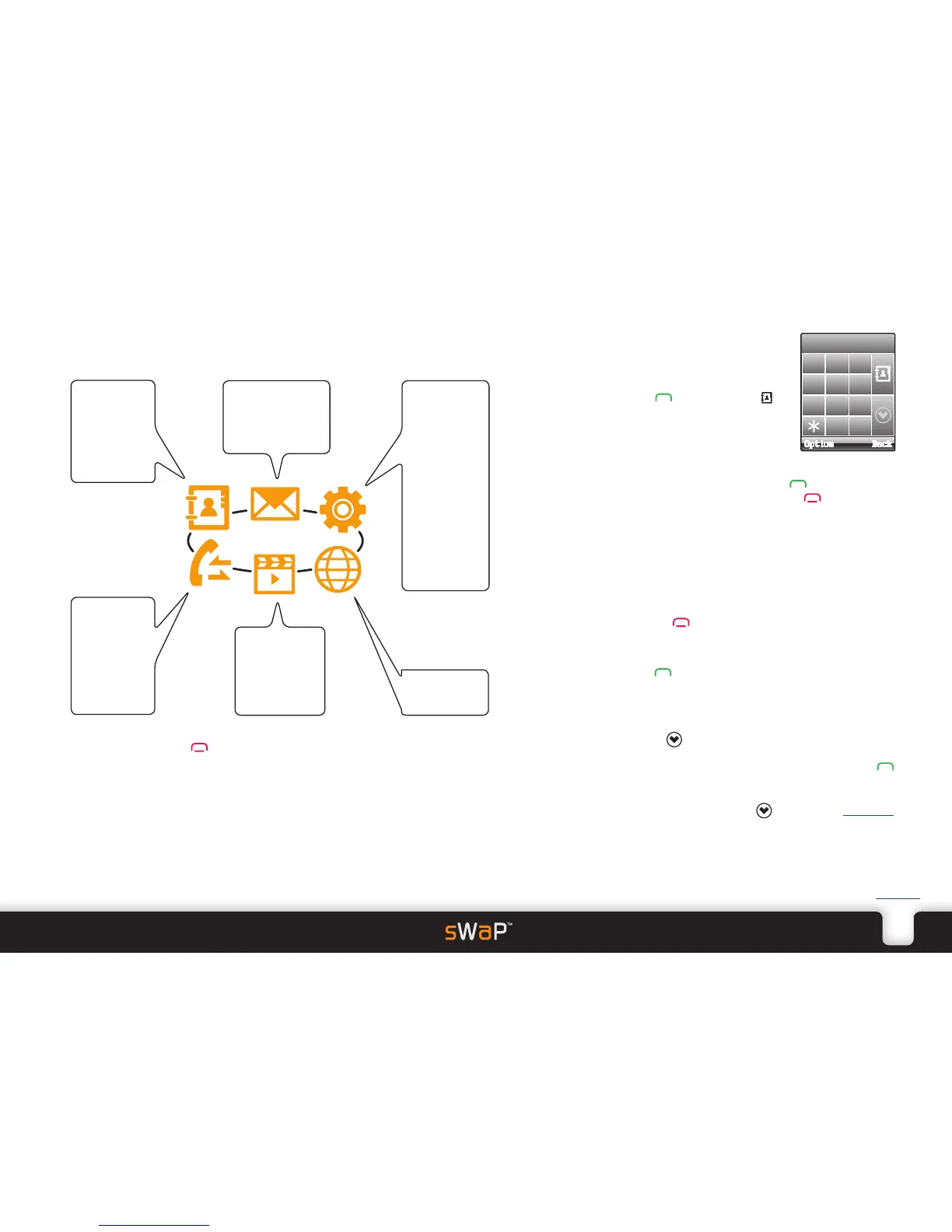
From the clock face, tap the Menu option (or press the lower button) and then choose one
of six icons:
SETTINGS
Pen Calibration
Organizer
Calendar
To Do List
Alarm
World Clock
Calculator
Bluetooth
File Manager
User Profiles
Phone Setup
Call Setup
Network Setup
Security Setup
MEDIA
Photo Album
Video Player
Audio Player
Sound Recorder
FM Radio
WAP
WAP
Data Account
CALL LOG
Missed Calls
Dialed Calls
Received Calls
Delete Call Log
Call Time
SMS Counter
GPRS Counter
MESSAGES
SMS
MMS
Voice Mail Server
Broadcast Message
CONTACTS
Search Entry
Add Entry
Copy All
Delete
Caller Group
Settings
Tap the Back option or press to exit from the menu and return to the clock face.
Dialling a call
1 From clock face, tap and hold the
screen for 2 seconds to show the
dial page:
2 Tap the phone number and then
press Alternatively, tap to
access your Phone book.
Answering a call
•Whenthecallalertsounds,press to answer.
Alternatively, to reject the call, press or tap Reject
in the lower right corner.
Voice activation
•Fromtheclockface,pressandholdthedownbutton
(located on the side of your sWaP Nova), and then say
either “CALL xyz” or “FIND xyz”, where xyz is a Phone
book contact name.
Ending a call
•Pressthe button or tap Option in the lower left
corner and then tap End.
Viewing previously dialled calls
•Press when no numbers are entered.
Using speed dial
•Tapandholdanumberbetween1 and 8 to dial one of
your most commonly used contacts*.
•Tapthe button to view your list of speed dial
contacts. Here you can edit an entry, delete an entry, or
call an entry (highlight the required entry and press
to place the call).
* To use speed dial, you need to first store your special
contact numbers - use the button or see Speed Dial
within the Phone Setup section.


 To Next Page