3
sWaP Nova user guide
www.s-w-a-p.co.uk
Contents
0% 100%
Getting started
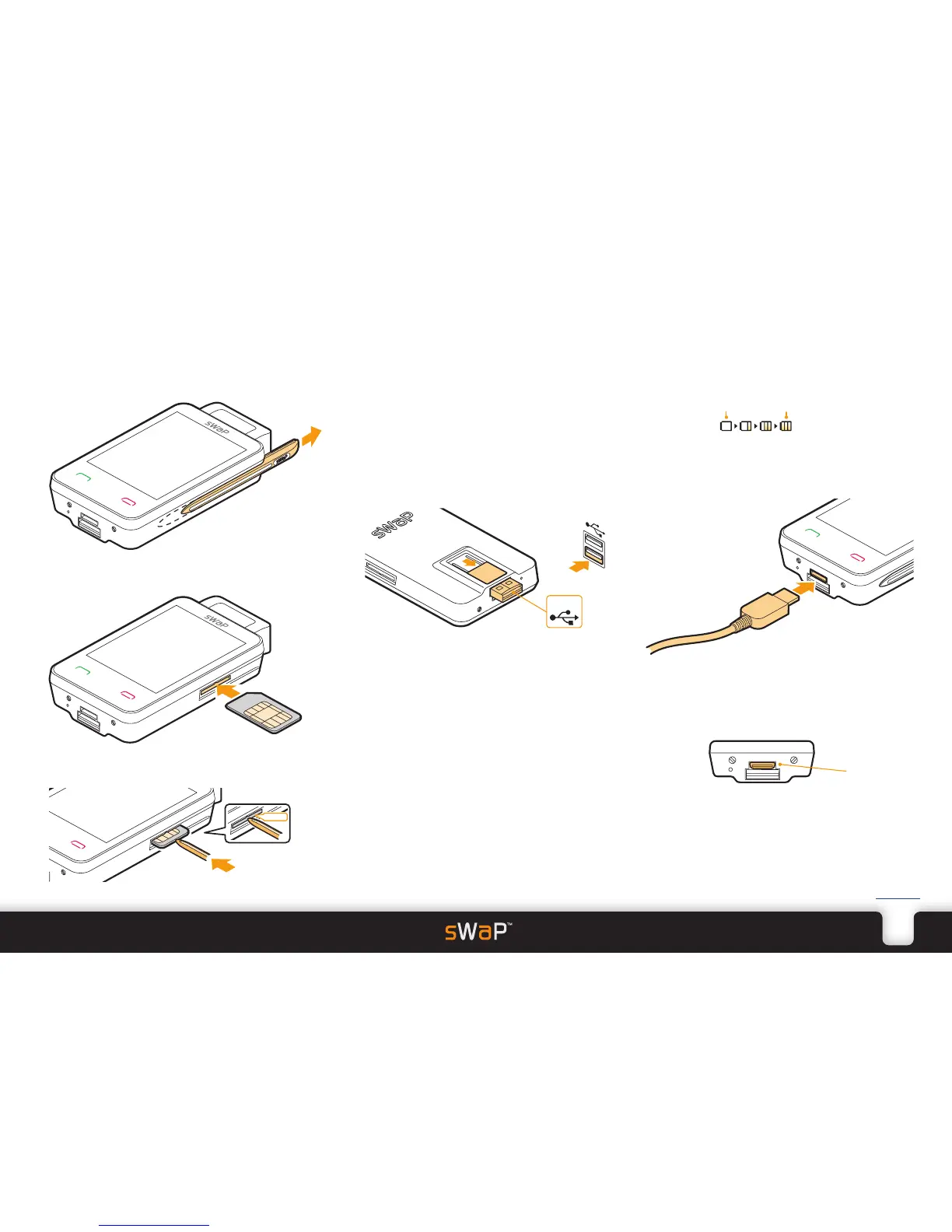
Inserting your SIM card
Note: Avoid touching the gold contacts of your SIM card.
1 Slide out the stylus from the side of your Nova to reveal
the recessed SIM card slot.
2 Slide your SIM card, with its gold contacts upwards and
its notched corner towards the Nova, carefully into the
slot.
3 Use the end of the stylus to push the SIM card all the
way into the slot until it clicks into place.
Charging the battery
You can charge your sWaP Nova using the USB port on your computer and there are two ways to connect it:
•UsingtheslideoutUSBport,or
•UsingthesuppliedUSBconnectioncable.
Your sWaP Nova can be switched on or off when it is charging.
While charging, the battery indicator on the display will show the progress:
USB
Charging using the slide out USB port
1 On the underside of your sWaP Nova, slide the USB
port button towards the base. The USB connector will
be revealed.
2 Carefully insert the USB connector into a vacant socket
on your computer. TIP: Keep your finger on the USB
port button to prevent the connector from retracting
back into sWaP Nova.
3 If your computer is not already switched on, switch it
on to start charging your sWaP Nova.
Charging using the supplied USB connection cable
1 Carefully insert the small plug of the supplied USB cable
into the Options port at the base of your sWaP Nova.
Note: Be sure to insert the plug into the correct socket
and in the correct orientation. The Options port is the
smaller socket, just above the slide USB port. It has
rounded corners on its lower side corresponding to
similar corners on the plug.
2 The other end of the cable has a standard USB plug
which you can attach to your computer.
3 If your computer is not already switched on, switch it
on to start charging your sWaP Nova.
Options
port
PC


 To Next Page