4
sWaP Nova user guide
www.s-w-a-p.co.uk
Contents
Switching on and off
Press and hold the upper button until the screen
responds, then release.
Using the stylus
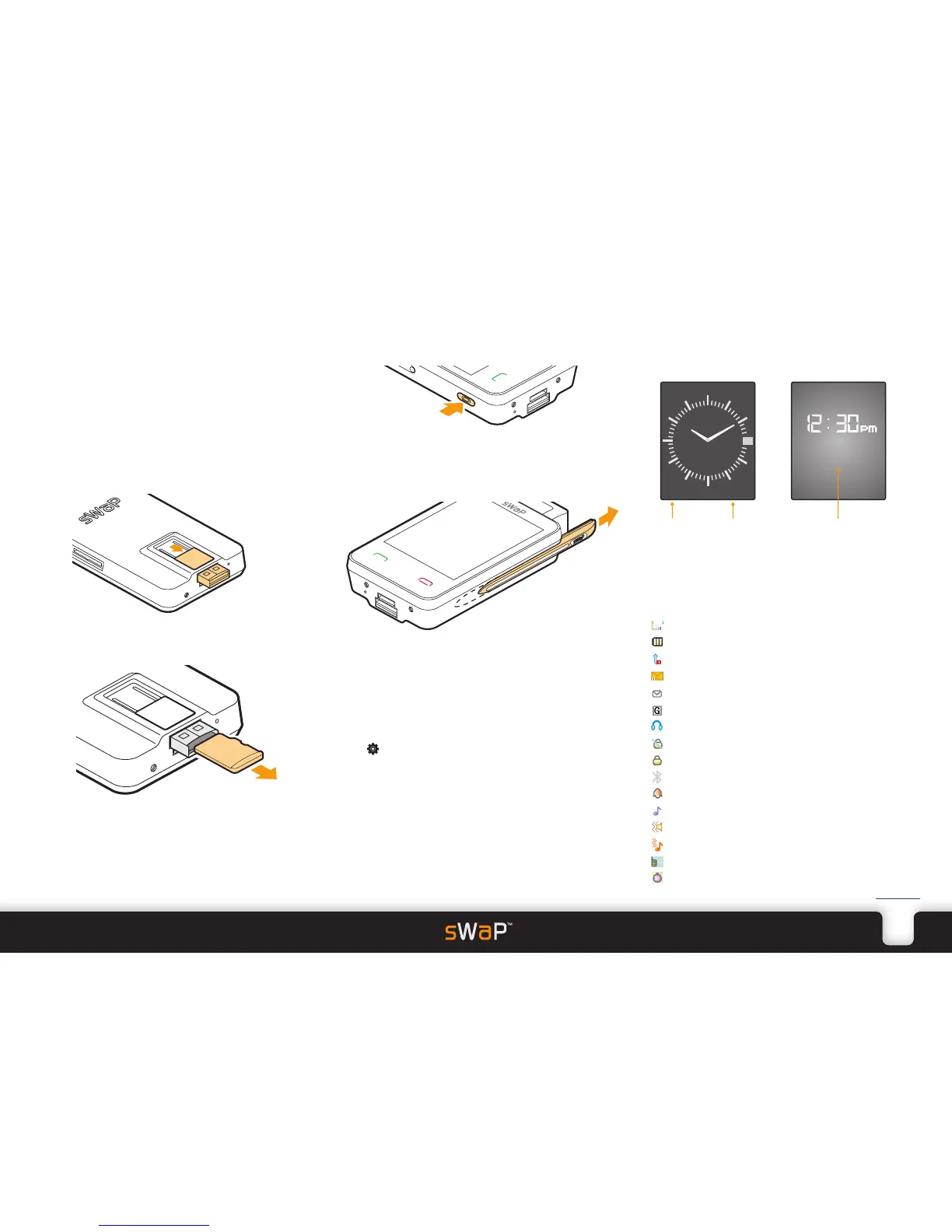
The stylus is a slide out pointer with which you can
select items more accurately on the touch screen. It
is stored in the slot along the right side of your sWaP
Nova.
Removing/inserting the memory card
Your sWaP Nova comes with a 2 GigaByte memory
card to store all of your messages, pictures, videos and
other information. You do not normally need to remove
the memory card, however, there may the occasional
need to transfer memory content to, or from, another
similarly equipped device.
The memory card conforms to the Micro SD standard
and is cleverly hidden within the slide out USB port.
1 On the underside of your sWaP Nova, slide the USB
port button towards the base. The USB connector will
be revealed.
2 Within the underside of the USB connector you will see
the end of the concealed memory card. With a finger
nail, prise out the memory card from the connector.
To reinsert the card, ensure that it is oriented as above
and then carefully push it into the slot within the USB
connector.
The clock face
When your sWaP Nova is not engaged in other
activities, it will display a clock face (analog or digital):
Digital clock face
Name of the
current network
The chosen clock face will overlaid with the current
network name plus selectable options (in the two lower
corners). The top edge of the clock face will also show
one or more of the following status icons:
Signal level (0 to 4 bars)
Battery charge status
Missed call
SMS message(s) received
MMS message(s) received
GPRS data connection available
Earphones attached
Auto keypad lock is off
Auto keypad lock is on
Bluetooth function enabled
Alarm set
User profile set to use ring alert only
User profile set to use vibrate first and then ring
User profile set to use vibrate and ring alerts
User profile set to use vibration alert only
Stopwatch running
Pen Calibration
For best results, we recommend that you calibrate the
screen of your new sWaP Nova. This will ensure the
best accuracy between your stylus movements and the
reaction of the screen.
1 From the clock face, tap the Menu link in the lower left
corner of the screen.
2 Tap (twice, if necessary).
3 Tap Pen Calibration and then follow the on screen
instructions, using the stylus to tap where instructed.
TIPS:
•Whentappingonthedisplayedtouchpoints,viewthe
screen exactly as you would in normal operation.
•Forbestresults,gothroughtheproceduretwice.
•Repeattheprocedureonceamonthtokeepaccuracy
at the opimum level.


 To Next Page