14
sWaP Nova user guide
www.s-w-a-p.co.uk
Contents
Sound recorder
Allows you to record face-to-face or telephone
conversations (warn the caller first) or other
soundscapes around you.
1 From the clock face, tap Menu.
2 Tap (twice, if necessary).
3 Tap Sound Recorder. A list of any existing recordings
will be shown.
To start recording: Tap Option and then tap Record.
To pause or stop recording: Tap either Pause or Stop.
As soon as you choose Stop, the screen will display an
assigned numeric name for the recording in the editor
screen.
Optionally use the editor to alter the assigned name.
Once done, tap Option and then tap Save.
The new file will be added to the list in the sound
recorder main screen.
Sound recorder options
From the list screen, tap Option:
•Record to begin a new recording.
•Play the currently selected entry.
•Append to resume recording at the end of the
currently selected entry.
•Rename to edit the name of the currently selected
entry.
•Delete and Delete All allow you to keep the list free
of clutter.
•Settings > File Format allows you to choose AMR
and WAV formats. AMR is suited to voice recording;
whereas the WAV format is supported widely on
personal computers and would be the one to choose if
you intend to transfer your recordings.
•Forward allows you to copy the entry for use as
an alert tone or send it to someone either via MMS
message or by Bluetooth link. The latter option will
guide you through the process of searching for and
bonding with a Bluetooth device in your vicinity.
FM radio
This allows you to listen to any FM radio stations available
within your vicinity. The stereo headphones must be
used uncoiled as their cable forms the radio aerial.
1 From the clock face, tap Menu.
2 Tap (twice, if necessary).
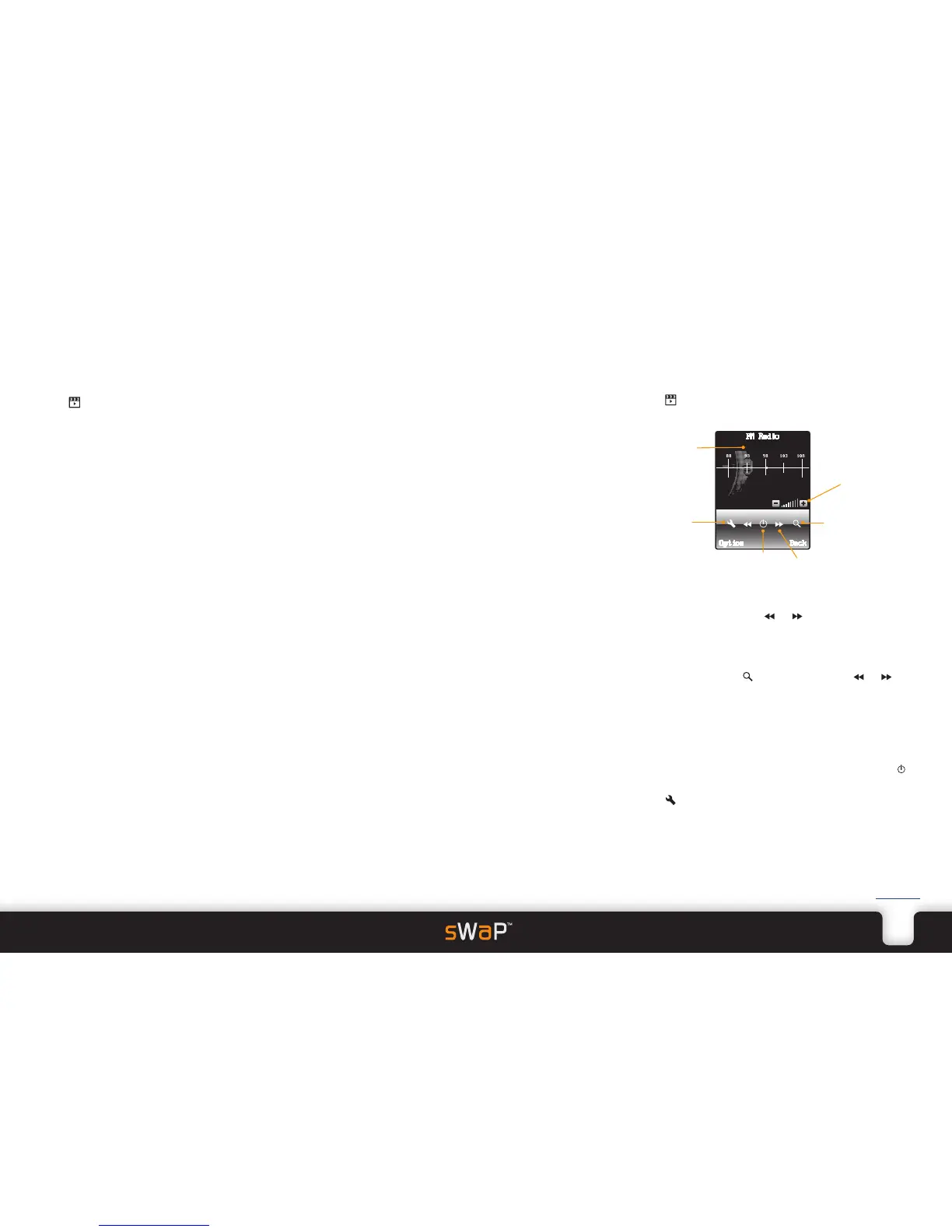
3 Tap FM Radio. The FM Radio screen will be displayed:
Finding a station
To search manually: Tap or to change the
frequency.
To choose a frequency: Tap Option and then Manual
Input. Enter the frequency and tap OK.
To auto search: Tap and then tap either or to
locate the next radio station.
To create/use a channel list entry: Tap Option and then
Channel List. Tap an existing entry to select its frequency
or tap an empty entry to add a new frequency.
General settings
Use the + and - buttons to adjust the volume or tap
to mute / unmute.
Tap to gain quick access to the settings menu.
If the Settings > Background Play option is enabled,
then the radio output will continue while you are
using other applications. Also, output will be muted
during calls and will automatically resume once a call is
completed.
Change frequency or
station search (when Auto
Search option is selected)


 To Next Page