ng
s
INTRODUCTION
PREPARATION
WATCHING TV
OPTIONAL SETTING
TROUBLESHOOTING
INFORMATION
11.1
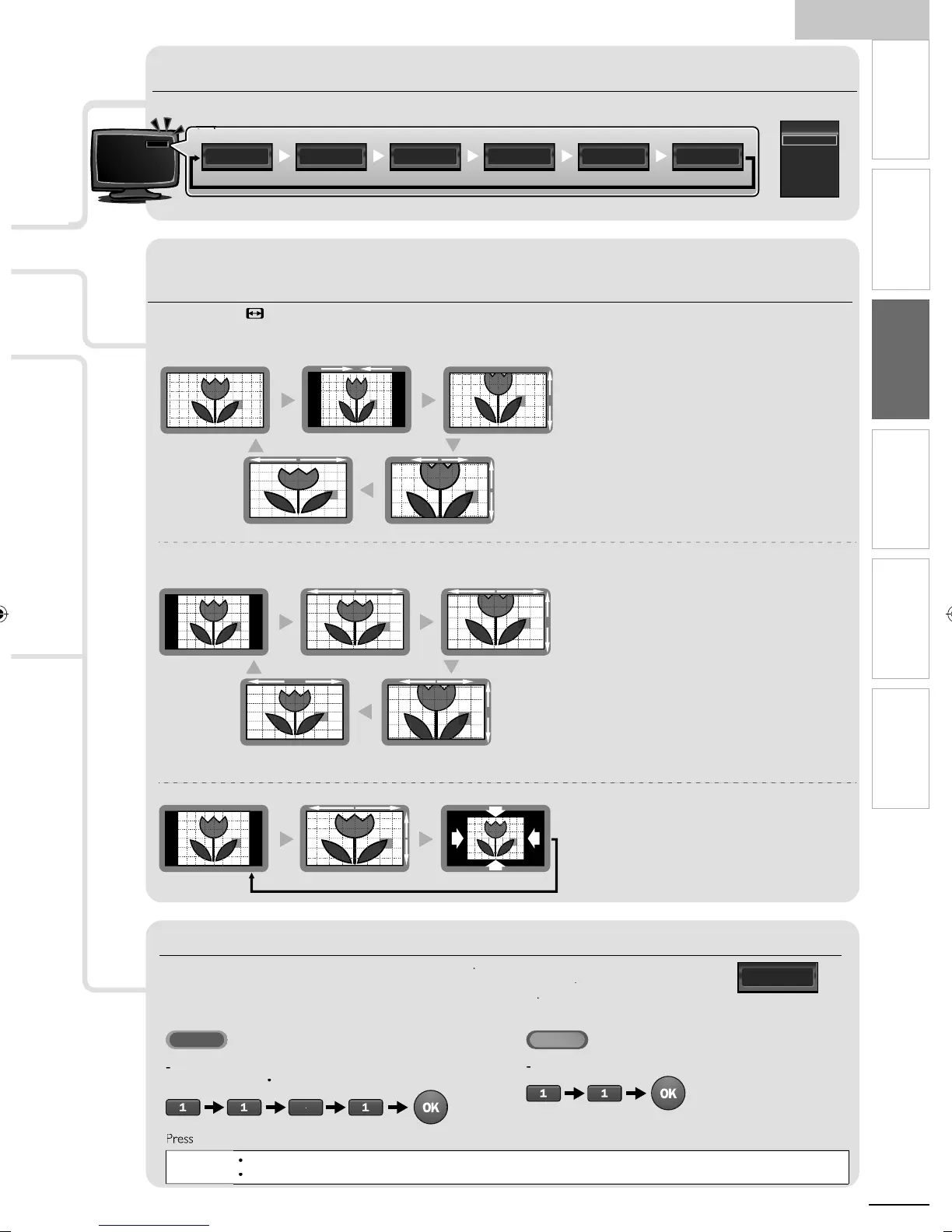
Component HDMI1 HDMI2 HDMI3Video2Video111.1
Switching Each Input Mode
TV Screen Display Mode
5 types of display modes can be selected when the broadcasting station is sending 16:9 or 4:3 video signal. And 3 types of display
modes can be selected for PC in
ut si
nal
ress FORMAT re
eate
to sw
tc
t
e
as
ect rat
o
or 16:9 video signa
orma
i
e
4:3
ovie
xpan
oom
orma
is
la
s a 16:9
icture at its ori
inal size
4:3
isplays a 16:9 picture at a 4:3 size; the picture
s shortened horizontally. Sidebars appear on both
edges of the screen
ovie
xpan
isplays a 16:9 picture that is
ertically stretched to fi ll the screen. This only crops
out the top of the picture
oom
isplays a 16:9 picture at its maximum size
t
out c
an
n
ts
or
zonta
an
vert
ca
rat
o
i
e
s
a
s a
or
zonta
stretc
e
cture.
s
crops out the left and right sides of the picture
or 4:3 video si
na
orma
i
e
6:9
ovie
xpan
oom
orma
isplays a 4:3 picture at its original size.
idebars appear on both edges of the screen
16:9
isplays a 4:3 picture at a 16:9 size; the picture is
stretched horizontally to fi ll the screen
ovie
xpan
is
la
s a 4:3
icture at a 16:9 size;
he
icture is stretched more verticall
at the to
o
he screen. This crops out the top of the picture
oom
is
la
s a 4:3
icture at a 16:9 size; at its
maximum size that is more verticall
stretched to fi ll
he screen. This cro
s out the to
and bottom of the
p
cture
i
e
sp
ays t
e p
cture w
t
ts center at t
e
original size and the edges stretched horizontally to fi ll
e screen
or PC in
ut si
na
orma
ot
y
ot
u
orma
sp
ays a proport
onate
y stretc
e
p
cture.
idebars appear on both edges of the screen
u
is
la
s a
icture that is stretched out o
proportion to fi ll the screen
ot
y
o
sp
ays a p
cture
n
ts or
g
na
s
ze
Channel Selection
elect channels b
usin
H
/− o
e
um
er
utton
o se
ect t
e memor
ze
c
anne
s
use
H
/− o
t
e
um
er
utton
o se
ect t
e non-memor
ze
c
anne
s
use
e
um
er
utton
o use
um
r
u
n
When selectin
di
ital channel 11.
e sure to
ress
before enterin
the subchannel number
REV CH to return to t
e prev
ous
y c
anne
hen selectin
analo
channel 1
Note
[No Signal
will a
ear on the TV screen after the subchannel broadcast is over.
Au
i
on
y program
messa
e w
a
ear on t
e
screen, w
en
ou rece
ve on
soun
s
na
HDMI1 HDMI2Component PCVideo11.1
Source
TV
Video
Component
HDMI1
HDMI2
PC
Switching Each Input Mode
an easily switch with the remote control between TV (ATSC or NTSC) and
externa
ev
ces w
en t
ey are connecte
to t
e un
t
ress SOURC
o
H
re
eate
to c
c
e t
rou
t
e
n
ut mo
es
ress
ng
H
reverses the direction of the input modes
DTV / TV channel
.
A0171N1UHmasterdraftENv1.indd17A0171N1UHmasterdraftENv1.indd17 2010/01/2922:55:562010/01/2922:55:56


 To Next Page