11–Exchanging Data with a Computer
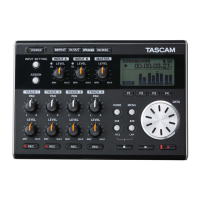
TASCAM DP-004 99
Exporting tracks
You can export tracks as 16-bit, 44.1-kHz mono
WAV les.
1 With the transport stopped and the Home Screen
open, press the MENU key to open the
MENU
screen.
Turn the DATA wheel to select
WAVE
, and press the F4
(¥) key to open the
WAVE
menu.
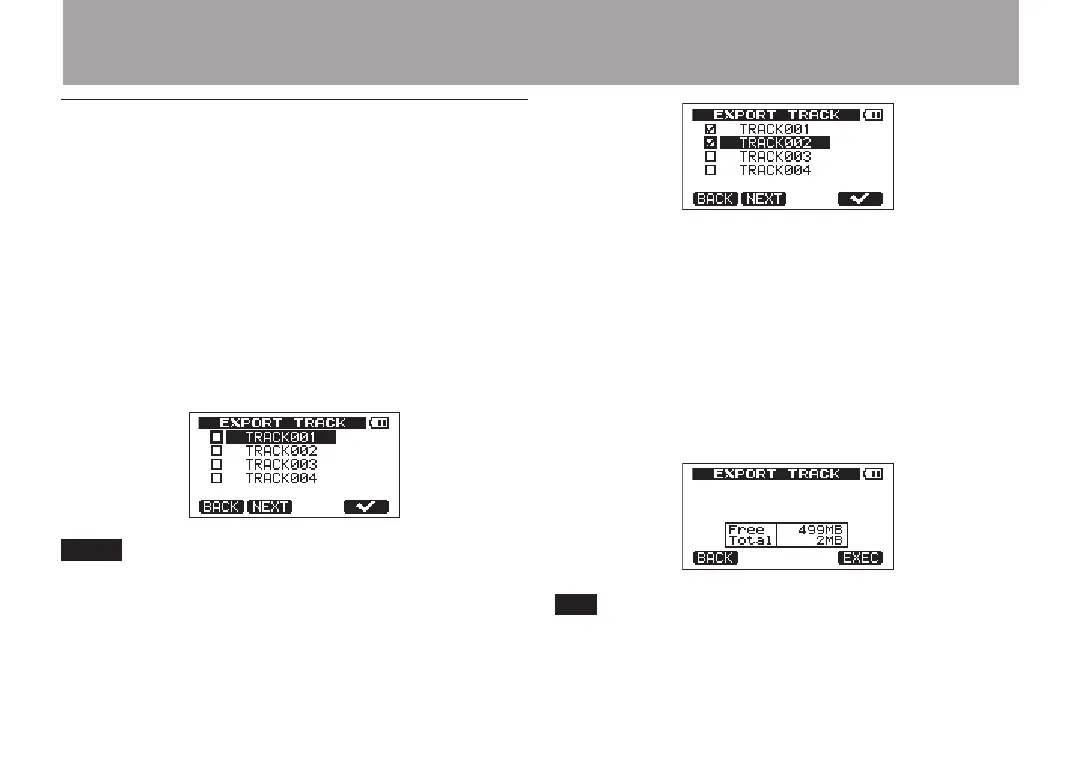
2 Turn the DATA wheel to select the
EXPORT TRACK
item, and press the F4 (¥) key. Song tracks that
have audio recordings are displayed in a list. The
file name makes the source track number clear.
Song tracks that do have audio recordings are not
displayed in the file list.
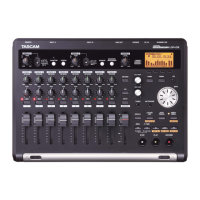
3 Turn the DATA wheel, to select a track for export,
and press the F4 (✔) key to put a check in the
checkbox.
By checking multiple checkboxes, you can export
more than one track at once. Select a track and
press the F4 (✔) key again to remove the check
from its checkbox.
4 When you finish putting checks next to the tracks
that you want to export, press the F2 (
NEXT
) key. The
amount or open space on the FAT partition (which
is the destination for the exported tracks) and the
total number of tracks to be exported is shown.
In step 3 above, if you press the F2 (NEXT) key after
selecting a track but before putting a checkmark next to
any track, the selected track is exported alone.


 To Next Page