11 BRICKWALLHD User Manual
6.1.1 Master Limiter
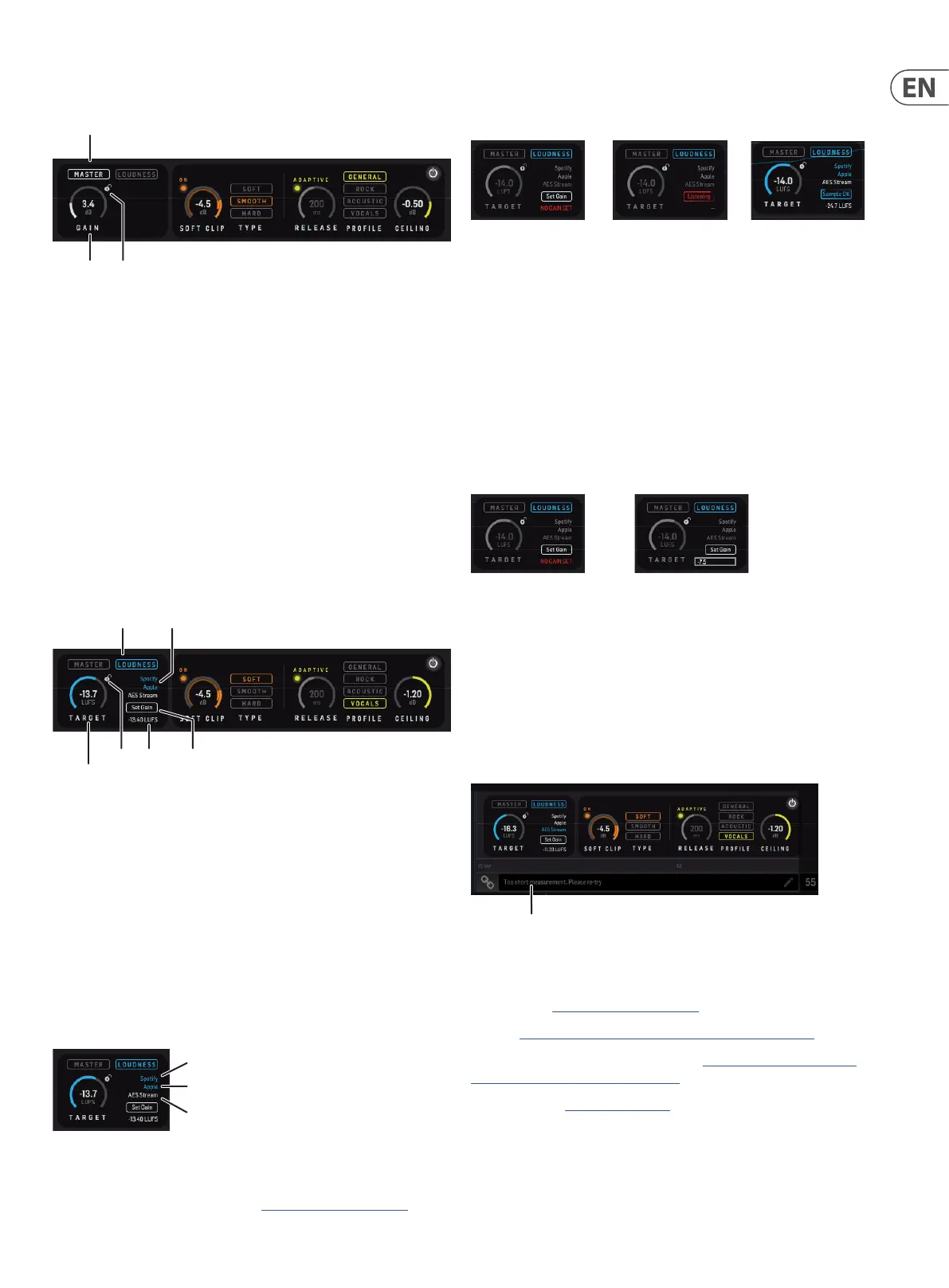
Gain
Master
Lock
The overall Gain control sits at the input of the limiter. Adjust it to hit the True-
Peak and Loudness level that you aim for. When input peaks hit the Limiter
threshold at 0 dBFS, the limiter will kick-in to ensure that no peaks will exceed
0 dBFS True-Peak at the Limiter output.
Adjust the Ceiling to add margin relative to 0 dBFS.
The resulting Integrated Loudness that denes how loud the track is perceived is
shown as the blue Triangle in the right side of the main view. A set of descriptors
are collected in the STATS view. Press Reset to make a new measurement.
The small "lock" next to the control allows you to keep the value when a new
preset is selected.
Adjust the gain either by dragging over the control, or clicking on the number and
entering the numeric value.
6.1.2 Loudness Limiter
Loudness Formats
Target
Loudness
Level
Lock Set GainValue
Choose the Loudness Limiter for a fast workow if you know what Loudness level
you are aiming for.
The small "lock" next to the control allows you to keep the value when a new
preset is selected.
Adjust the loudness level either by dragging over the control, or clicking on the
number and entering the numeric value.
1. Set the Target Loudness level, to -15 LUFS for example.
2. The Spotify/Apple/AES Stream texts will individually light up if your
Loudness target is appropriate for these platforms.
Formats
Spotify
Apple
AES Stream
Note that these recommendations are bound to change now and then. To
see latest evolvement, please refer to https://nalizer.com/analyzer
3. Start DAW playback of your project or track, and press Set Gain to let
BRICKWALL HD listen to the content. The Set Gain button will read
“Listening”.
Sample OKListening..Set Gain
4. When the Loudness measurement on the Limiter input (below the Set Gain
button) is not evolving anymore or when the button reads “Sample OK” you
may press the button to stop listening. During Listening, all measurements
including STATS and History in the plug-in view are based on the input
signal.
5. Now, the measured input loudness and the adjusted Target Loudness are
used to set the Gain behind the scenes, which will result in the Limiter
working to aim for the Target Loudness.
6. The Input Loudness Level may also be entered with your keyboard, by rst
clicking on the value below the "Set Gain" button. This may be convenient if
you already have an Integrated Loudness result obtained using another tool.
Enter the Numeric ValueSet Gain
A few things to note
• • It is recommended that you let the BRICKWALL HD listen to multiple
passages in your track, especially the loudest, to help BRICKWALL HD hit
the target optimally.
• • BRICKWALL HD will show dierent messages if the Set Gain-feature is
not able to nd appropriate settings due to the sample being: Too short,
too low audio level, no audio detected etc.
Measurement Status
More information:
Free online analyzer for comparing your own music to well-known, professionally
mastered tracks https://nalizer.com/analyzer
Loudness https://www.tcelectronic.com/brand/tcelectronic/loudness
TC Electronic papers on 0dBFS+ and True-Peak https://www.tcelectronic.com/
brand/tcelectronic/tech-library/mastering
In-app mastering: https://nalizer.com/



 To Next Page