7 BRICKWALLHD User Manual
4.3 How to Insert the Plug-in
The BRICKWALL HD is intended for insertion directly into an eect slot on the
DAW master bus as the last plug-in, with the aim of handling the nal and very
delicate process before bouncing your audio project, or recording the output back
to a nal master channel. But it can also be used on a sub mix bus with great
success, or on a single instrument channel where limiting may be needed for
more artistic reasons.
4.4 Mono/Stereo Operation
The BRICKWALL HD is intended for stereo use, but can also be used both as a
mono instance on mono tracks.
In the case of a mono-out instance, the output signal is made by outputting the
left plug-in channel only.
4.5 Plug-in and Hardware Controls
After you have installed the plug-in, activated the iLok license, and optionally
connected the BRICKWALL HD DT desktop controller hardware unit via USB, you
can begin using it.
The controls of the plug-in and desktop controller are described in more detail
later in this manual.
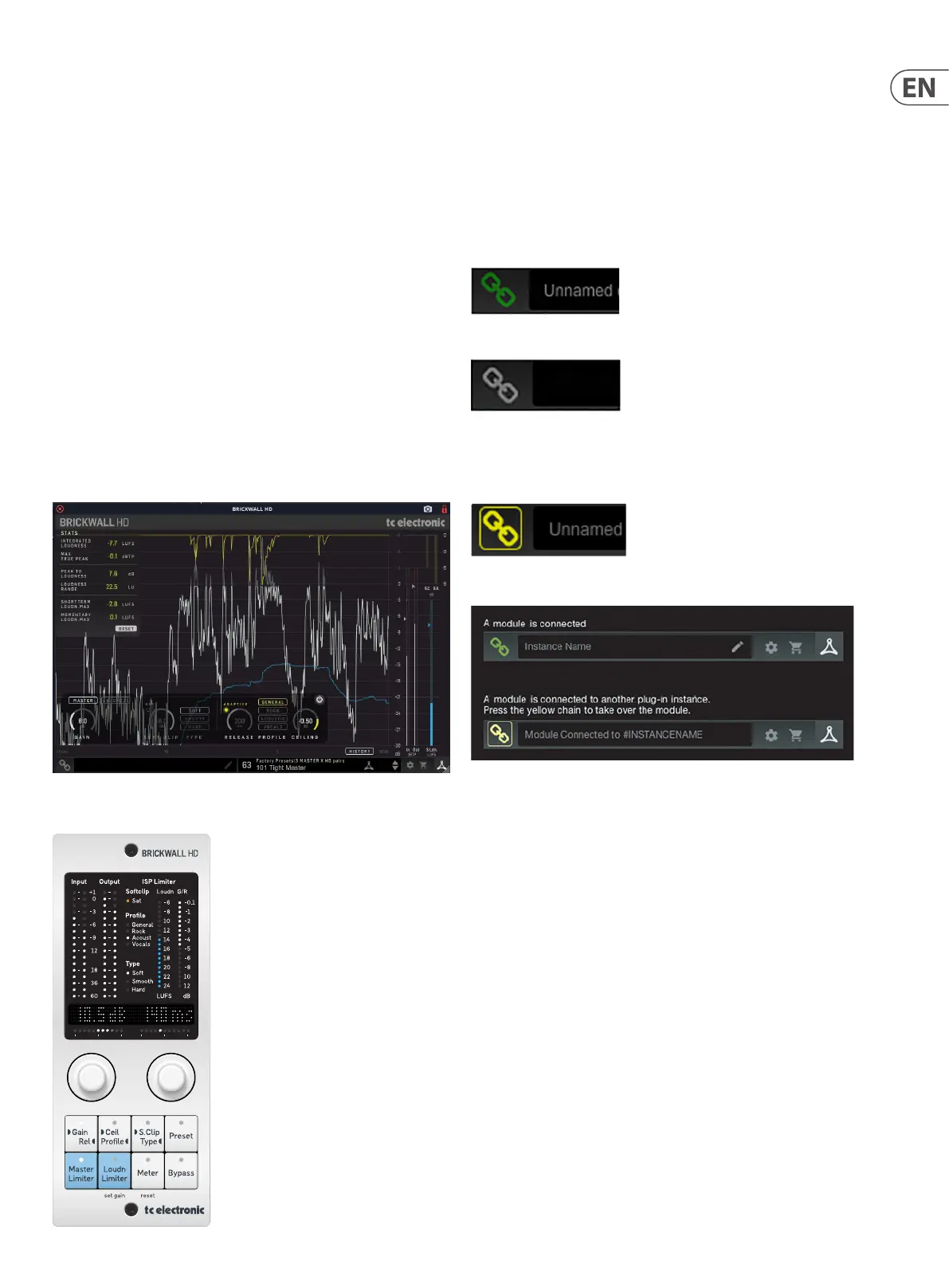
Plug-in User Interface:
The Optional Desktop Controller Hardware Unit:
4.6 Connection Status to the Hardware Unit
The TC Icon family all use the same method to show the connection status
between the plug-in and the hardware unit.
Connection status is indicated on the lower left side of the plug-in window.
Successful connection is indicated with a green chain icon. The Tooltips area will
show the plug-in instance name that the hardware unit is currently connected
to. This is often the DAW channel name. If your DAW does not support this, you
may enter a name for the instance. This may be especially convenient when using
DAW project templates.
When using the NATIVE version only, this chain icon will remain grey:
If another instance of the plug-in already exists on another track, the chain icon
will appear yellow, and the text box will notify you where the plug-in is currently
active. Click the chain icon to connect the hardware unit to the new plug-in
location.
To summarize the connection status possibilities:
Most DAWs oer the ability to move or drag plug-ins from one track/bus to
another, and BRICKWALL HD supports this as well.
Most DAWs also feature an on/o switch for plug-ins, accessible inside the
plug-in window and/or the track itself. Muting the plug-in will make the eect
inaudible, but will not shut down the connection to the hardware unit.



 To Next Page