5 BRICKWALLHD User Manual
2. Plug-in Installation
The combined BRICKWALL HD plug-in installer for both the NATIVE and DT
Desktop Controller products can be downloaded from the following page:
www.tcelectronic.com/brickwallhd-dt/support/
The BRICKWALL HD plug-in requires an active PACE iLok license to work. See
Chapter 3.
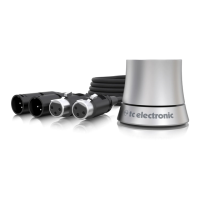
Using the Desktop Controller is optional, and all parameters are available in the
plug-in.
Save the installer le (.pkg or .msi le) in a convenient location on your hard
drive.
2.1 Installation on a PC
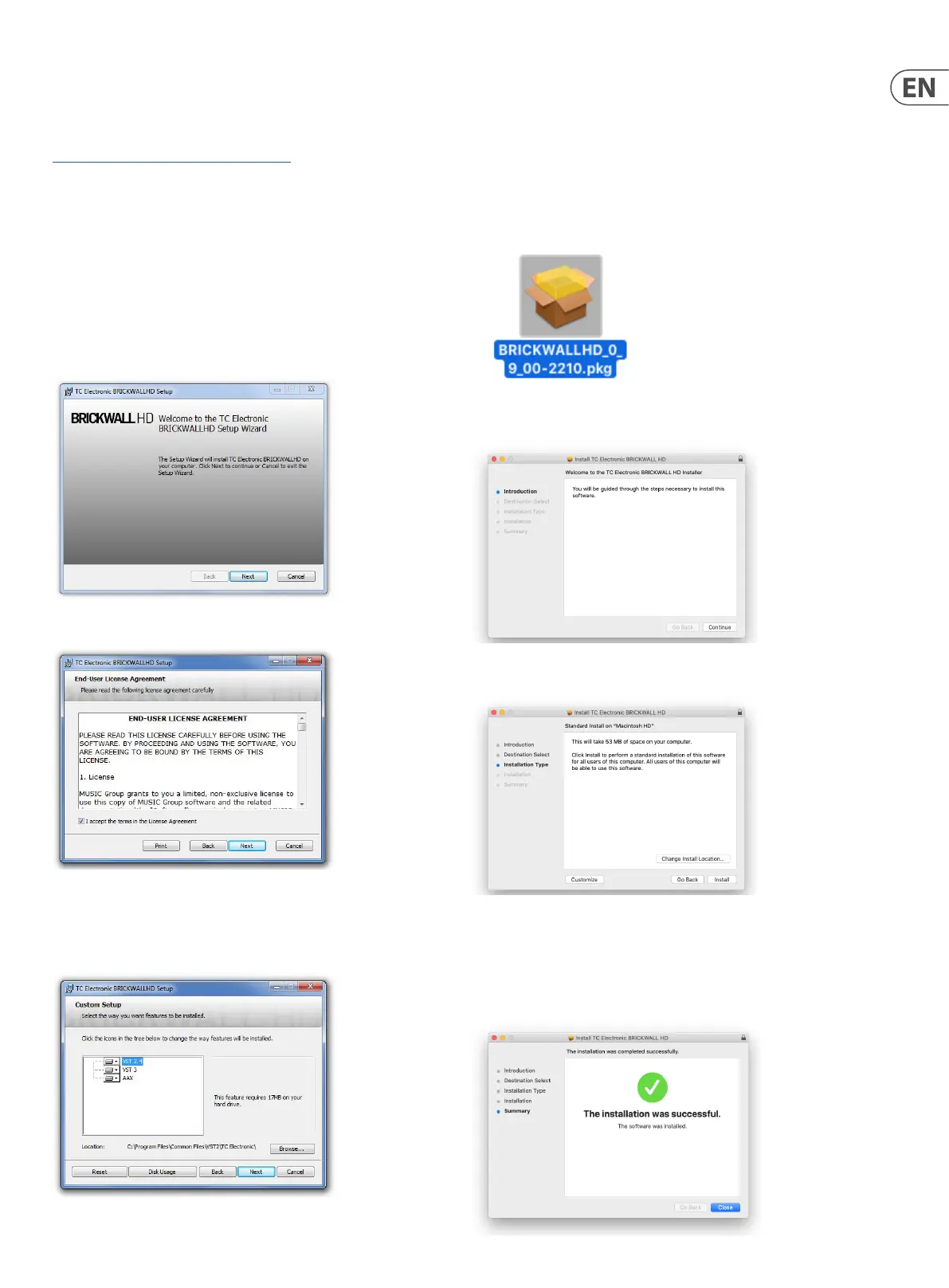
Double click the installer (.msi le). If you get a security warning, click ‘Run’.
Accept the license agreement and click ‘Next’.
Select which VST and/or AAX components you want to install. Pro Tools uses AAX
and most other DAW programs use VST. The installer will oer a default location
to save the le, but you can choose another location by clicking
the ‘Browse’ button.
Click ‘Next’ to begin the installation. When installation is complete, click ‘Finish’.
Note: If your DAW fails to detect the newly installed plugin, this can often be
xed by adding the following paths to the Plug-in Manager (or similar) of the
DAW. The default paths on a PC are "C:\Program Files\Common Files\VST2" and
"C:\Program Files\Common Files\VST3" for VST2 and VST3, respectively.
2.2 Installation on a Mac
Double click the installer (.pkg) le.
Proceed through the prompts to begin installation.
Click ‘Continue.'
A default location will be selected for installation, or you can select another
folder manually. If you have administrator authorization in place, you will need to
enter your password before beginning installation.
Click 'Close' when done.



 To Next Page