6 BRICKWALL HD User Manual
3. Activate your BRICKWALL HD
iLok license
3.1 Activation
Step 1: Install iLok
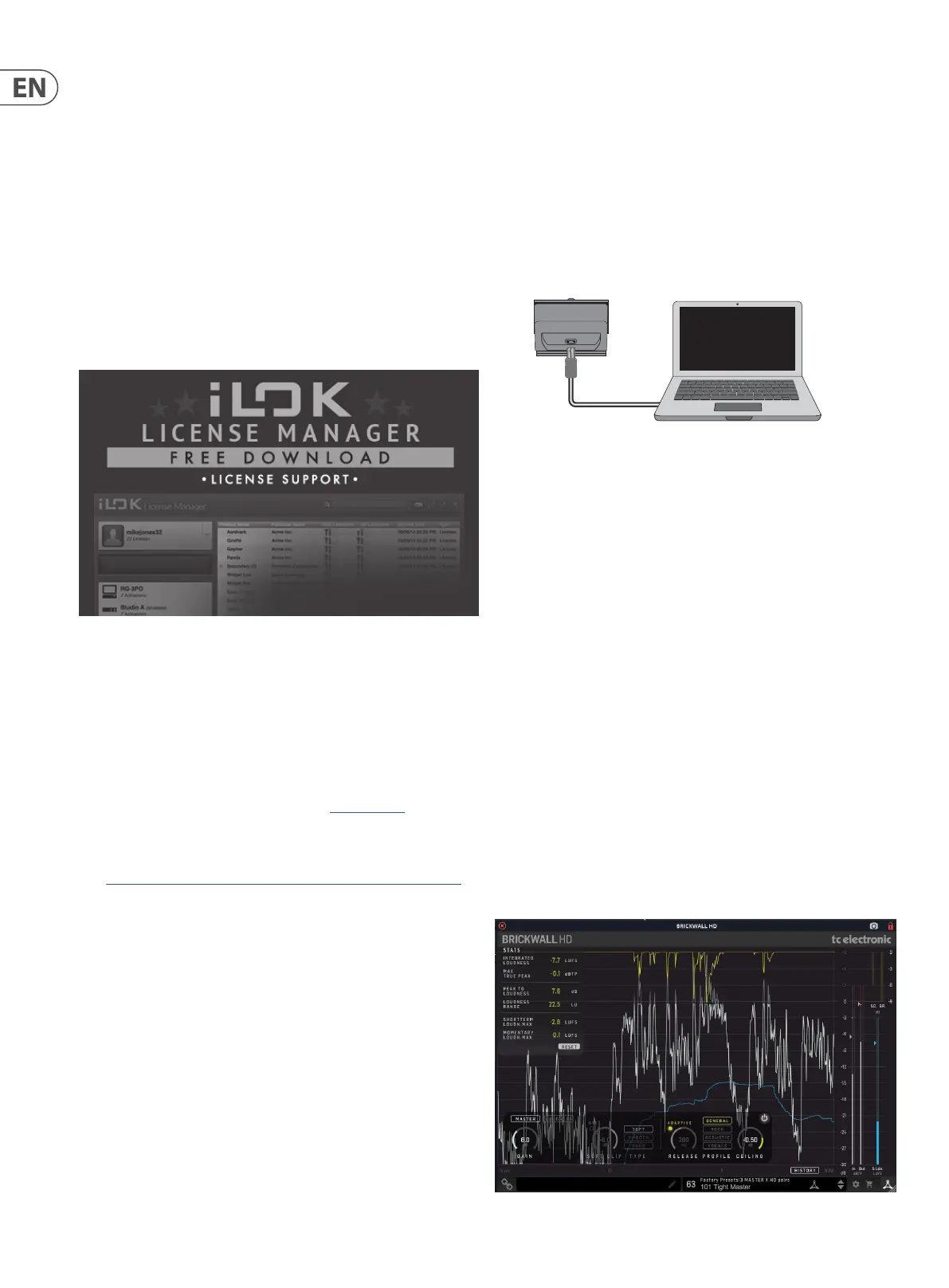
The rst step is to create an iLok user account at www.iLok.com and install the
PACE iLok License Manager on your computer if it’s your rst time using iLok.
Step 2: Activation
In the received mail (when buying the NATIVE version) or on the rear cover of the
printed quick start guide (when you have bought the DT Desktop Controller
version) you will nd your personal Activation Code. To activate your software,
please use the "Redeem an Activation Code" feature in the PACE iLok License
Manager.
3.2 Get a Free Demo License
Make use of this hassle-free oer to try out our plug-ins before you buy.
• 14-Day Trial Period
• Fully Functional
• No Feature Limitations
• No Physical iLok Key Needed
Step 1: Install iLok
The rst step is to create a free iLok user account at www.iLok.com and install the
PACE iLok License Manager on your computer if it is your rst time using iLok.
Step 2: Get your free license
Go to www.tcelectronic.com/brand/tcelectronic/free-trial-brickwallhd-native
and enter your iLok User ID.
Step 3: Activation
Activate your software in the PACE iLok License Manager.
4. Connection and Setup
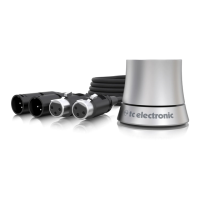
4.1 Connecting the BRICKWALL HD-DT
Desktop Controller (optional)
Getting the Desktop Controller up and running couldn’t get any easier. Plug the
included USB cable into the unit’s rear micro-USB port, and connect the other end
to a free USB port on your computer. The Desktop Controller is bus powered, so no
other power cables are necessary, and no additional drivers need to be
manually installed.
The Desktop Controller will light up upon successful connection. You can now
apply the plug-in to a channel in your DAW to begin using the eect. This process
may vary slightly depending on your software, but generally should require
these steps:
• Select a channel or bus in your DAW to which you would like to add the eect.
Access the mixer page where you should see a section dedicated to eect slots
• Open the menu where you can select from a list of eect types, which
probably includes many stock plugins that are included with the DAW.
There should be submenu to view general VST/AU/AAX options.
• The plug-in will likely be found in a dedicated TC Electronic folder. Select the
BRICKWALL HD and it will now be added to the signal chain.
Double click on the eect slot that contains the BRICKWALL HD to view the
plug-in UI. There should be a green link icon at the bottom, and text that
indicates successful connection between the plug-in and the Desktop Controller.
4.2 Operating the BRICKWALL HD
After you have installed the plug-in, activated the iLok license, and optionally
connected the BRICKWALL HD-DT Desktop Controller via USB, you can begin
inserting the plug-in to your tracks.
Adjustments to the eect are done in two ways: either by using the plug-in user
interface, or optionally via the physical Desktop Controller.
BRICKWALL HD-DT
Laptop



 To Next Page