EasyManua.ls Logo

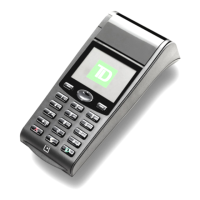
TD Generation - Navigation; Changing the Paper; The Pinpad

TD Generation
24 pages
Print Icon
To Next Page IconTo Next Page
To Previous Page IconTo Previous Page
Loading...
2
Navigation
• Theterminalusesatouchscreenfornavigation.Youcannavigatescreensbyswipingleft/right
ortappinganonscreenoption.
• Onlyuseyourfingerwhenusingtheterminal.Don’tanyobjectsonthetouchscreenotherwise
youmaydamageit.
Changingthepaper
1. Pressthepaper chamber buttononthetop-leftcorneroftheterminaltoopenthepaneland
removetheemptypaperrolltube.
2. Unwrapanewpaperrollandplaceitinthepaperchambersothatthelooseendofthepaper
feedsupfromunderthepaperrolltowardsyou.
3. Pressdownonthepaneluntilitclicksshutandensurethereisabitofpaperstickingoutfrom
thechamberthatittouchesthetopoftheterminalscreen.
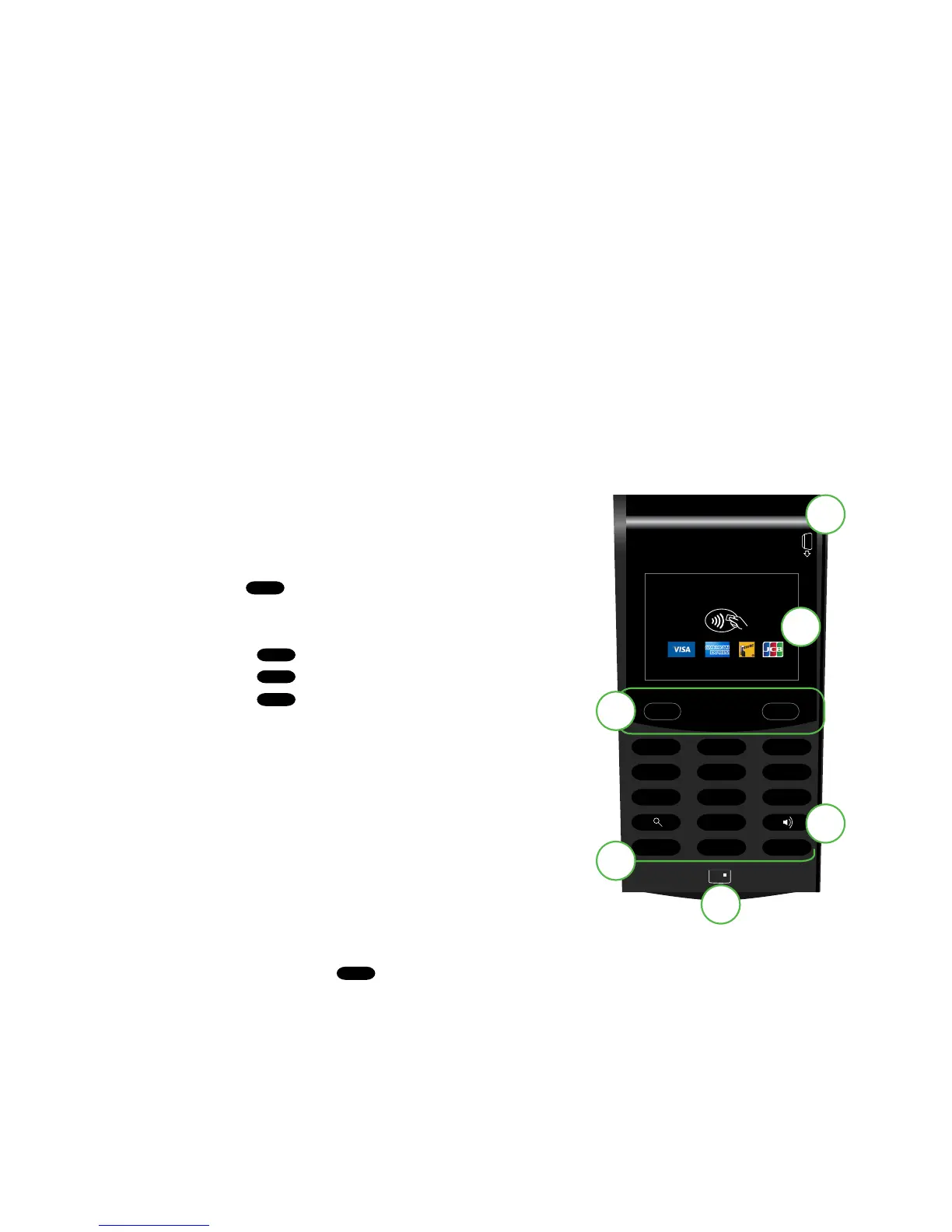
The PINPad
ThePINPadisusedbythecustomertoentermaketransaction
selectionsandentries.
1. Dash keys
Usethe
-
keysandthedirectionpadtonavigate
thescreensandmenus.
2. Command keys
•
X
=Cancel
•
<
=Correction
•
O
=OKoractivate
3. Volume key
UsethiskeytoadjustthePINPadvolume.
4. Card readers
a) Insertchippedcards
b) Contactlesscards
c) Swipecards
Navigation
• Dashkeys—thetwo
-
keysareusedtoselectanonscreenoption.
- -
1 QZ 2 ABC 3 DEF
4 GHI 5 JKL 6 MNO
7 PRS 8 TUV 9 WXY
0
X
<
O
Welcome/Bonjour
4a
4b
4c
1
2
3

Related product manuals