35
DVR Function
Playing recorded program
You can play the selected program in the recorded list.
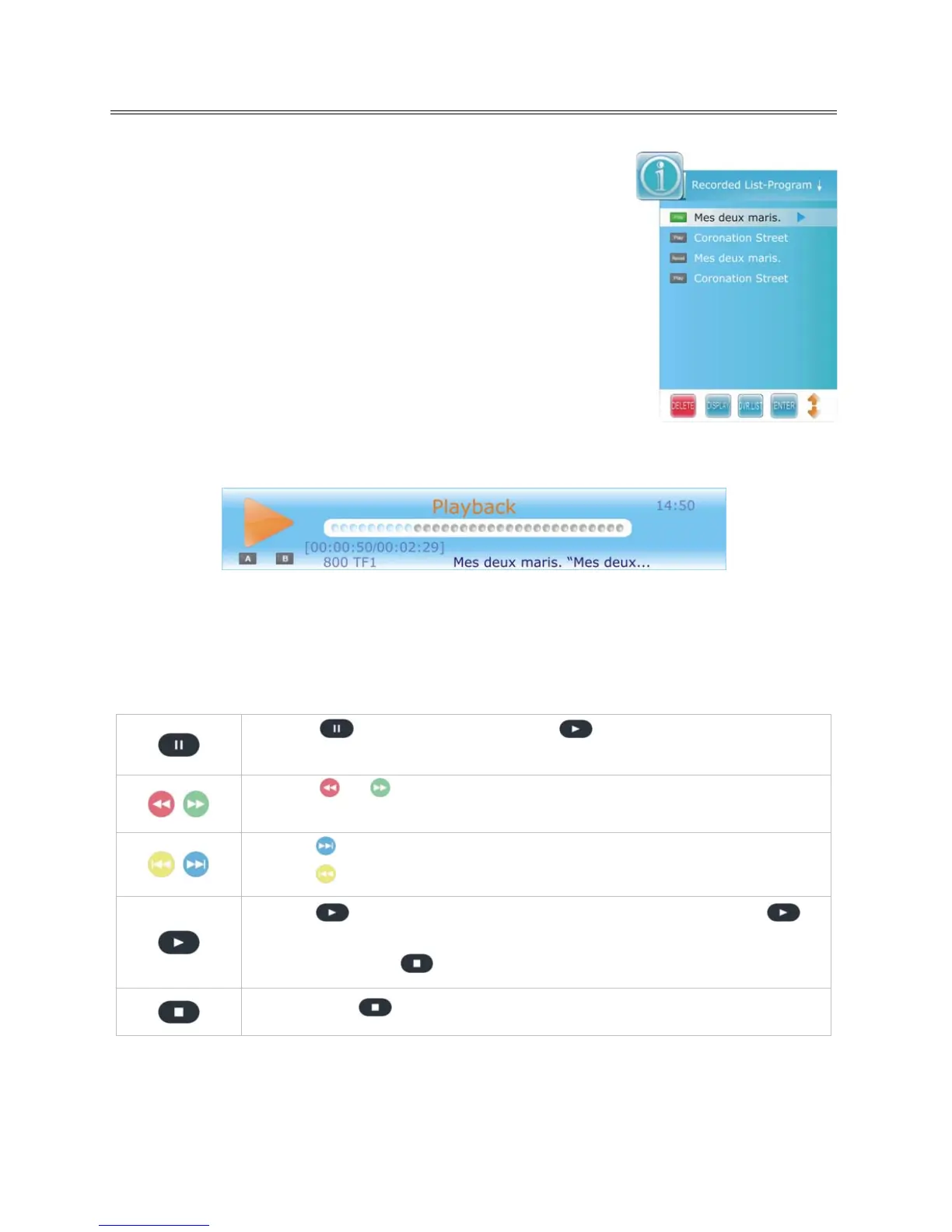
1. Press the DVR.LIST button on the remote control to enter the
Recorded List, as shown:
Press the DVR.LIST button repeatedly to list the files by named
Program, Channel or Time.
2. Press the ▲▼ button to select desired file and press the DISPLAY or
►direction button to display the information of the file.
3. Press the ▲▼ button to select desired file and press the ENTER
button to playback selected file.
4. While playing, you can see a playback progress bar as shown below.
The progress bar will fade out in 10 seconds.
Press EXIT button to toggle between Time Shift info banner and minimize icon at the bottom
right of the screen. Both info banner and minimize icon will fade out in 10 seconds.
During playback, below operations can be use.
Press the
to pause playback. Press the button to return to a normal
playback.
Press the
or button repeatedly to increases the fast forward/rewind
speed.
Press the
button to jump about 30 seconds forward.
Press the
button to jump about 30 seconds backward.
Press the
button to once to set the beginning point “A” and press the
button again to set the ending point “B”. Then the segment A-B will be played
repeatedly. Press the
button to cancel the repeat segment.
If you press the
button while playing, unit will resume to live DTV.


 To Next Page