15
Note: to Change a parameter, you can first press OK button, Then the parameter will be
selected with a blinking short line under its first character (or number), then you can use UP
and DOWN button to change the parameter’s value as you desired, press OK button to
take effect.
Step 3: After you have setup the above parameters, press MENU button to exit the
configuration, the device will reboot automatically.
Step 4: Ping the new IP of the device through the management PC to check the
connectivity.
Note:
Ethernet interfaces with conflicting IP address may cause serious network problems.
Contact your network administrator for correct IP settings.
Both Ethernet interfaces should be connected to a different subnet.
Connect your remote PC and the equipment to the same network without any L3 routers
in-between.
3.1.2 Web UI Introduction
The device provides a web-based management system to configure the device and constantly
monitor the device running status.
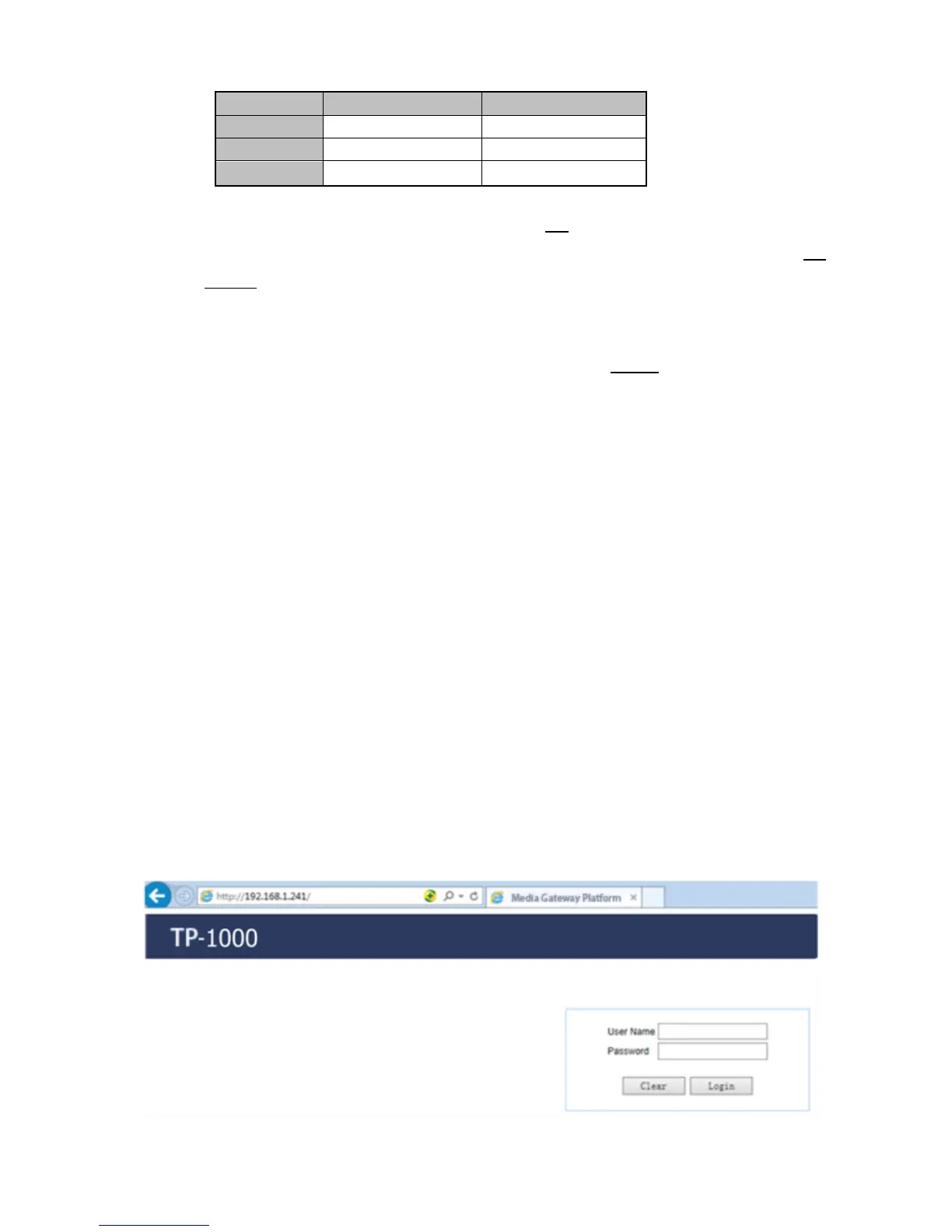
Step 1: Open a web browser (Internet Explorer, Firefox, Chrome, etc.) and enter the IP address
of the device in the address bar, then click OK, it will redirect to the login interface.


 To Next Page