17
DEENFRETSLROLVLTPTRU
UsingthesplashscreenyoualsowillgetaccesstothemanualsfolderontheCD.Hereyouwill
ndthecurrentmanualsinseverallanguages.
Ifyoupressthe“SoftwareTools”button,youwillgetaccesstothesoftwaretoolsfolderontheCD.
HereyouwillndclientsforseveraldataservicesclientapplicationsandotherDVBrelatedtools.
The“Exit”buttonwillclosethesplashscreen.
Ifthisscreendoesnotappear,starttheWindowsExplorerandbrowseintothe“Install”
directoryonyourCDdrive.Opentheapplication“setup.exe”tostarttheinstallationprocess.
Installation of the DVB-PC TV Stars applications
TheinstallationofthedatareceptionapplicationServer4PCisaruntroughinstallation.
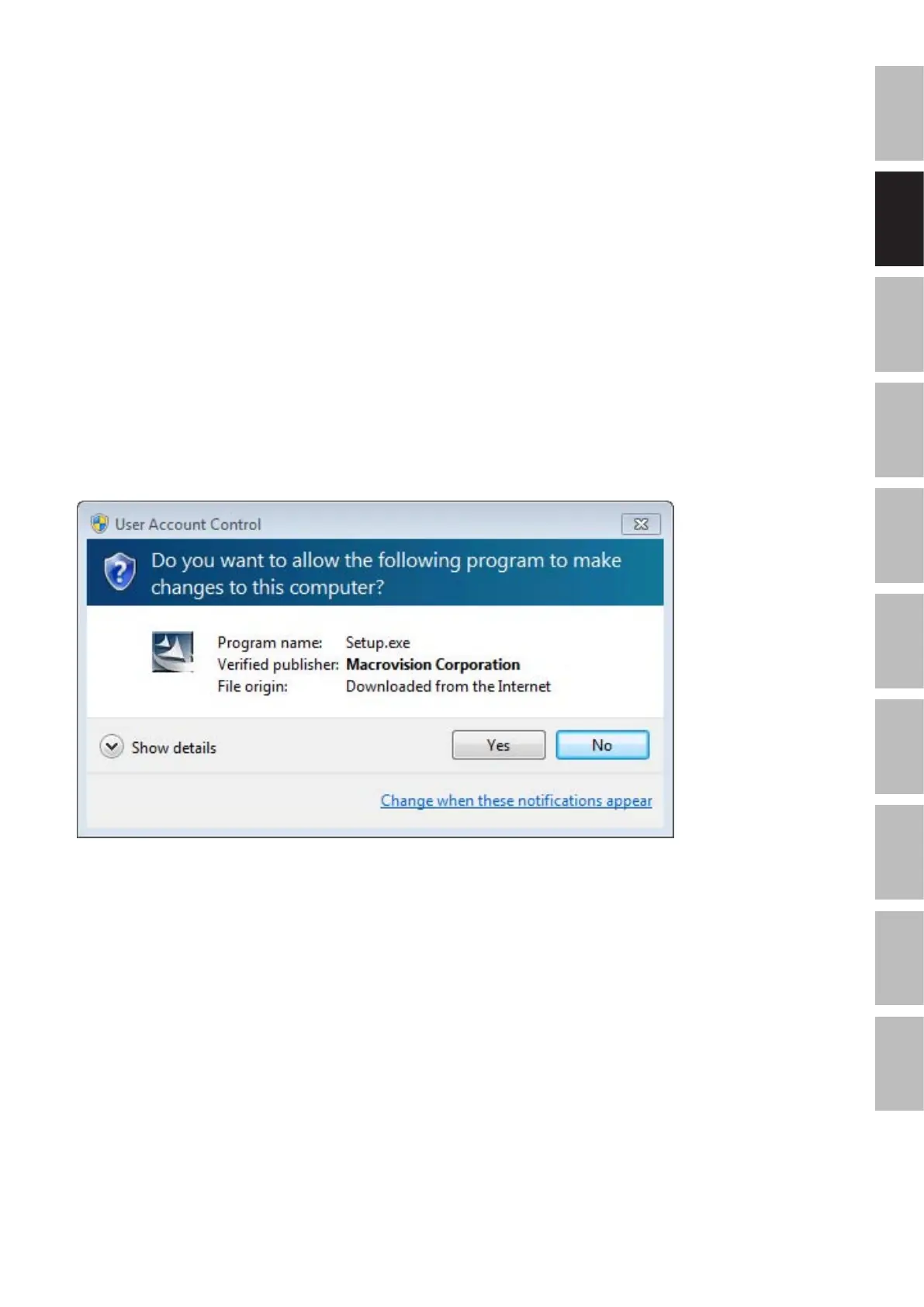
WhenyoustartthesetupusingWindowsVistaorWindows7,the“UserAccountControl”
willappear:
Pleaseconrmthisrequestbypressing“Continue”.Ifyouchoose“Cancel”theSetupwillbe
abortedandtheinstallationofthedriverandsoftwarewillnotcontinue.
Firstthelanguagemenuappears.Chooseyourlanguage(e.g.English)andclick“OK”toproceed.
Figure4:Windows7“UserAccountControl”


 To Next Page