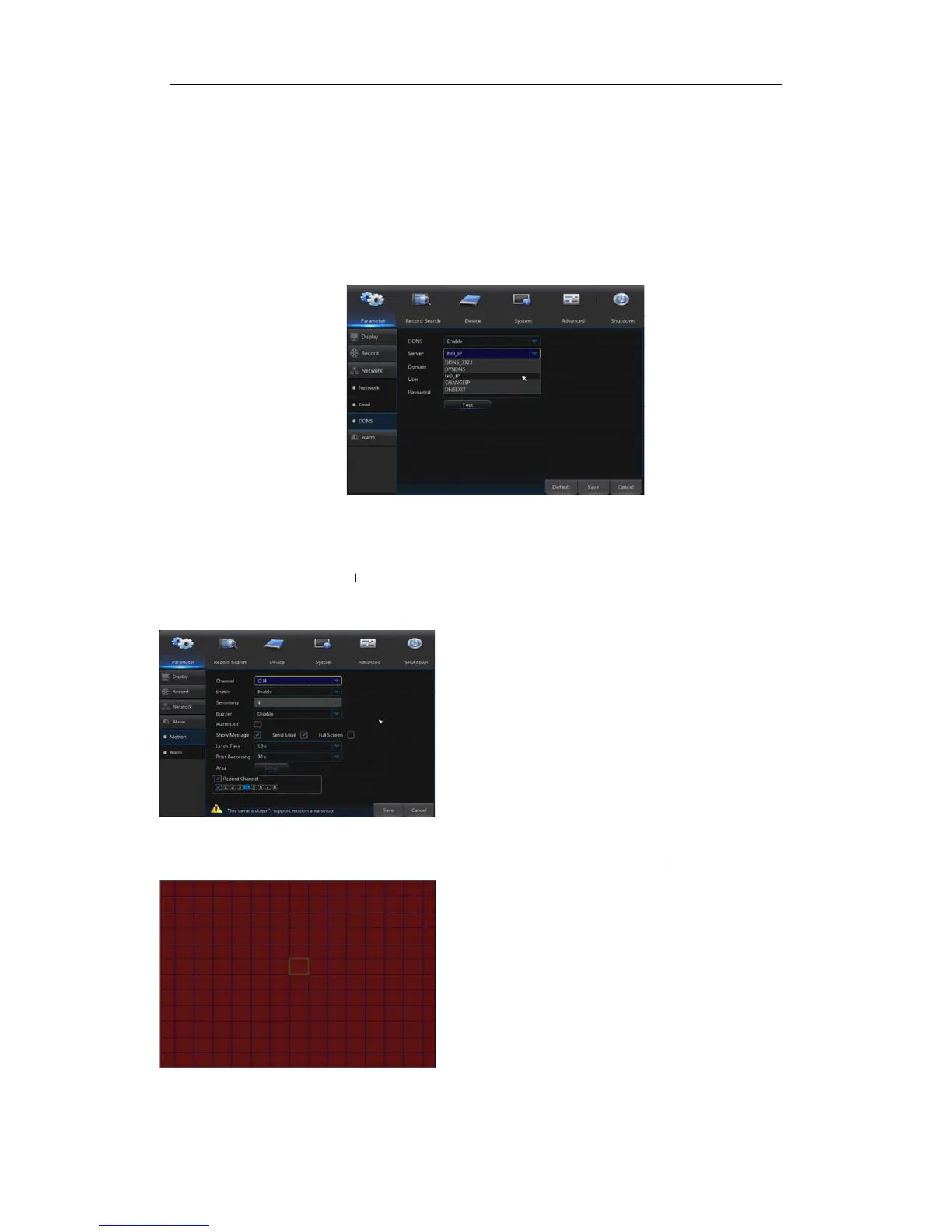
4.2.1.3.3DDNS
Go to“Main Menu”→“
NS in any one of the above network connection after applying dynamic
domain service. User may remotely access NVR through domain by using browser in the
domain: mapped Web port number. When using DDNS dom
name to access NVR, user shall confirm that the port can be normally connected to
current IP on the public netw
name/user/password/setting
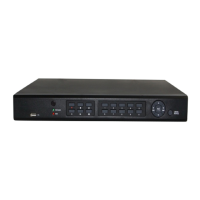
Go to “Main Menu”→“Parameter ”→ “Alarm” → “Motion” to enter into the interface shown
as picture 4-16-1.
Picture 4-16-1
4.
2.1.1 Motion
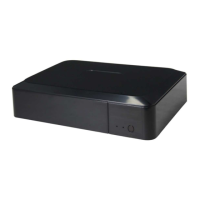
Picture 4-16-2
”→“Network”→“DDNS”to enter into the
NS in any one of the above network connection after applying dynamic
domain service. User may remotely access NVR through domain by using browser in the
domain: mapped Web port number. When using DDNS dom
name to access NVR, user shall confirm that the port can be normally connected to
current IP on the public netw
ork and the settings for server
name/user/password/setting
should be consistent with NVR local setting
Go to “Main Menu”→“Parameter ”→ “Alarm” → “Motion” to enter into the interface shown
Enable or disable Motion function.
8 level, 8 is the highest level.
When detecting object moving, buzzer
makes alarms (disable, 10 seconds, 20 seconds, 40
Connect to the alarm switch of the alarm
apparatus.
Show Message:
Messages will be displayed on the
screen when moving object is detected and alarms
When moving object is detected, send
Email to the specified Email
When moving object is detected,
messages will be displayed in full screen.
When moving object is detected, the
alarm time can be set as 10 seconds, 20 seconds,
40 seconds and 60 seconds.
duration time of the alarm recording can be set as
30 seconds, 1 minute, 2 minutes and 5 minutes.
NS in any one of the above network connection after applying dynamic
domain service. User may remotely access NVR through domain by using browser in the
domain: mapped Web port number. When using DDNS dom
name to access NVR, user shall confirm that the port can be normally connected to
ork and the settings for server
should be consistent with NVR local setting
Go to “Main Menu”→“Parameter ”→ “Alarm” → “Motion” to enter into the interface shown
Enable or disable Motion function.
8 level, 8 is the highest level.
When detecting object moving, buzzer
makes alarms (disable, 10 seconds, 20 seconds, 40
Connect to the alarm switch of the alarm
Messages will be displayed on the
screen when moving object is detected and alarms
When moving object is detected, send
Email to the specified Email
When moving object is detected,
messages will be displayed in full screen.
When moving object is detected, the
alarm time can be set as 10 seconds, 20 seconds,
40 seconds and 60 seconds.
duration time of the alarm recording can be set as
30 seconds, 1 minute, 2 minutes and 5 minutes.


 To Next Page