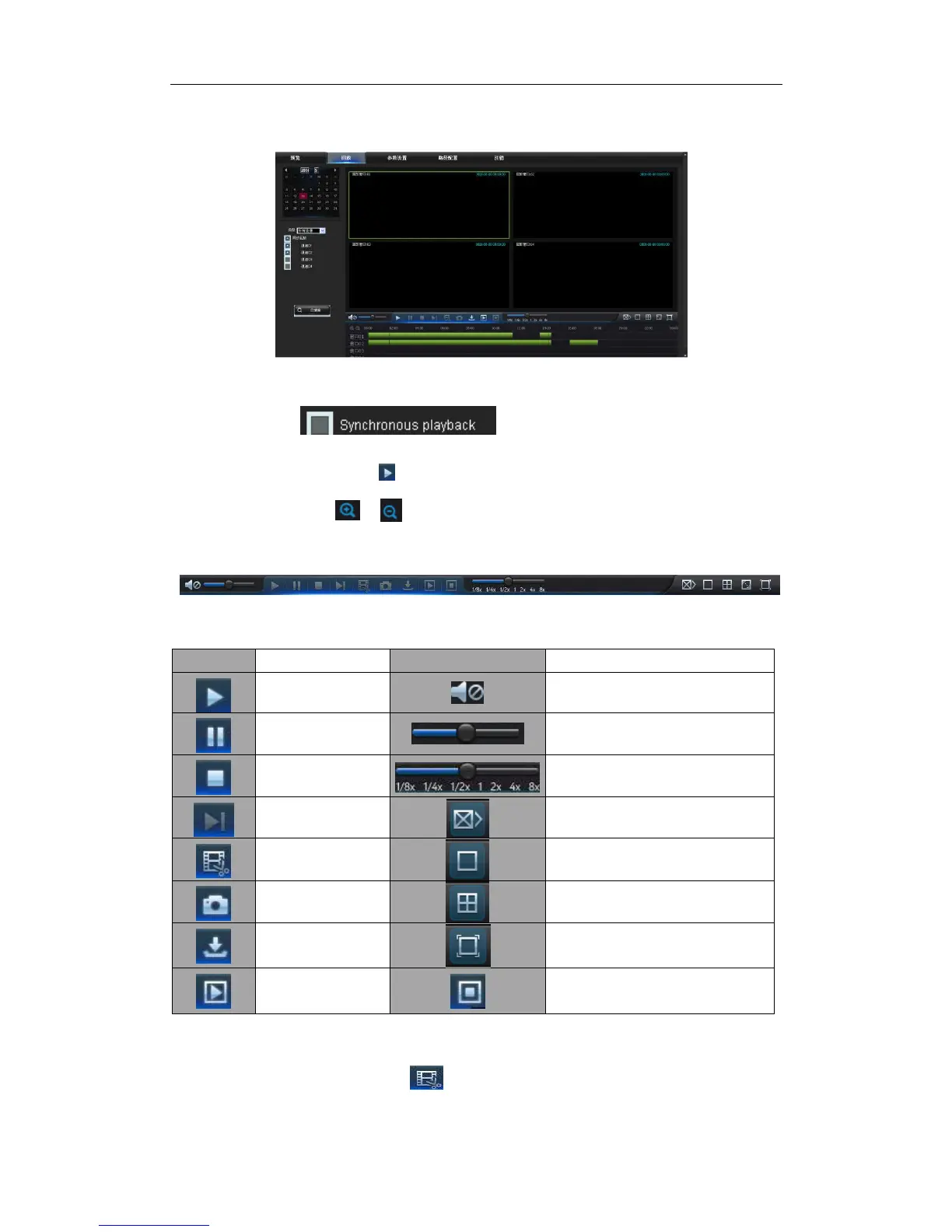
as shown in Picture 5-7. On the time axis, red part stands for alarm record, yellow stands
for normal record and original part stands for no record during this period.
Picture 5-8
Before playback, choose to enable playback 4 channels synchronously. If you
tick-select “ ” , that means the selected channel will
playback synchronously; otherwise, you could separately control the channels playback.
Thirdly, start playback
.
Click to start record playback. When mouse curse is moving
on the time axis, the time point of current position will be displayed on the time axis
screen. Click the icon or to zoom in/out the time bar display ratio, as shown in
Picture 5-8.
5.3.2.2Playback Control
Playback control bar, as shown in picture 5-9.
Picture 5-9
Detailed brief description is shown as below list
Key
Description
Key
Description
Record file clip
After opening playback, click icon to clip the selected file; and click again to
stop the clip function. Then playback clip is successfully done. Record clip file will be
Table 5-1


 To Next Page