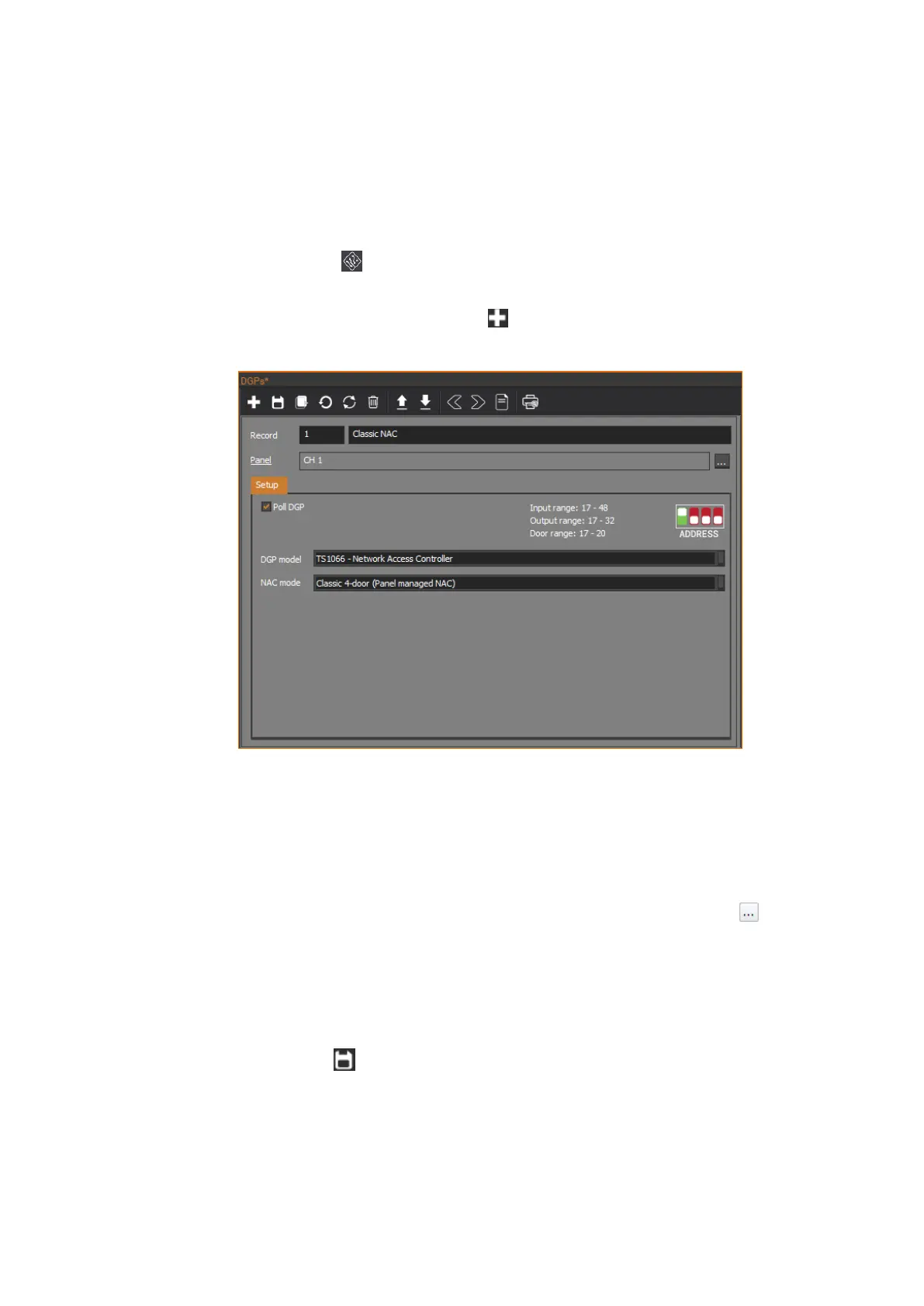
Connecting NAC in Classic mode
Connect the NAC to the ChallengerPlus panel’s LAN 1 or LAN 2, as required.
Add the NAC as a new DGP to an existing ChallengerPlus panel. Using CTPlus,
follow these steps:
1. Connect CTPlus to the ChallengerPlus panel. See the CTPlus Operators
Manual or CTPlus online help for more information.
2. Click the DGPs button on the Panel programming ribbon tab to open
the DGPs form.
3. On the DGPs form, click the New button in the toolbar to add a new
DGP record.
4. Enter the number the NAC will be polled as in the Record number field (1
to 12 if the NAC is connected to the ChallengerPlus system LAN 1, or 17
to 28 if the NAC is connected to LAN 2).
5. Enter a description for the NAC in the Record description field.
6. Ensure the Panel field is set to the ChallengerPlus panel that the NAC is
connected to via its system LAN. If necessary, click the Browse button
next to the Panel field to select the ChallengerPlus panel.
7. On the Setup tab, tick the Poll DGP check box.
8. Set the DGP model to be TS1066 – Network Access Controller.
9. Set the NAC mode to be Classic 4-door.
10. Click the Save button in the toolbar to save the DGP record.
The NAC is now connected to the ChallengerPlus panel.
New tabs will appear on the DGPs form to allow the operator to program the
NAC.
CTPlus automatically creates four doors for the NAC.



 To Next Page