EasyManua.ls Logo

Telstra Frontier - Monitoring Phone Status and Notifications; Understanding Status Bar Icons

Telstra Frontier
145 pages
Print Icon
To Next Page IconTo Next Page
To Previous Page IconTo Previous Page
Loading...
22
Monitoring the Phone Status
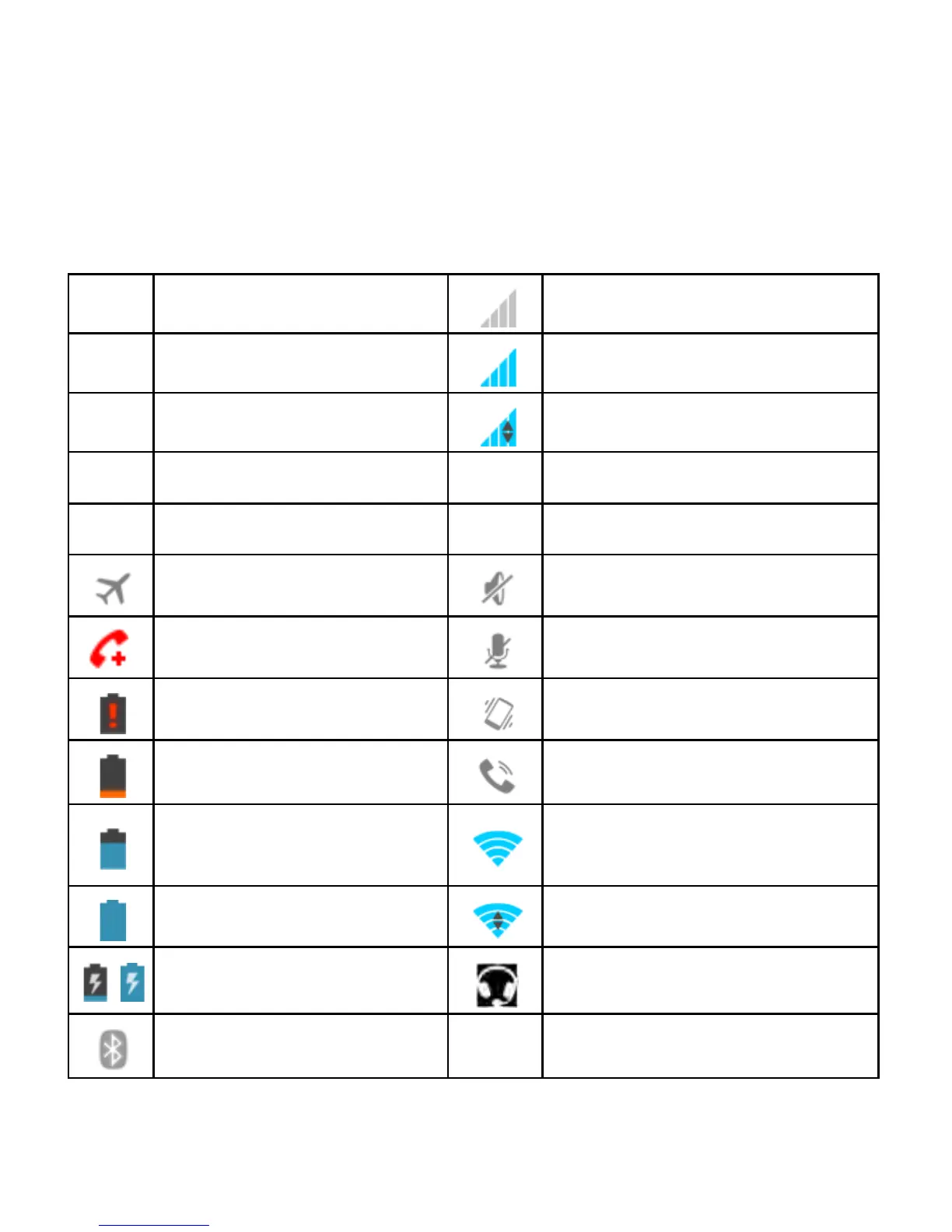
The status bar at the top of the home screen provides phone and
service status information on the right side. You can monitor the
phone status by checking the following status icons.
G
GPRS network
Signal strength (no data)
E
EDGE network
Signal strength (data ready)
3G 3G network
Mobile data in use
4G
4G LTE network
G E
Green indicates data ready
H HSDPA network
3G H 4G
Green indicates data ready
Flight mode
Ringer off
Emergency calls only
Muted (microphone off)
Battery flat
Vibrate mode
Battery low
Speaker on
Battery partially drained
Connected to a Wi-Fi
network
Battery full
Wi-Fi data in use
/
Battery charging
Wired headset connected
Bluetooth on

Table of Contents

Related product manuals