70
Replying to or Forwarding a Message
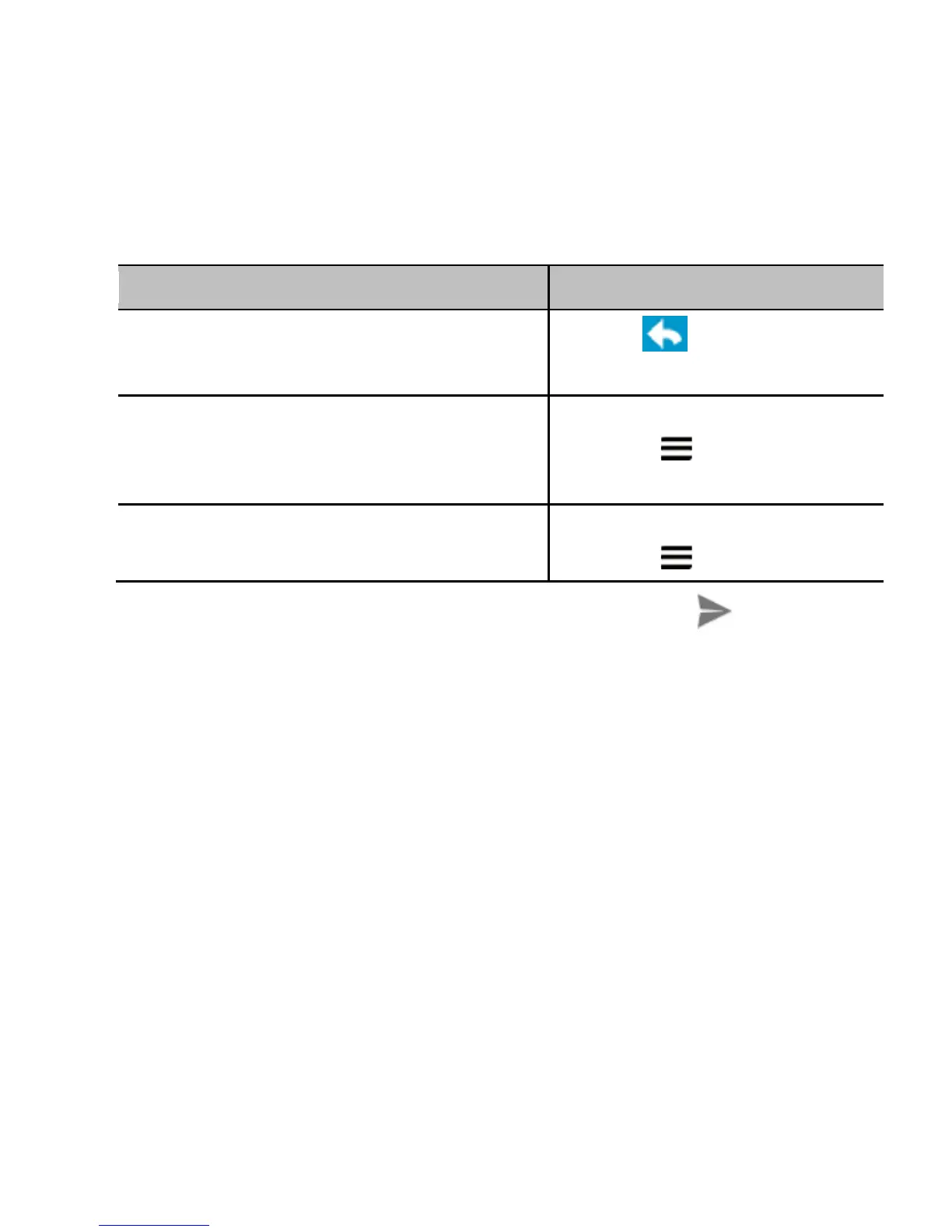
1. Open the Gmail message you want to reply to or forward to
another person.
2. Do the following as you need:
.
3. Enter your message and touch the send icon .
Working With Received Attachments
When a message has an attachment, Gmail displays information
about that attachment at the top of the message.
Depending on the attachment type, the applications installed on
your device as well as your settings, you may preview, view, play,
save the attachment, or check information about the attachment.
TIP: For documents with multiple pages, touching the Preview
option will only download the pages you view, whereas touching
View, Play, or Save will download the entire file and taking more
time and data.


 To Next Page