26
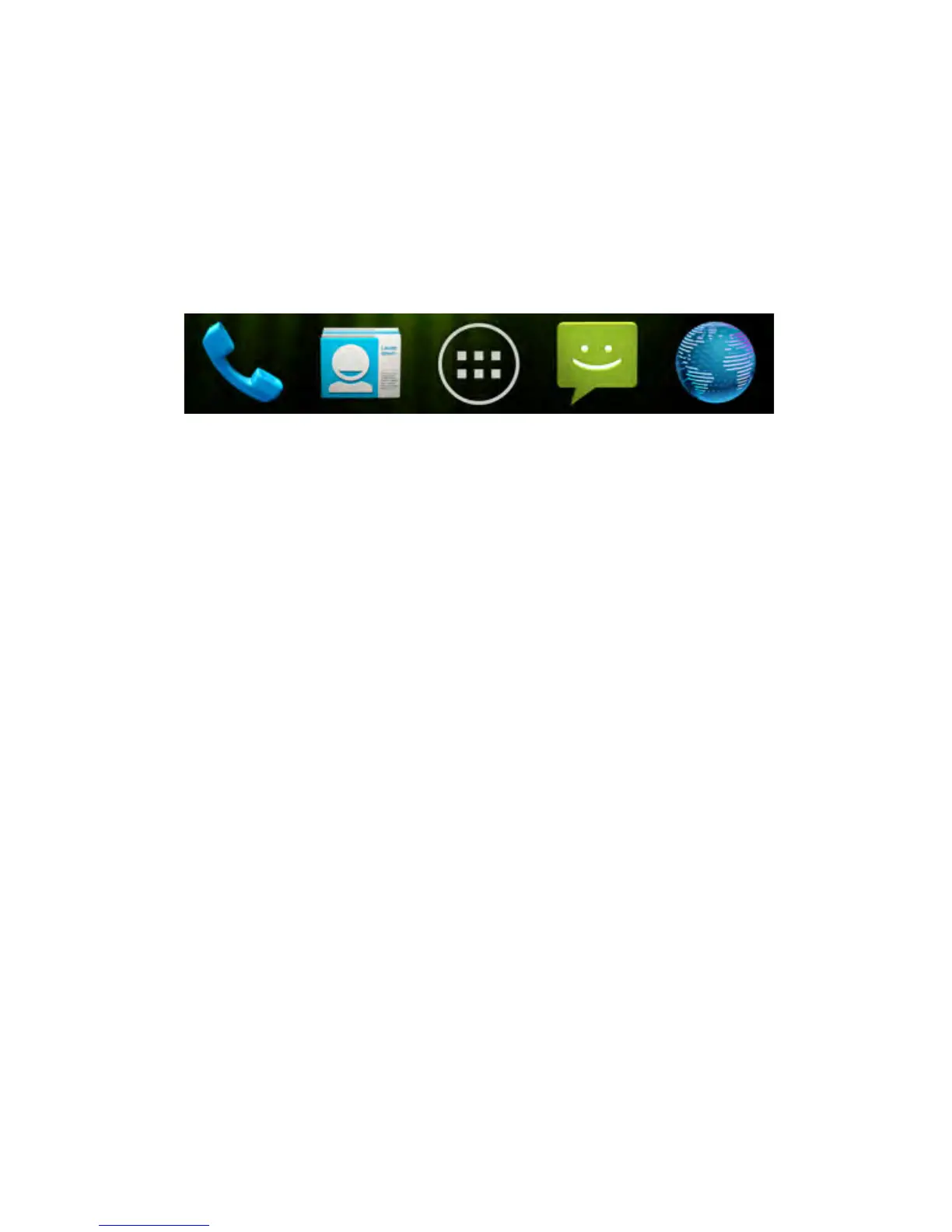
Rearranging the Favourites Tray
The Home Screen includes a customisable favourites tray
visible from all extended Home Screens. You can drag apps,
shortcuts, folders, and other priority items in or out of the
favourites tray for instant access from any Home Screen.
To remove items from the favourites tray:
Touch and hold an item in the favourites tray and drag it out
of the tray.
To add items to the favourites tray:
Touch and hold an item and drag it onto the favourites tray.
If the favourites tray is full, you need to remove an item in the
tray.
Entering Text
The onscreen keyboard will pop up whenever you need to enter
text. Just tap in any text entry box to open the keyboard. Some
apps open it automatically. Touch the Back Key to hide the
onscreen keyboard if required.
Go to Settings > Language & input > Default to change the
default keyboard if required.


 To Next Page