24
Using your Optik TV PVR
Your Optik
TV
HD PVR puts you in total control of your
TV
viewing. You can record, pause and replay
your favourite shows at the touch of a button. Now you can watch what you want, when
you want.
PVR Anywhere
With PVR Anywhere, one PVR is all you need to get full PVR functionality on any digital box in your
home. You can pause a recorded show you have been watching in your living room and pick up
where you left off in the kitchen or den. You can also schedule and access recordings from any room
in your home, and even watch the same recording from different rooms at the same time and control
them separately. Plus pause, rewind and fast-forward live TV from any TV with a digital box.
With Optik TV one PVR is all you need for your whole home. To have full PVR functionality on other
TVs in your home all you need is a digital box.
Resuming a recorded program on a different TV
1 Press on the recorded show you are watching.
2 Go to another TV and turn on the digital box.
3 Press .
4 Use to select the same show and press .
5 Select Resume play and press to start viewing the recording from where you left off.
Controlling live TV
When you’re watching a show, your PVR will save it for up to 90 minutes, so you can pause, rewind
and fast-forward whenever you like on the
TV
connected to your PVR. Once you’ve paused live
TV
,
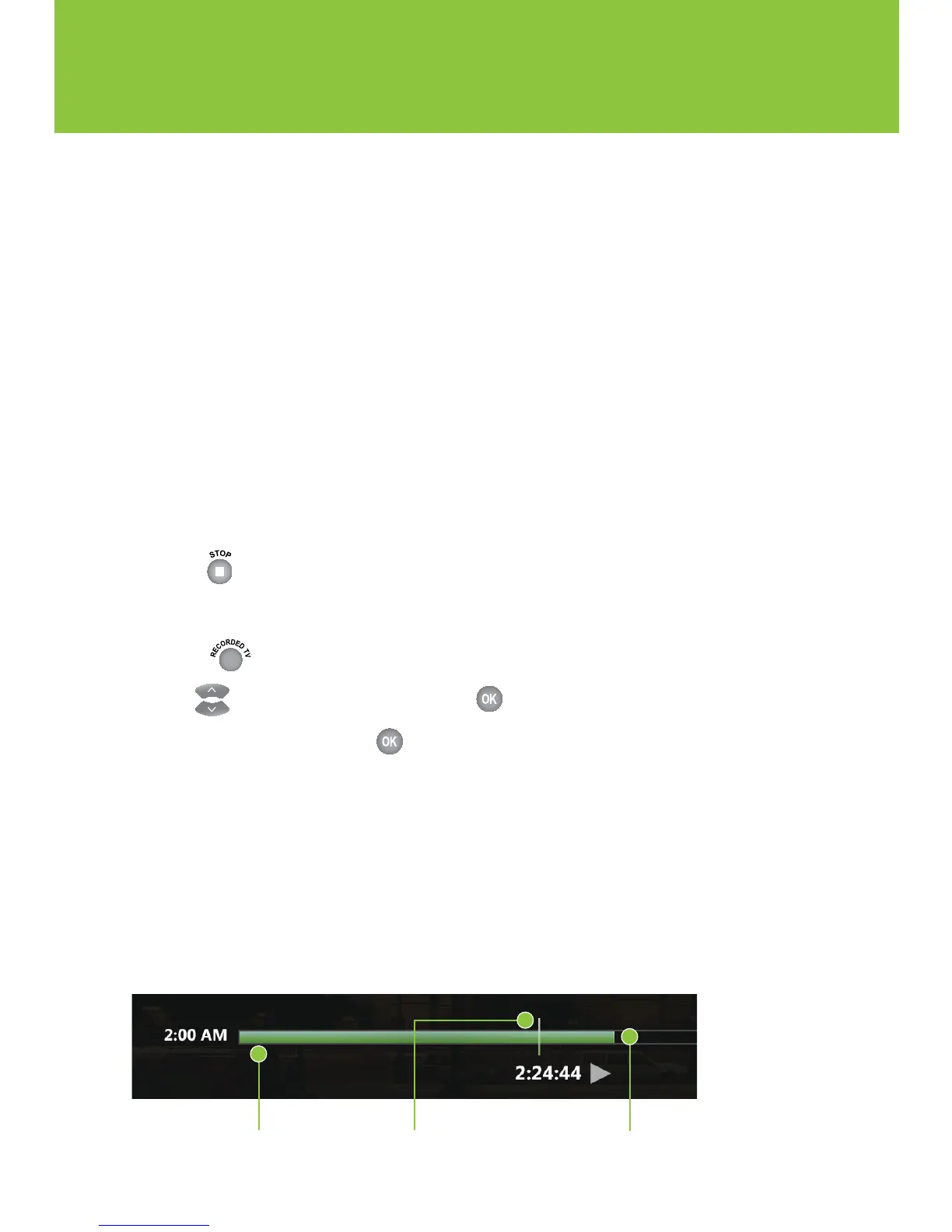
a status bar will show you where you are in the program and how much has been temporarily saved.
If you pause for longer than 90 minutes, the program will automatically start playing from the point
where you paused it. All temporarily saved live
TV
will be deleted once you change the channel or
turn your
TV
off. Remember, if you’d like to save a show, be sure to record it.
The bright green cursor
indicates where you
are within the saved
program.
The shaded green
segment indicates
saved program.
When the cursor is at
the far right of the green
shaded segment, you
are at the current time in
the program.


 To Next Page