Page 31/62
Rev. A
2017-12-04
SCANTER 1002 Radar System
User’s Manual
1255194-HO
5.3.5 RST menu navigation and search
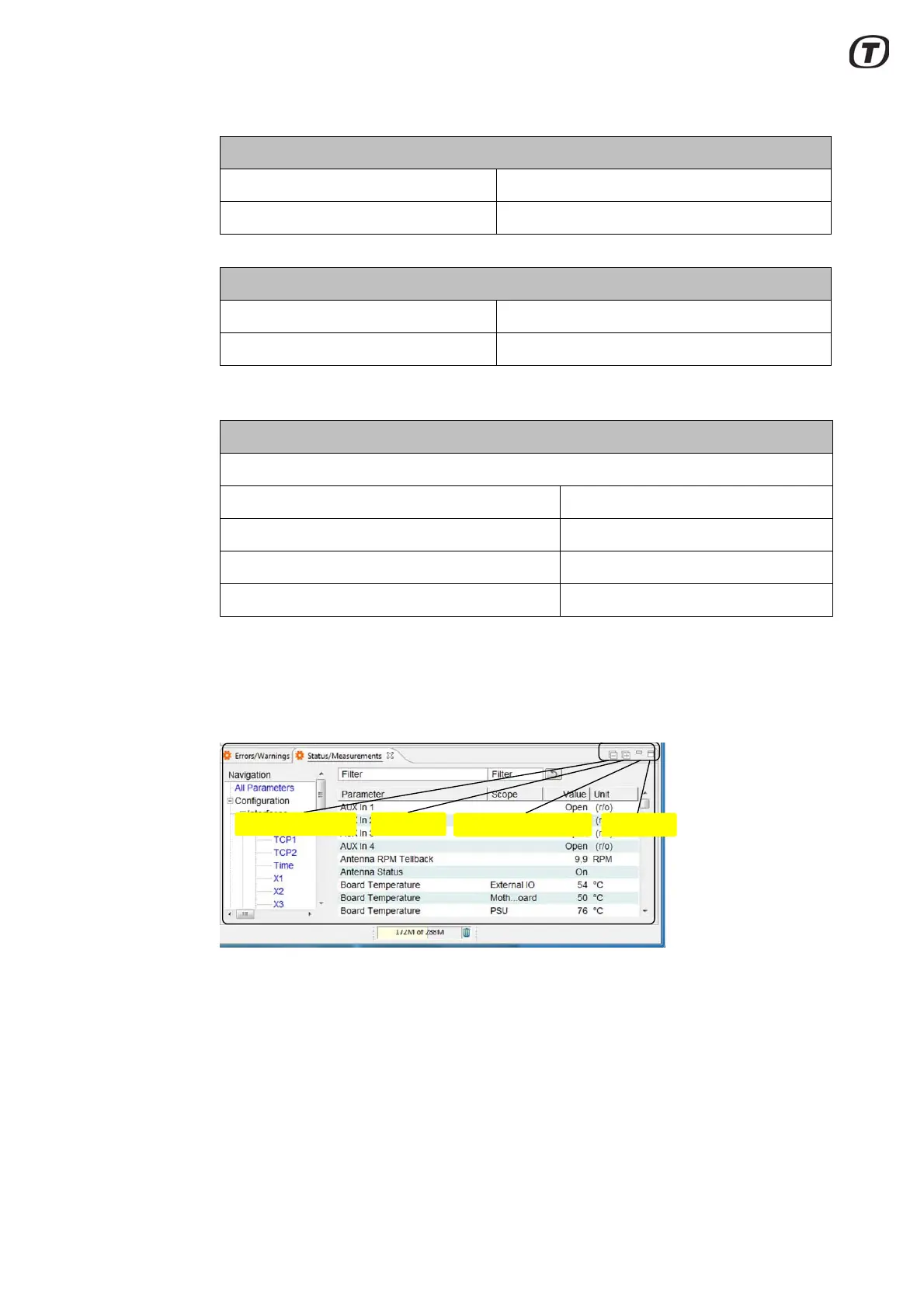
Use the four buttons at the top to the right of the view to collapse the navigation tree
(All parameters) or to expand the tree. See Fig. 5.3 (p. 31). The view can be mini-
mized into a sidebar or maximized.
Fig. 5.3 RST, View control buttons
To search for a parameter, enter the parameter name in the “Parameter filter” or in
the “Scope filter” field. See Fig. 5.4 (p. 32). The shown search is sector 11. To
change a parameter value, simply click and enter the new value in the relevant
field. The “All parameters” in the navigation tree must be selected to enable the
search in the entire navigation tree.
In case a parameter cannot be found, pay attention to the log-on access level.
A-Scope view
Zoom Scroll wheel
Pan/Adjust VRM circle Left-drag
VRM-Scope view
Zoom Scroll wheel
Pan/Adjust EBL angle Left-drag
Area Masking view
Press buttons “Delete Mask” or “Create Mask” to start creating a polygon
Add polygon vertices Left-click
Finish creating polygon Right-click
Delete last vertex while creating a polygon Ctrl - left-click
Abort current polygon creation Esc
Collapse navigation tree Expand all
Minimize View into sidebar Maximize View



 To Next Page